
A Dell laptop with no sound may be playing through a monitor or headset instead of its speakers. Select the built-in speakers first, then use Dell's sound test and the audio driver for your exact laptop if they stay silent.
Compare the built-in speakers with another audio device. Bluetooth headphones use a different connection, so hearing sound through them doesn't tell you whether the speakers work. Note which output works as you go.
1. Bring playback back to the laptop
Unplug wired headphones and disconnect your dock or external display temporarily. Turn off the Bluetooth headset you normally use. Start a familiar local video so the test doesn't depend on a streaming connection.
Open Settings > System > Sound. Under Output, choose the laptop speakers. Their name may include Realtek or Cirrus, depending on your model. Unmute them and raise the volume gradually.
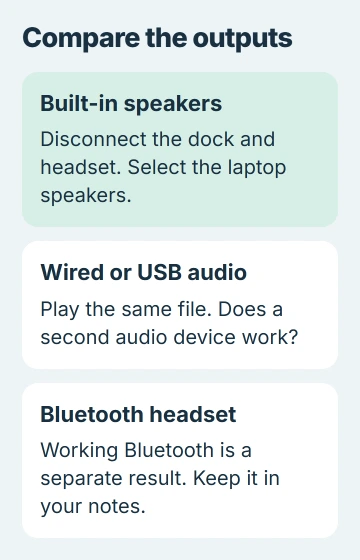
If sound returns, reconnect each accessory separately. After each connection, see which output Windows has selected. Connecting a display can give Windows another place to send sound, even though you're sitting in front of the laptop.
Now try another app. If the second app works, open Sound > Volume mixer in Windows 11 and check the silent app's volume and output. On Windows 10, right-click the taskbar speaker and open Volume mixer.
When every app is quiet, continue with a restart. If only plugged-in earphones fail, the headphone jack checks cover that connection and its detection software.
2. Restart, then compare a second audio device
Save your work and choose Start > Power > Restart. Use Restart even if you shut the lid or turned the laptop off earlier. After signing in, play the same file through the built-in speakers again.
Next, plug in headphones you know work if your laptop has a matching jack, or use a USB headset. Select that output in Sound settings and listen to the same passage at a sensible volume.
If headphones work but the speakers don't, the problem is with the speaker output, its settings or its hardware. If both stay silent, check the driver and run diagnostics next. Don't order replacement speakers based on that result alone.
I'd compare these outputs before touching the installed drivers. It gives you a usable audio connection for calls and tells support much more than saying that Windows has no sound.
3. Run the Dell audio check and keep the result
Dell says its audio troubleshooting tools include a SupportAssist sound test. Open that test from its support page and follow the prompts for your computer.
Listen when the test asks whether sound played. Save the result and any error message. A pass means the test didn't detect a hardware fault. If your speakers keep going silent, they still need attention.
If Windows can't start, restart the laptop and tap F12 repeatedly as it starts. Choose Diagnostics from the one-time boot menu and follow the available tests. The screens and audio checks differ between Dell models.
Write down any error code, validation code and Service Tag before leaving diagnostics. Support uses these to identify the failed check and your laptop. A working Bluetooth headset doesn't rule out the speaker fault the test reported.
Contact Dell support if the test reports a hardware problem. If it finishes without a fault, try the matching audio package next before spending money on parts.
4. Get the audio driver made for your Dell
Open Dell Drivers & Downloads. Identify the laptop using its Service Tag or choose the exact product manually. Check that the listed Windows version matches the one you're running.
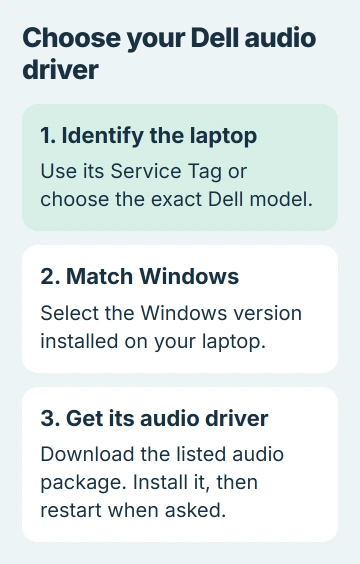
Download the audio driver listed for your laptop. A Realtek download for a different Inspiron, Latitude or XPS may be the wrong one. Even models with similar names can use different audio hardware and software.
Run the installer, follow its prompts, and restart when requested. Test the built-in speakers before reconnecting your dock. If the installer removes an older package first, finish the full installation sequence it provides.
You can also use SupportAssist. Open it from Start, select Update software on its Home tab, and check for updates. Review the drivers it offers for your laptop and follow the installation prompts.
For audio that stopped immediately after a driver change, open Device Manager > Sound, video and game controllers. Open the audio device's Properties > Driver and use Roll Back Driver if the button is available.
That restores the driver you had before. If the button is dimmed, Windows has no previous driver to restore there. Use the correct Dell package next; repeating the same Device Manager search won't offer a different driver.
5. Check Waves software when the driver installs but stays quiet
Some Dell models use Waves MaxxAudio alongside the Realtek driver. Security software can block its service even though the driver appears installed. Check this only when Waves belongs to your model's package.
Open your security app's protection or quarantine history. Look for a block involving Waves Audio Service, WaveSvc64.exe or WavesSysSvc64.exe from around the time the sound stopped.
Before allowing a blocked item, use the security app's help or Dell support to confirm it belongs to the official package. Keep your antivirus running while you check its history.
After fixing a confirmed block, restart and test playback. If Waves isn't installed or blocked, move on. Your laptop may use a different audio package, so a missing Waves entry doesn't mean something is broken.
6. Use the Windows repair route, then ask about service
Run the audio troubleshooter in Settings > System > Sound. Microsoft's sound repair guide gives the updated route through Get Help. Apply any repair it suggests, then test the sound again.
For devices that pass diagnostics but remain silent, the general Windows sound repairs cover enhancements, formats and audio services. Those settings are separate from Dell's model-specific driver package.
If the sound still doesn't work, give Dell your diagnostic result, Service Tag, Windows version and the outputs that worked. Ask whether your model needs an audio, chipset or firmware repair before agreeing to a Windows reset.
Resetting Windows changes far more than the audio package. Save a current file backup before following a support-directed reset. Discuss a failed diagnostic with the repair team before agreeing to erase the computer.
The Short Version
Select the laptop speakers, compare another output and save the diagnostic result. Use the audio package matching your Service Tag. Resolve a confirmed Waves block if applicable, then discuss further repair with support.
Checked November 5, 2026.

Isaac Smith is the founder and editor of PC Glance, a website that covers computers, laptops, and technology. He is a tech enthusiast and a computer geek who loves to share his insights and help his readers make smart choices when buying tech gadgets or laptops. He is always curious and updated about the latest tech trends.