

An Apple TV purchase can ask you to authorize your MacBook before it plays. In the Mac's TV or Music app, open Account, choose Authorize This Computer, enter the purchasing account's details and confirm Authorize.
Authorizing the Mac is separate from signing in or adding it to your device list. If a movie is missing, check Library and the account that bought it instead of authorizing the computer again.
Start with the purchasing account in TV
Open the TV app on the MacBook. Choose Account > Sign In if you're signed out, then use the Apple Account that bought the movie or TV show. The account you normally use for other services may be different.
Check which account is shown before continuing. If you bought the movie using an older address, look under that account. Creating a new account won't move your movie into its library.
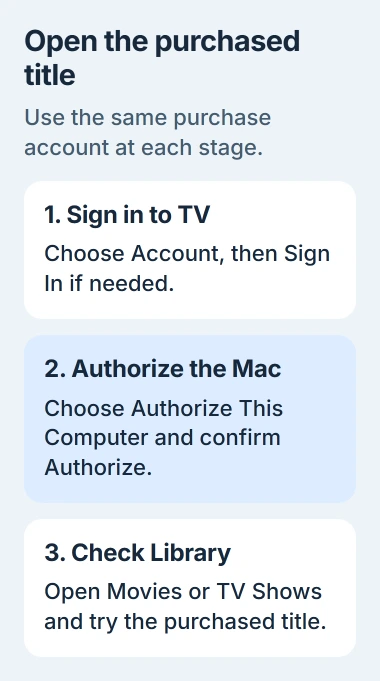
The TV app sign-in instructions show both the Account menu and an account control at the bottom left. Look for Account in your Mac's menu bar, outside the movie's playback controls.
If you can't remember which address you used, check your receipt or account details. The Apple Account address guide explains how to change the address on the account you already use for purchases.
Authorize this MacBook in the app
Choose Account > Authorize This Computer. If your app shows an Authorizations submenu, open that submenu to reach Authorize This Computer. Enter the purchasing account's details when prompted, then select Authorize.
Apple says you can authorize this computer in Music too. Authorizing it in either app also lets it play that account's purchases in the other media apps.
Wait for the result before trying the movie again. If a message mentions a limit or another account problem, note its exact wording. Use that message to choose your next step rather than repeatedly choosing Authorize.
You'll need to do this on the MacBook you want to authorize. An iPhone or a different Mac can't authorize it for you, so have that MacBook with you when you follow the steps.
I'd check the account and try one purchased item before changing anything else. Either the Mac plays it, or you'll have an account or authorization message that tells you what still needs attention.
Open the purchase from Library and check playback
In the TV app's sidebar, open the category you need under Library, such as Movies or TV Shows. Find your purchased title and play it there. A store page with a similar title can take you to a different edition.
The Mac TV library controls organize purchases, rentals and imported home videos into categories. Check which kind of item you're opening, since they all appear in the same app.
If a category is missing, move the pointer beside the Library heading until Edit appears. Select the category you need, then choose Done. This shows it in the sidebar; you aren't buying or authorizing anything again.
If Download is available for your purchased title, choose it to save the movie on your MacBook for offline playback. Check its progress in Window > Activity and let it finish before trying to watch without an internet connection.
If a family member bought the item, open Family Sharing under Library and select that person. The missing family purchases guide covers sharing eligibility and account checks when their collection doesn't appear.
Read an authorization-limit message before removing devices
You can authorize five computers for purchases. iPhones and iPads don't count toward those five, so removing a phone from a device list won't make room for another computer.
Open Account > Account Settings in TV or Music and check how many computers are authorized. Look for Authorized Devices, the current support label; some account screens or guides call it Computer Authorizations.
If the limit is the obstacle, use the Mac authorization-count and cleanup instructions. That guide covers removing old computer authorizations and the once-a-year limit on Deauthorize All.
Remove old authorizations when you've reached the computer limit. This changes which computers can play your purchases, so plan which Macs or PCs you'll authorize afterward.
Keep associated devices separate from authorizations
In the same account settings, Manage Devices lists devices associated with purchases. This is separate from both your five authorized computers and the general list of devices signed into your Apple Account.
The purchase-device association rules allow ten associated devices, including up to five computers. If a device was associated with another account, it can show a waiting period of up to 90 days.
If the message names another account and a number of days, deal with that waiting period. Authorizing the computer again won't remove it. Give support the exact message before changing more account settings.
The TV account settings guide separates purchase history, hidden purchases and device management. Choose the part that fits your problem: a missing purchase, a hidden item and a full device list need different checks.
Get help with the remaining message
If the Mac is authorized but one title still won't play, note whether it appears in Library, whether it downloads and how it responds when you start playback. Give Apple Support your Mac model, macOS version and the exact error too.
On a shared Mac, choose Account > Sign Out when you're done so someone else can't buy things through your account. Signing out is separate from removing the computer's authorization before you sell or give it away.
The Short Version
Use the purchase account in the Mac's TV app, authorize the Mac from Account, then test the title in Library. At the five-computer limit, remove old authorizations. A message about waiting days is a separate account issue.
Checked November 5, 2026.

Isaac Smith is the founder and editor of PC Glance, a website that covers computers, laptops, and technology. He is a tech enthusiast and a computer geek who loves to share his insights and help his readers make smart choices when buying tech gadgets or laptops. He is always curious and updated about the latest tech trends.