

A mouse that keeps freezing while the keyboard still works may struggle to read the surface, lose power or lose its wireless signal. Try a plain mouse pad and check the sensor first, then reconnect the mouse directly to your PC.
Watch what freezes: just the pointer, one app or the whole screen. What still works tells you which checks to try next. This guide covers an external mouse in Windows 11 or Windows 10; a laptop's built-in touchpad has its own controls.
1. Give the sensor a clean, dependable surface
Move the mouse onto a clean, ordinary mouse pad and try slow circles. If the pointer stops only on parts of a glass, glossy or patterned desk, see whether the pad fixes that before changing Windows settings.
Turn the mouse off or unplug it, then inspect the sensor opening underneath. Remove loose dust or hair using the maker's cleaning method. Avoid scraping the lens or putting liquid into the opening.
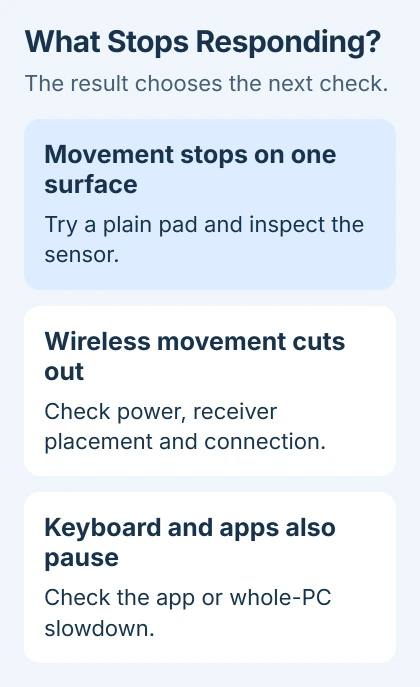
Logitech's tracking troubleshooting instructions cover a dirty lens, surface settings, battery and connection problems. A pointer that stops moving doesn't automatically mean your mouse has disconnected.
Try the same short movement after cleaning. If it now tracks normally, keep using that surface and check whether the problem returns. If it still stops, check its power and connection next.
Some gaming mice have surface calibration, a way to adjust tracking for your mouse pad, in their own app. Use that model's instructions if the feature exists. Another mouse's setting won't fix a sensor that can't read the surface.
2. Restore power and simplify the USB connection
Recharge your mouse, or replace its removable batteries with the specified type. Then check its power switch and selected computer channel. A multi-device mouse can be awake while listening to a different paired computer.
For a wired mouse, connect it to the PC itself. If yours uses a receiver, unplug that USB receiver, wait about 10 seconds, then reconnect it to a built-in USB port. Try another port if it still freezes.
Microsoft's mouse hardware checks recommend restarting the receiver and connecting without a USB hub. Try moving the pointer on the desktop before returning to a game or demanding app.
For this check, move only the mouse connection. Leave any external storage attached to the dock while a file transfer is running. Removing the whole dock changes more than the input connection.
If Windows plays unplug sounds as the pointer stops, follow the USB mouse disconnection checks. Check the USB connection before treating the pause as a sensor problem.
3. Bring a wireless receiver closer to the mouse
A receiver hidden behind a desktop's metal case can struggle to pick up the mouse's signal. Try a suitable front USB port so the receiver sits nearer your hand, keeping the mouse on the same pad.
Try moving nearby wireless equipment away from the receiver and see whether the mouse improves. The receiver connection guidance lists blocked signals, interference and low power as causes of lag.
If moving the receiver improves tracking, keep it there while checking what interferes at the original spot. Reinstalling the mouse utility won't help with a receiver blocked by a metal case.
For Bluetooth, check Settings > Bluetooth & devices in Windows 11 to see whether the mouse is connected. Windows 10 puts this under Settings > Devices > Bluetooth & other devices. A USB receiver uses a separate connection.
If only Bluetooth fails, keep a touchpad or spare wired mouse handy before removing the mouse and pairing it again. Follow your mouse's pairing instructions; the button and how long you hold it vary by model.
4. Separate an idle wake-up delay from repeated freezes
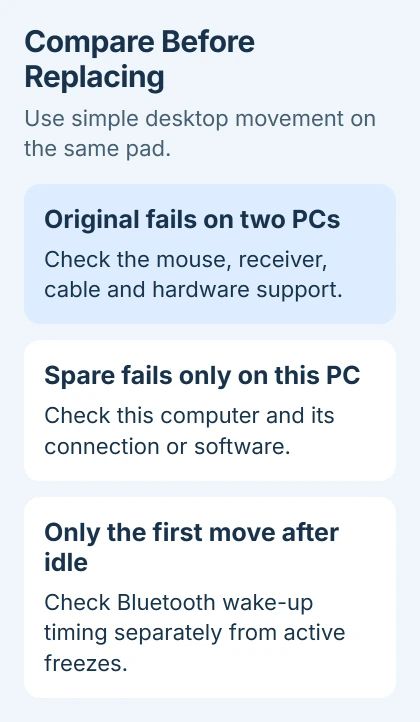
Check whether the pause happens only when you first move the mouse after leaving it untouched. That's different from a pointer that keeps stopping while you're moving the mouse across the desk.
Some Bluetooth mice sleep to save battery and take a few seconds to reconnect. The Microsoft accessory guidance describes this for its Bluetooth devices.
If movement is smooth after that first wake-up, tell support when the delay happens. If the pointer keeps stopping during use, try the app and hardware checks next; waking from sleep isn't the only problem.
If your gaming mouse lets you change how long it waits before sleeping, check its Power settings in the maker's current app. Keep the change specific to your mouse instead of disabling power management for every USB device on the PC.
5. Check whether Windows or one app also stalls
When the pointer stops, press Alt + Tab and try another open app. Use Tab and Enter to activate a familiar control. If the keyboard action responds normally, the PC is still accepting input.
If the mouse and keyboard both pause in one program, save and reopen that program. Check its updates and recent add-ons. If every app slows together, open Task Manager with Ctrl + Shift + Esc and watch processor, memory and disk activity.
Write down which app is busy and when the pause happens. Save and close your work before ending a task; forcing an app to quit can erase changes you haven't saved. Repeated clicks during a stall can also leave actions waiting to run.
If your external mouse freezes but the laptop touchpad still works smoothly, check the mouse connection or hardware. If both stop moving the pointer and the desktop also stalls, check what's slowing down the computer.
6. Compare another mouse, then update the affected device
Try a working spare mouse on this PC, then try your original mouse on another compatible computer. Use the correct receiver and any required driver. Use a similar surface and the same simple desktop movements for both tests.
If the original freezes on both computers while the spare works, give the accessory maker those results. If both mice freeze only on the first PC, focus on that PC's software, ports and wireless adapter.
I'd make that comparison before removing drivers. Once you know which device is affected, the mouse driver update guide covers Windows Update, Device Manager and supported model software.
If the maker's current app offers a firmware update for your exact model, check it there. Firmware is software built into the mouse.
If its sensor or cable looks damaged, or it also freezes on another PC, ask support about repair or replacement.
The Short Version
Check the pad and sensor, power and direct connection. Try better receiver placement and compare idle wake-up with active freezes. Test keyboard response and a spare mouse before choosing an update or hardware service.
Checked November 5, 2026.

Isaac Smith is the founder and editor of PC Glance, a website that covers computers, laptops, and technology. He is a tech enthusiast and a computer geek who loves to share his insights and help his readers make smart choices when buying tech gadgets or laptops. He is always curious and updated about the latest tech trends.