
A coaxial-only CRT TV can't display a PC's HDMI output through a simple adapter cable. You'll need a powered video converter and an RF modulator, which turns the picture into a TV channel the set can tune.
Check those two stages before reinstalling graphics drivers. Windows detects the HDMI converter, while the TV tunes into an analog channel. Check each end of the connection separately.
1. Identify the TV input before changing Windows
Look at the socket labels on the back or side of the CRT. A threaded connector marked ANT, RF IN or VHF/UHF is its antenna input. A yellow VIDEO IN socket accepts composite video directly.
If the set has a usable composite input, connect the HDMI-to-composite converter there and select the TV's video input. You won't need the extra RF stage for that connection.
A CRT computer monitor with VGA or BNC inputs needs a different connection. A coaxial cable doesn't always carry a TV antenna signal. Check the input labels and model manual instead of choosing by plug shape alone.
These steps cover the PC connection and external boxes. Keep the CRT's cabinet closed and leave internal repairs to a technician trained to work on these displays.
For a newer set with an HDMI input, use the direct laptop-to-TV setup. That avoids converting the picture twice and uses a different input-selection procedure.
2. Check that each converter works in the right direction
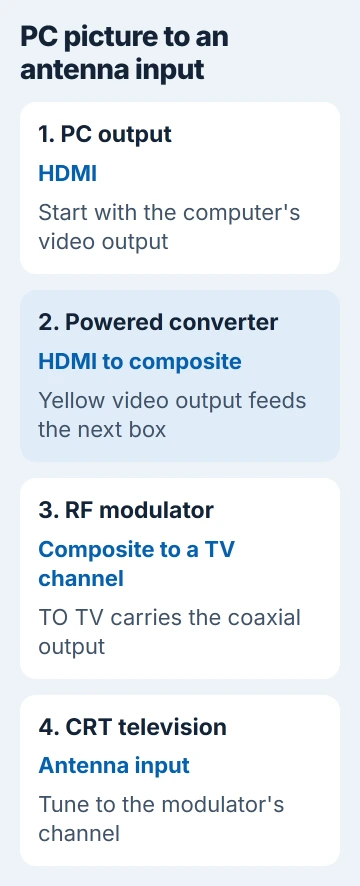
For an HDMI PC and a coaxial-only TV, connect PC HDMI output, HDMI-to-composite converter, RF modulator, then TV antenna input, in that order. Some boxes combine these jobs, but a cable alone can't do them.
The converter needs an HDMI input and a composite output. A box described as composite-to-HDMI does the reverse job. Swapping its cables won't turn it into the converter you need.
The HDMI-to-composite installation manual shows a powered converter, a yellow video output and separate analog audio outputs. Follow the manual for the box you actually have.
Connect its yellow output to the RF modulator's VIDEO IN. Connect audio outputs too if you want sound through the TV. Then connect the modulator's TO TV output to the TV's antenna socket with coaxial cable.
Don't confuse the modulator's ANT IN with its output to the TV. ANT IN is for an existing antenna or cable source passing through the unit. It isn't where the PC's converted picture goes.
Check each box's power supply. HDMI alone may not power your converter. A lit indicator shows that the box has power; check for a picture separately.
3. Match the TV channel to the RF modulator
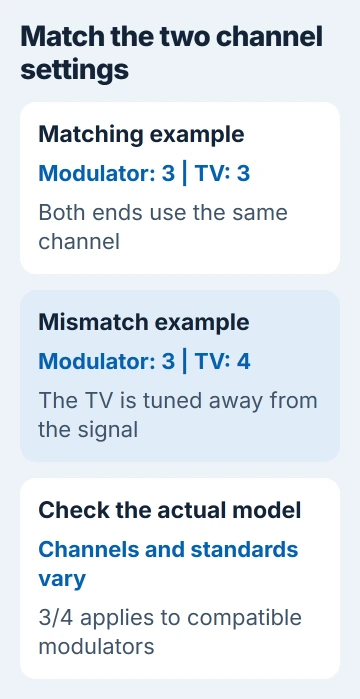
Turn on the equipment and read the modulator's channel setting. For a US-style model with a 3/4 switch, set the TV to the same analog channel. Channel 3 on the box needs channel 3 on the TV.
The CRF900 modulator manual gives that matching-channel procedure and identifies its video-signal indicator. If your model uses different channels or tuning controls, follow its own manual.
Use the TV's tuner for the coaxial connection. Choose AV for a direct composite connection instead. With the wrong input selected, the TV won't show the picture even when it reaches the socket.
Check the modulator's incoming-video indicator before changing PC settings. If it shows no signal, check the composite lead, converter and PC output. If it receives a signal, check the tuning and final cable.
The RF modulator and TV tuner need to use the same broadcast standard and channel number. A channel 3/4 switch only helps with TV systems that support those channels.
4. Give the HDMI converter a supported PC signal
Keep a normal monitor connected while setting up the PC, if possible. Press Windows + P and try Extend, then open Settings > System > Display. Select the converter's display before changing its resolution.
Microsoft's multiple-display instructions explain the projection choices and the Detect control under Multiple displays. Detect checks the PC's digital connection, not the channel tuned on the TV.
Choose a PC resolution and refresh rate listed in your converter's manual. For example, HD2VID accepts 640 x 480 at 60 Hz. That's a supported input for that converter; CRT setups don't all use the same setting.
Match the converter's NTSC/PAL output choice to the receiving equipment. For a picture that rolls, loses color or won't stabilize, check that standard before trying different PC refresh rates.
If Windows can't detect the powered converter at all, try its HDMI lead and the PC output with a working monitor. Use the second-display detection guide to check that end of the connection.
5. Test the conversion stages separately
I'd test each stage before buying another adapter. If you have a display with composite input, connect the converter's yellow output directly to it. Seeing your desktop there tells you the converter is sending a composite picture.
Next, try a known-working composite source through the RF modulator and the same TV channel. A DVD player with a yellow video output can provide that comparison. Use a video output; an input socket can't supply the test picture.
If the other composite source works but your PC doesn't, check the HDMI converter and which PC signals it accepts. If neither works through the modulator, check its output lead, channel and TV compatibility before blaming Windows.
Write down the model names and which tests showed a picture. A photo of the external socket labels can also help a support technician spot a converter facing the wrong way or a cable in the wrong socket.
6. Judge picture quality after the desktop appears
Small text can be hard to read after the picture is converted to standard definition. Once it appears, enlarge text or choose content that stays readable. Even with a picture, spreadsheets and small menus can be hard to use.
If the edges are cropped, check the converter's overscan or underscan control where offered. This changes how much of the image fits. It won't recover missing signal conversion or repair a mistuned channel.
If it still fails, tell the converter maker your PC's resolution and refresh rate, both converter models, TV model and which tests showed a picture. If a known-good RF source also fails on that TV, have a qualified repair shop check it.
The Short Version
Check the input type, conversion direction, power and matching RF channel. Then verify a PC mode supported by the HDMI converter and compare the analog stages separately. A passive cable cannot replace powered conversion.
Checked November 5, 2026.

Isaac Smith is the founder and editor of PC Glance, a website that covers computers, laptops, and technology. He is a tech enthusiast and a computer geek who loves to share his insights and help his readers make smart choices when buying tech gadgets or laptops. He is always curious and updated about the latest tech trends.