

To check which app is using a network port on your Mac, run lsof in Terminal with that port number. For a local development server on port 3000, use lsof -nP -iTCP:3000 -sTCP:LISTEN.
That shows which program is waiting for TCP connections on your Mac, called a listener. Whether another computer can reach it is a separate check. Start with the listener before changing the firewall or router.
Find the process listening on one TCP port
Open Terminal through Spotlight with Command + Space, type Terminal and open the app. Enter the following command, changing 3000 to the port named in your app's settings or error:
lsof -nP -iTCP:3000 -sTCP:LISTENPress Return. A matching row shows which program is listening on that port. Its socket is the network connection point the program opened. Look at the local address and port shown for it.
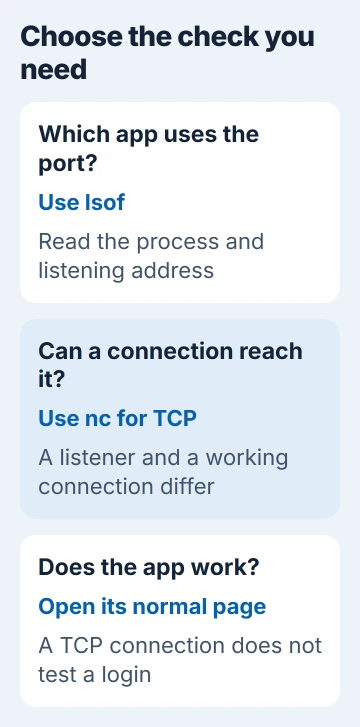
The -iTCP:3000 part selects TCP port 3000, and -sTCP:LISTEN shows only programs waiting for connections. -nP displays addresses and ports as numbers so they're easier to match with your settings.
The lsof project's manual explains these options. The command lists information; it doesn't stop the process or change which port the app uses.
These checks work from any folder. If you also need to run project commands, open Terminal at that project's folder. Those commands may need that folder; the port search doesn't.
Read the app name, process ID and listening address
Look at COMMAND, PID, TYPE and NAME in the output. COMMAND names the program, and PID is its process ID number. TYPE can show IPv4 or IPv6, and NAME gives you the address and port.
A listening address such as 127.0.0.1:3000 is local to the Mac. An app using that address can work in a browser on the same computer while remaining unavailable to your phone or another laptop.
An [::1]:3000 address is the IPv6 version of that local-only address. A star in *:3000 means the socket isn't limited to that local address. Check TYPE to see whether the row uses IPv4 or IPv6.
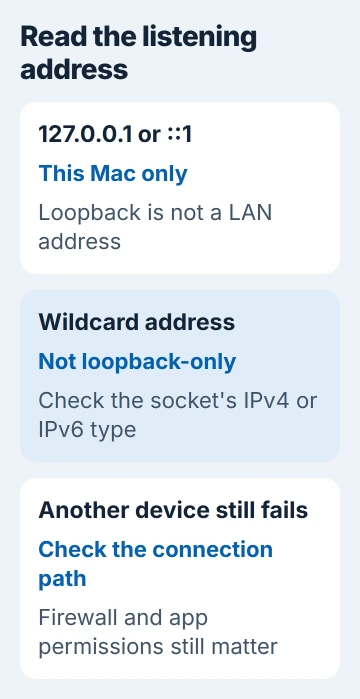
A listener can be open while a firewall, router or network rule blocks other devices. If a test works on your Mac but fails elsewhere, check those controls separately.
Several rows with the same PID can belong to one app that has opened several sockets. You don't need to close a separate program for every row. Compare both the PID and address when checking for a port conflict.
List all listeners when the port number is unknown
To see which TCP ports programs are listening on, without limiting the search to port 3000, run:
lsof -nP -iTCP -sTCP:LISTENLook for your app and read its port in NAME. A development tool may have chosen another port because the one you requested was taken. Compare it with the port in the app's startup message too.
If nothing matches, start the app or its server normally and check again. An installed application doesn't necessarily keep a network listener open all the time. Some only open one while a particular feature is running.
If your account can't see a program's details, an administrator can repeat the port search with extra access:
sudo lsof -nP -iTCP:3000 -sTCP:LISTENUse sudo only when you administer this Mac or have permission from its owner. A work Mac's IT team can do that check. Entering an administrator password won't start a missing server or correct the wrong port number.
To read the options available on your macOS version, enter man lsof and press q when finished. Apple's Terminal introduction explains how to open and leave these built-in manuals.
Compare a listener with an actual connection test
If an app should accept connections on your Mac, test its TCP port with the built-in netcat command. This example checks the Mac's local IPv4 address and waits up to three seconds for a connection:
nc -nvz -G 3 127.0.0.1 3000Here, -z checks the connection without sending application data, -v prints details and -G 3 limits the TCP connection wait. The macOS netcat manual source describes these flags.
Succeeded means the TCP connection was accepted. That doesn't check the app's page, login or database. Open the address you're trying to use afterward and check the feature you need.
Connection refused means the connection was rejected, so check the listener, address and port. A timeout means it didn't connect within the time you allowed. Include that result when asking for help.
For a service on another computer you control, replace the address with that computer's actual LAN address. A successful test on 127.0.0.1 only checks the Mac you're currently using.
Check UDP separately from TCP
UDP works differently from TCP and doesn't have a LISTEN state. If your app's instructions call for UDP port 5353, check it separately:
lsof -nP -iUDP:5353Change the number to the UDP port in your app's instructions. A TCP search can return nothing even when the app has a UDP socket open. Check whether the app needs TCP or UDP before deciding the port is unused.
A UDP netcat result doesn't mean the same thing as a successful TCP check. Use the app's own status or a test designed for UDP to check that the service replies as expected.
Resolve a conflict through the app's controls
If another program is using the port you need, identify it first. Quit an app you recognize normally, or use your development server's stop control. Then run the port search once more.
I'd use the app's normal stop command before sending a force-stop signal. It gives the program a chance to finish work. Changing your new app's port can also be appropriate when both services need to stay running.
If the expected app listens locally but another device still can't connect, review System Settings > Network > Firewall > Options. The Mac firewall instructions explain the individual app rules.
If Terminal can reach another device but an app can't, check the app's Local Network permission. That permission is separate from whether your local server has opened a socket.
If it still won't work, contact the app's support team with the port, whether it uses TCP or UDP, listening address, program name and connection-test result. Remove private usernames and unrelated connections before sharing the output.
The Short Version
Use lsof for the local app and port, then read its listening address. Use nc for a TCP connection check, and inspect UDP separately. Resolve conflicts through the app before changing network-wide settings.
Checked November 5, 2026.

Isaac Smith is the founder and editor of PC Glance, a website that covers computers, laptops, and technology. He is a tech enthusiast and a computer geek who loves to share his insights and help his readers make smart choices when buying tech gadgets or laptops. He is always curious and updated about the latest tech trends.