

Outlook error 500 means the web service couldn't finish opening your mailbox. Try the correct account in a private browser window, then check service health before repairing the Outlook app.
Error 500 alone doesn't tell you what to fix. A broken sign-in session, a service incident and a work account whose mailbox isn't ready can all lead to a similar screen. Read the extra details to choose the next check.
1. Try a fresh sign-in with the correct account
In Edge, press Ctrl+Shift+N for an InPrivate window. Chrome opens an Incognito window with that shortcut. On a Mac, use Command+Shift+N in either browser. Enter the mailbox address yourself when prompted.
Use outlook.live.com for a personal Outlook.com or Hotmail mailbox. For work or school mail, use outlook.office.com/mail. Choose the work or school account if the same address offers two account types.
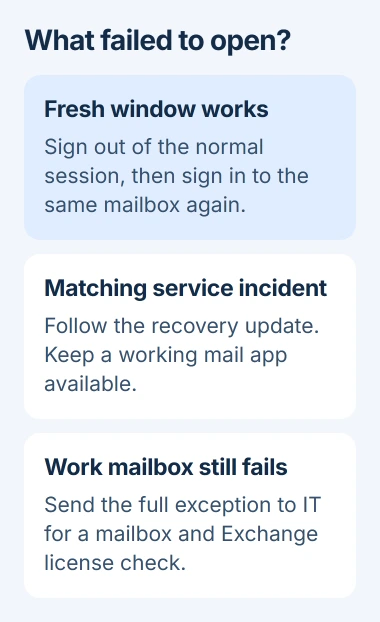
If your inbox opens there, it can load in a fresh browser session. Keep that window open while you fix sign-in in your normal window. Leave your desktop mail profile alone at this stage.
Sign out of the affected account in your normal window, close its browser windows and sign in again. Microsoft's Hotmail sign-in instructions cover the account choice and private browsing route.
If the error returns in a private window, try another installed browser once. If the same account fails in both browsers, check the service and mailbox next.
2. Read service health before repeating local repairs
Open the public Microsoft service health page. Under Microsoft consumer products, select Show products and find Outlook.com. Read any listed incident to check which features it affects.
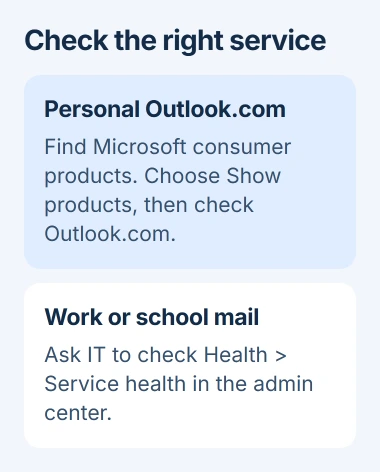
For a company mailbox, ask IT to review Health > Service health in the admin center. It can show incidents affecting your organization that aren't described on the public page.
If a listed incident matches your problem, follow its updates and retry when the service reports improvement. Reinstalling Office won't fix a server incident. Use your phone's mail app for urgent messages if it still works.
One owner on Microsoft's forum reported that deleting Microsoft and Live.com site data hadn't cleared a 500 error during the August 31, 2026 incident. That report doesn't describe today's service status; check the current page.
A green public status page can't explain every mailbox failure. If you still get the error, save its details and continue. I'd do that before spending time clearing the same browser data again.
3. Keep the words after the number
Expand the error details if the page offers them. Save the UTC Date, err, emsg, X-OWA-Error and any request or correlation ID. Support can use those IDs to match your failed attempt to the server's records.
An error name containing NoMailboxAndNoLicenseAssigned tells your administrator to check account and mailbox setup. Other error names need their own checks. Error 500 doesn't always mean you need to buy a subscription.
Note which address you entered and whether it was a personal or work account. A personal Hotmail account doesn't use your employer's Exchange Online license, even if both accounts appear in the same browser.
Keep the full details for a private support request. Before posting a screenshot publicly, remove your address, session IDs and organization information. Leave the error name and account type visible so others can understand the problem.
Note when loading stops: before sign-in, after signing in or when you open Mail. That tells support how far you got. Signing in successfully doesn't always mean your mailbox will open.
4. Have IT check a work mailbox and its license
For work or school email, send the exact error to your Microsoft 365 administrator. Ask them to check that your account has an active license that includes Exchange Online and that your mailbox has been created.
Your administrator can check your account under Users > Active users > Licenses and apps. Being able to open Word or Excel doesn't mean your account also has a working Exchange mailbox.
The mailbox creation troubleshooting procedure includes a diagnostic called EXO Recipient Object Failures. It checks errors that can prevent mailbox creation.
Account creation and changes usually finish in less than 30 minutes, but can take as long as 24 hours. That wait applies to a new or changed account; it isn't advice to wait out every Outlook error.
If the mailbox still won't open after that period, IT should check for errors in the account's details and review service health, then contact support. Let IT handle license changes instead of repeatedly removing licenses yourself.
5. Send a clear result to the right support team
For personal Outlook.com mail, contact account support if your inbox won't open. If it opens in another browser session, select Help there and describe the failing browser. For work or school mail, start with your administrator.
Include the full error, time, account type, service status and what happened in another browser. Say whether the mailbox opens on your phone. These details help support choose its next check instead of starting with only the error number.
If webmail opens normally but the Windows app won't launch, follow the Outlook startup guide. That directs repairs toward the desktop program and its profile.
If the desktop sign-in instead shows 657rx, use the Windows account sign-in checks. Keep the error number with that case; a web page returning 500 needs the mailbox and service checks described here.
The Short Version
Try the right mailbox in a private window, check service health and save the full error details. For work accounts, ask IT to check the Exchange license and mailbox setup. Contact account support if your personal mailbox still won't open.
Checked November 5, 2026.

Isaac Smith is the founder and editor of PC Glance, a website that covers computers, laptops, and technology. He is a tech enthusiast and a computer geek who loves to share his insights and help his readers make smart choices when buying tech gadgets or laptops. He is always curious and updated about the latest tech trends.