
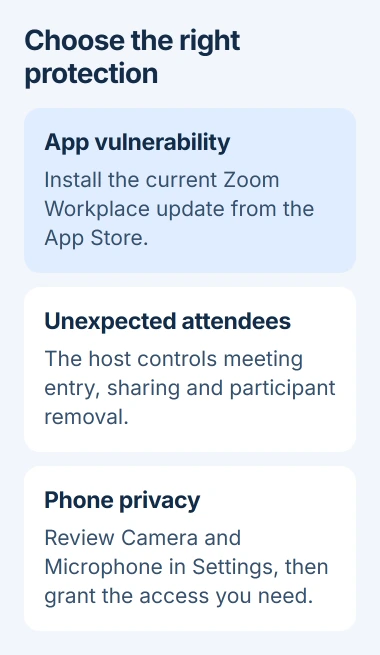
For iPhone Zoom security issues, start by updating Zoom Workplace through the App Store. If unwanted people are joining your meetings, use the host's Security controls to restrict entry and stop unwanted sharing.
The iOS app has had security flaws, but an unfamiliar attendee doesn't by itself mean your iPhone was hacked. Check the app update, who can join the meeting and phone permissions separately to find the control you need.
1. Install the available Zoom Workplace update
Open App Store, tap your account picture, then App Updates on current iOS. Find Zoom Workplace and tap Update. On older App Store layouts, pending updates appear directly on the account page.
If the button says Open, the store has no update available for your device right now. Open the installed app afterward and check that it starts normally before returning to a meeting.
Apple's manual app update steps also explain automatic updates. In Settings > Apps > App Store, turn on App Updates if you want future app releases installed automatically.
Zoom's June 2026 mobile security bulletin lists a security flaw in iOS app versions earlier than 7.0.3. It affects how the app handles special links. Install the available update to fix it.
That version fixed the issue in that bulletin. Install the current release offered by the store, which may include later fixes too. Don't replace it with an old installer sent in a message.
If the App Store won't update the app, read the error it shows. A billing request, account restriction or unsupported iOS version needs its own fix. Treat an app update failure separately from a meeting password that doesn't work.
2. Recognize what the published issues actually describe
A second iOS security bulletin describes a flaw that could expose information in versions earlier than 7.0.0. It requires someone who's signed in and has physical access to the phone, not just someone who knows a meeting link.
Updating the app addresses both issues. These flaws don't mean every person who joined a call could read everything on your iPhone. Keep your phone locked when it's out of your hands, and install its available iOS updates too.
Zoom Workplace is separate from Settings > Accessibility > Zoom, which magnifies the screen. A suddenly enlarged display points to that accessibility feature rather than the meeting app's Security menu.
If you suspect an account break-in, save the suspicious message and contact account support through the app's usual help route. For an unwanted meeting participant, use the host controls next, even if your phone is up to date.
3. Control who can enter when you're the host
Start your meeting as the host or co-host. In the iPhone meeting toolbar, tap More > Security. An ordinary participant doesn't have the same switches as the people running the meeting.
Turn on Waiting room so incoming people wait for admission. Check who you expect before admitting them. A familiar display name alone isn't enough to confirm an unexpected person belongs in a private meeting.
Once the expected attendees have arrived, turn on Lock meeting. New participants can't enter until you unlock it. That includes invited people who arrive late, so choose when to lock it with them in mind.
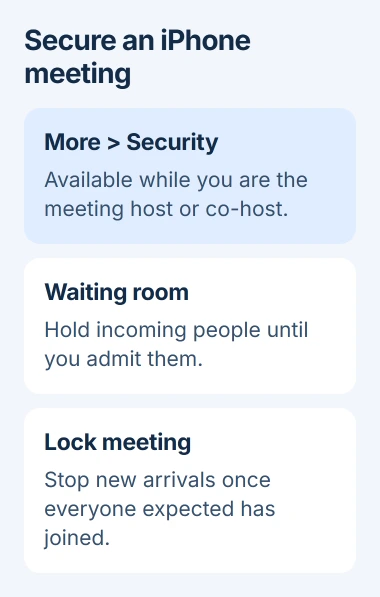
I'd use the waiting room for a private appointment, then lock the meeting once the expected people are present. This deals with access directly instead of changing unrelated iPhone settings while the call is running.
If you can't use Security, check your meeting role with the organizer. Your work administrator can also lock account settings, so you may need their help with a missing or unavailable control.
4. Stop disruption through the meeting controls
In More > Security, review what participants are allowed to do. Turn off Share screen when only the presenter needs it. Review chat and renaming permissions if those are being misused.
Use Remove participant for someone who shouldn't be there. The account's setting for allowing removed participants back determines whether they can rejoin. Tell the account administrator if the same person returns.
During a disruption, Suspend participant activities stops participants' video, audio and screen sharing and locks the meeting. It interrupts the whole call, so use it when you need to get the meeting under control.
Afterward, review the attendee list before continuing. Contact the organizer if you're only a participant. Sharing another meeting link publicly can recreate the same access problem even after you've removed the first intruder.
5. Give the app only the phone access you need
Open Settings > Privacy & Security and check Camera and Microphone. Use Zoom's switch under each category to allow or block access. Turning either off stops that part of a call from working until you allow it again.
Review Contacts, Calendars and Photos if the app has requested them. These are for tasks separate from live audio and video. Leave access off for features you don't use; allow it when you need a task that asks for it.
The iPhone app-access controls let you review permissions by category. An app only appears after it asks for that access. If Zoom isn't listed, there isn't a switch to change yet.
Permissions can't replace a security update or a waiting room. They control what the app may use on the phone; meeting Security controls what participants can do inside the call.
For meetings on another device, the Windows Zoom installation guide and Mac Zoom setup guide cover the correct desktop app. Keep every device you actually use updated.
If you still can't update, or an administrator's setting blocks a security control you need, contact the account administrator or app support. Include your iOS version, app version, meeting role and the missing control or update error.
The Short Version
Update Zoom Workplace, use Waiting room and Lock meeting as the host, and stop unwanted sharing through Security. Review iPhone permissions separately. App security flaws and unwanted meeting access need different controls.
Checked November 5, 2026.

Isaac Smith is the founder and editor of PC Glance, a website that covers computers, laptops, and technology. He is a tech enthusiast and a computer geek who loves to share his insights and help his readers make smart choices when buying tech gadgets or laptops. He is always curious and updated about the latest tech trends.