
Chrome on Hyprland can use KDE's file picker for saving files, but installing Dolphin alone won't change that window. Tell the FileChooser portal to use KDE, then restart your desktop session and Chrome to apply the change.
The result is the KDE save dialog, which shares the familiar KDE file controls. It isn't a full Dolphin window embedded in Chrome. Opening the Downloads folder in Dolphin is a separate setting.
1. Check which window you want to change
A save dialog asks for a filename and destination before a download. A file manager opens a folder after the file exists. Changing your default file manager affects that second action, rather than choosing Chrome's save dialog.
Open Chrome > Settings > Downloads. Enable Ask where to save each file before downloading when ordinary downloads should ask for a destination.
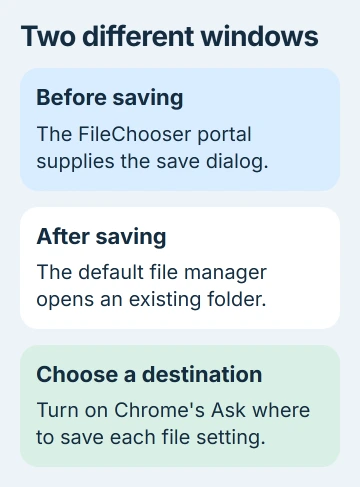
Without that prompt, Chrome can save directly to its configured folder. A successful download with no window doesn't tell you which picker is installed. Use an action that actually asks you to choose a destination when checking the change.
If you'd rather save every download to one place, stop the repeated folder prompt. That choice doesn't remove the portal packages or change your file manager.
2. Install the portal backend that supplies the picker
The portal is a service apps use to ask the desktop for features such as a save window. Its backend supplies the window. Hyprland's backend handles features such as screen sharing, but doesn't have its own file picker.
Hyprland's KDE picker instructions describe keeping its backend and selecting KDE specifically for FileChooser. This avoids replacing your screen-sharing backend just to change Save As.
On Arch, install the needed packages through a normal full system update:
sudo pacman -Syu xdg-desktop-portal xdg-desktop-portal-hyprland xdg-desktop-portal-kde xdg-desktop-portal-gtk dolphinReview the proposed package changes before accepting them. The command updates your Arch installation as well as installing the named packages, so run it when you can finish the update and restart your session.
The GTK backend stays available as a fallback for other desktop features. Dolphin supplies the file manager; xdg-desktop-portal-kde supplies the KDE picker. Installing one doesn't replace the other.
3. Give FileChooser its own KDE preference
Create ~/.config/xdg-desktop-portal if it doesn't exist. Open hyprland-portals.conf inside that folder in your text editor. Keep a copy of an existing file before editing it, especially if you already customized screen sharing.
For an otherwise standard Hyprland setup, use these entries:
[preferred]
default=hyprland;gtk
org.freedesktop.impl.portal.FileChooser=kde
The default line tries Hyprland first, then GTK for features it doesn't provide. The FileChooser line sends requests for a file picker to KDE instead. Keep the spelling FileChooser, including its capital letters.
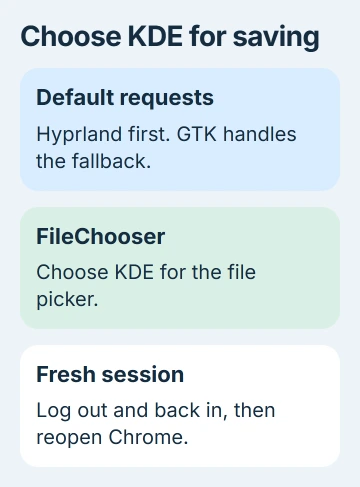
If your file already has choices for other desktop features, keep the ones you still need. Change the FileChooser entry in its existing [preferred] group instead of adding a second group with conflicting settings.
The portal configuration reference explains how files for a particular desktop take priority over defaults. Keeping your change in your home folder also leaves the package's system configuration intact during updates.
4. Start a fresh session and reopen Chrome
Save your work, fully exit Chrome, then log out of Hyprland and log back in. Open Chrome and try saving again. Both the portal service and browser now start fresh with the configuration you just saved.
The save window should now use KDE's picker. Choose a destination and filename, save a small file you need, then check that it's in that folder. Seeing the KDE window is one check; confirming where it saved the file is another.
I'd use a harmless file already available to you for this check. A browser extension or special installer isn't needed to see which save window opens.
A tab left open in the old browser session can leave you testing old behavior. If you changed the configuration but never fully exited Chrome, finish that restart before making another configuration change.
5. Check the session environment if nothing changes
In a terminal inside Hyprland, inspect the desktop identity and the environment available to user services:
printenv XDG_CURRENT_DESKTOP
systemctl --user show-environment
Look for the Hyprland desktop identity and WAYLAND_DISPLAY in the user-service environment. A service that starts without those details can read the wrong configuration file or fail to connect to your session.
Follow your Hyprland version's session-startup instructions if those variables are missing. Don't fix it by pretending you're running a different desktop; that can change how other portals are selected too.
Inspect the service and recent messages with:
systemctl --user status xdg-desktop-portal
journalctl --user -b -u xdg-desktop-portal
If the log says KDE isn't available, check that its backend is installed and look for an error explaining why it didn't start. If GTK still opens, check the configuration filename, desktop identity and whether you restarted Chrome.
Keep browser exports and folder opening separate
Chrome's bookmark export is another task that asks you to save a file. It can help check that the picker works beyond one website's download button without changing the bookmark collection.
A website may show its own export form before the system save dialog. The portal controls the system dialog; it can't change the website's form or the options on it.
If Chrome still uses another picker, give Hyprland or Arch support your browser and portal versions, configuration and the error from the log. Say whether other apps open KDE's picker after a fresh session.
The Short Version
Install the KDE portal backend, select KDE for FileChooser in hyprland-portals.conf, then restart your session and Chrome. Enable Chrome's destination prompt when needed. Dolphin folder opening and the KDE save picker are separate choices.
Checked November 5, 2026.

Isaac Smith is the founder and editor of PC Glance, a website that covers computers, laptops, and technology. He is a tech enthusiast and a computer geek who loves to share his insights and help his readers make smart choices when buying tech gadgets or laptops. He is always curious and updated about the latest tech trends.