
Solo Leveling: Arise can finish signing in through a browser and still leave the PC client waiting. When that happens in Chrome, check the Netmarble site's permission to connect to your computer before reinstalling the game.
A login that fails on several devices needs a different approach. If only your PC is stuck, check how the browser returns you to the game first. Then compare the account and connection if the error continues.
1. Start a fresh login from the installed launcher
Close the game's failed login window and return to the Netmarble launcher. Open the game from there and start its sign-in process again. Choose the sign-in method linked to your existing progress.
Keep the launcher running while the browser opens. Finish any account verification in that window, then return to the game. Signing in through the browser doesn't mean the game has received the login yet.
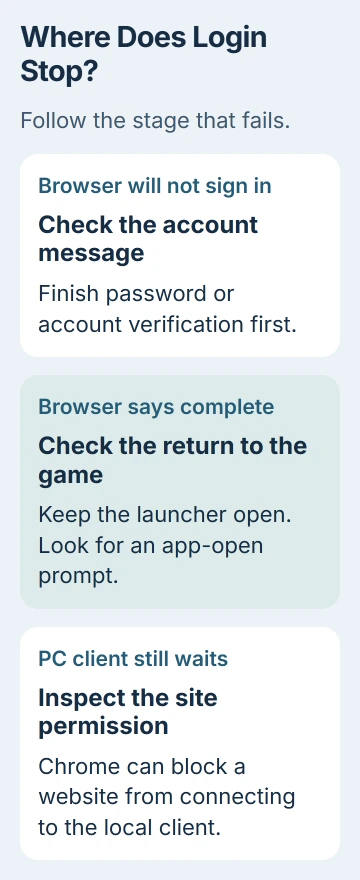
Notice where it stops. A blank browser page, a rejected password and a game that keeps waiting need different checks. Note the message's wording so you can tell a login failure from a game crash.
When the browser says the connection is complete but the game asks you to log in again, check the site permission next. I'd try that before downloading the entire game again; it changes access for just one site.
2. Allow the Netmarble site's local connection in Chrome
An owner on the game's forum fixed their PC login by allowing Local Network Access for apis.netmarble.com. They changed the browser setting and kept their game account.
In Chrome, open Settings > Privacy and security > Site settings. Open the saved site-permissions list, find netmarble.com, then look for apis.netmarble.com within its entries. Use the list's search box if available.
Open that entry and check its local connection permission. The owner's Chrome version called it Local Network Access. Newer versions can show separate permissions for your local network and apps or services on your computer.
If Chrome separates the two, check the local-device or computer-app permission for returning to the game. Google's permission guide explains that sites need permission to connect to services on your device.
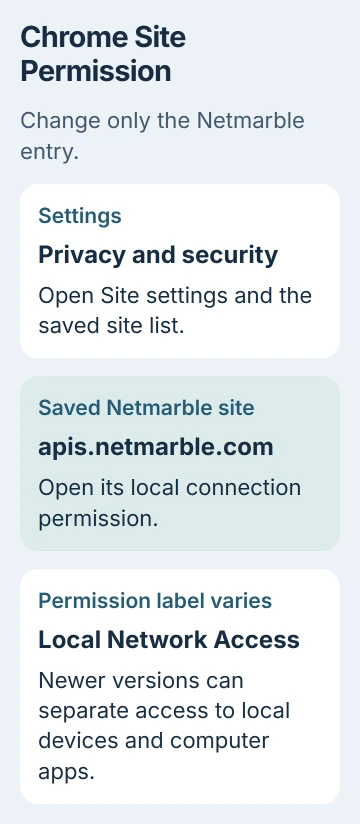
Allow that permission for the Netmarble entry, reload the login page and start sign-in again from the launcher. Change only that genuine site's permission.
Check whether the game opens past sign-in. Move to the next check if access was already allowed, you can't find the entry, or the change leaves the same error.
3. Follow the browser's request to reopen the client
After you sign in, watch for a browser prompt asking to open the installed application. Approve it as part of the game's sign-in process. Closing the prompt can leave the browser finished while the game still waits.
If another window is covering the game, use Alt + Tab to check the browser, launcher and client in turn. Look for a pending confirmation before pressing Login repeatedly or starting several copies of the launcher.
When login opens in an unexpected browser, check your Windows default browser. That setting helps identify which browser's site permissions need attention.
Check the browser that actually opens during login before changing its permissions. Chrome's settings won't affect a login opened in another browser. Changing the default alone won't necessarily fix the error.
If the page never offers a return to the game, capture its message for support. Don't invent a launcher address or paste account codes into a third-party sign-in page to force that return.
4. Compare an account failure with a connection failure
Try the same linked account on another device where the game is already installed, if you have one. Keep the same sign-in provider. A different provider can open different progress and make the comparison misleading.
If the account opens there but this PC stays stuck after browser approval, check the return to the PC game. If both devices reject the account, check account access and current service notices before changing Windows.
An official October 7, 2026 notice reported a PC Google-login outage, then marked it resolved. Check current notices for a service problem; that past outage doesn't tell you whether the game is down today.
Try another connection you trust on the same PC, such as your own phone hotspot. Watch its data use and stop after checking the login so you don't download game updates through it.
If login works on the second connection, support can check the original network. If both fail, the account, service or return to the PC game still needs checking. Graphics-performance tweaks won't help with these login checks.
5. Send the login details to game support
After the browser check, let any offered launcher or game update complete and try one login again. On a newly configured computer, finish the gaming PC setup checks before adding tuning utilities.
If login still fails, contact the game's customer support through its launcher or official support link. Include the exact error, your Windows version, browser name and whether you finished signing in through the browser.
Say whether the game reopened, whether the same account worked on another device, and whether another connection helped. Those details tell support where the login stopped.
Keep passwords, verification codes and account tokens out of screenshots, and leave your security software enabled. Ask support to identify the problem before adding broad security exclusions for the launcher or game.
The Short Version
Start login from the launcher and check the browser's return to the game. Check Chrome's Netmarble local connection permission. If it still fails, compare the account and connection, then contact support.
Checked November 5, 2026.

Isaac Smith is the founder and editor of PC Glance, a website that covers computers, laptops, and technology. He is a tech enthusiast and a computer geek who loves to share his insights and help his readers make smart choices when buying tech gadgets or laptops. He is always curious and updated about the latest tech trends.