
An unclickable TurboTax button doesn't always mean your mouse has failed. Check clicks in another app, then use the keyboard to reach the stuck control. A payment dropdown needs different help from a pointer that won't move anywhere.
Keep track of whether you're using TurboTax Desktop or TurboTax Online. The desktop program can open a separate payment window, while Online runs inside your browser.
1. Check one click outside TurboTax
Open Start or click a folder in File Explorer. Move the pointer and try a normal left-click. If those work, return to TurboTax and identify whether every control fails or only one button or dropdown.
When your pointer is also stuck outside TurboTax, follow the Windows mouse and touchpad checks. Get it moving and clicking again before checking the tax program's window.
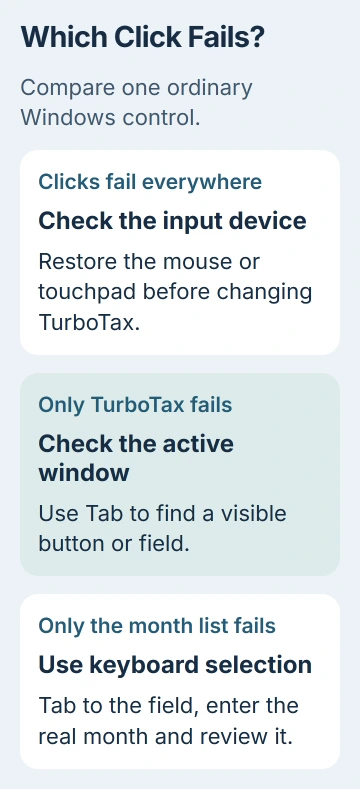
If your mouse works in other programs, check TurboTax and its open windows next. Don't uninstall the mouse driver just because TurboTax's Continue button ignores you.
For a wireless Logitech mouse that fails everywhere, check its power, receiver and selected channel. Return here when the pointer can move and click normally in Windows.
2. Use Tab to reach the control you can see
Click inside the affected window, then press Tab to move between its controls. Shift + Tab moves backward. Watch for the highlighted field or button; that's where your next keypress will go.
When the button you want is selected, press Enter. If it works, the window still accepts keyboard input even though mouse clicks fail. If nothing responds, check for another window before forcing the program to close.
Use Alt + Tab to inspect the open windows. A payment or confirmation dialog can be separate from the main return. Finish or close that dialog before trying controls in the window behind it.
I'd use the visible keyboard selection first. Blindly pressing Enter through a payment or filing sequence can confirm something you haven't reviewed, so stop if the selected control isn't clear.
If the keyboard works, you may be able to continue without replacing your mouse. For trouble selecting an expiration month, try the payment workaround next.
3. Work around an expiration-month dropdown that stops at August
Several owners on Intuit's forum completed the payment using keyboard or touch controls.
The reported fault affects a payment month list where clicking later months doesn't work. Click the month field, scroll with the mouse wheel or a two-finger trackpad gesture, then press Enter on the correct month.
Another option is to select the card-number field just before the month and press Tab. Type the two-digit month, such as 11, then press Tab to move to the year. Check that the form kept the month you entered.
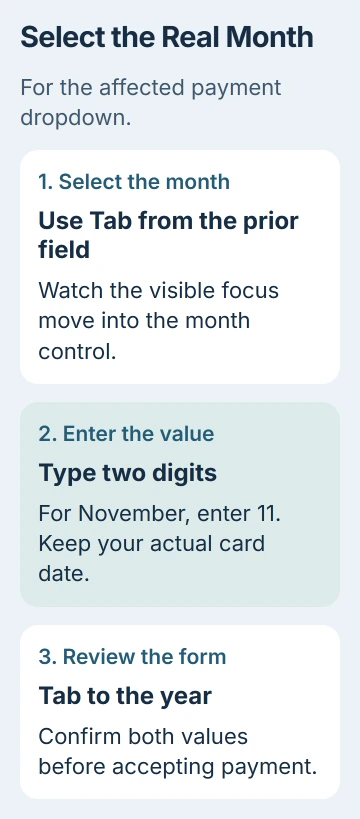
Use the real expiration date on your card. On a touchscreen PC, direct touch is another option owners used to select the intended month when mouse clicks failed.
Reports continued into 2026, and a later owner said a manual patch didn't help. The keyboard method gets around the affected form; don't assume a patch has fixed it in every installation.
4. Correct a desktop window that is clipped or badly scaled
If buttons are cut off, outside the visible area or don't line up with clicks, save your return and close TurboTax. Open Settings > System > Display and choose the screen holding the program if several monitors are connected.
Under Scale & layout, note the existing Scale and Display resolution values. Try 100% Scale temporarily if text was enlarged, then reopen TurboTax and inspect the same window.
The Windows display instructions explain these controls. Scaling changes the size of text and apps; resolution changes how many pixels the screen displays.
If the control becomes visible and clickable, finish that dialog and return to a comfortable display setting. Scaling affects your other programs too, so you don't need to keep this layout every day.
Older TurboTax reports also describe changing resolution, with different results. One owner's 800 x 600 choice hid the button, while 1024 x 768 worked. Neither size works for every setup.
If scaling doesn't help, restore your previous setting. Check whether the button is hidden or the form is rejecting a valid value. Those are different faults, even when both happen during payment.
5. Try a fresh browser session for TurboTax Online
For the browser edition, save your progress and sign out. Open a private window, return to the official TurboTax sign-in and reopen the affected task. In Chrome, Ctrl + Shift + N opens an Incognito window.
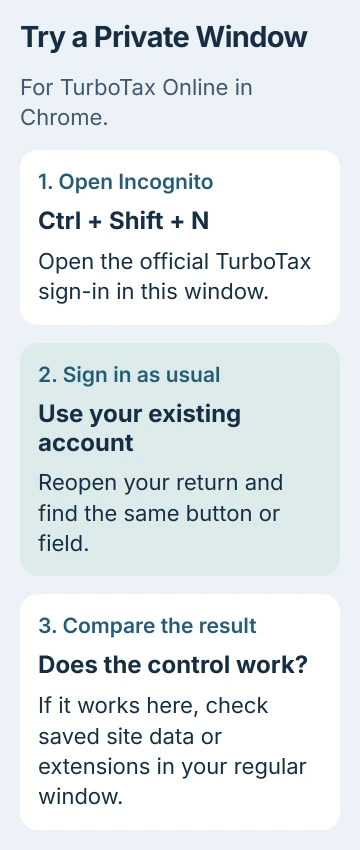
When the form works in that session, check your regular browser's saved site data or extensions, then try again there. Clearing site cookies signs you out, so have your normal sign-in method ready before doing it.
If the same control fails in both sessions, stop repeating browser cleanup. Desktop's built-in payment window may not use your browser's zoom or Incognito settings. Use the desktop display check for that window.
6. Update the affected edition, then request product help
In TurboTax Desktop for Windows, use Online > Check for Updates when the menu is available. Install the offered update, reopen the return and revisit the same control. Keep a saved copy of your work before reinstalling anything.
The desktop troubleshooting page now opens the broader Windows support guide. It includes update help, but unresponsive buttons can still need different fixes.
Contact TurboTax product support if the control still fails. Give the tax year, edition, operating system and exact screen. Explain whether keyboard selection works and whether the window is clipped or rejects particular months.
Crop account details and payment information out of any screenshot. Report whether you completed payment or filing before trying it again, so support can help without creating a duplicate attempt.
The Short Version
Compare clicks elsewhere, then try Tab and Enter in TurboTax. Use the month-field workaround for that payment bug. Check Desktop's scaling or try Online in a private browser window, then update and request help if needed.
Checked November 5, 2026.

Isaac Smith is the founder and editor of PC Glance, a website that covers computers, laptops, and technology. He is a tech enthusiast and a computer geek who loves to share his insights and help his readers make smart choices when buying tech gadgets or laptops. He is always curious and updated about the latest tech trends.