
For the Windows 11 taskbar clock, use Windhawk's Taskbar Clock Customization. Its font controls let you style the clock's two text lines separately; Winaero's wider appearance settings do a different job.
If Winaero changed other fonts but left the clock alone, don't keep changing unrelated Windows text. Check your Windows version, then change the font in the clock mod's own settings.
Check the clock and Windows version you're changing
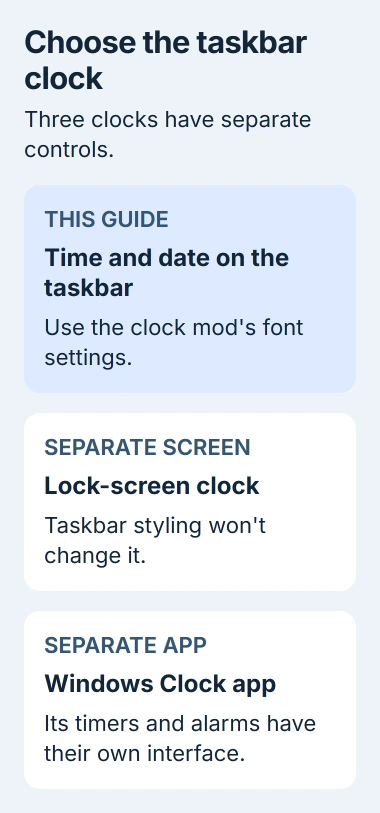
These settings change the taskbar's small date-and-time display. The large lock-screen clock, the Clock app and the font inside your calendar stay as they are.
Press Windows + R, enter winver, and check your version. The mod's developer lists the clock's font and style controls for Windows 11 version 22H2 and newer. You'll need that version or later for these settings.
Next, open Settings > System > About and check System type. This mod release is for x64 computers. An Arm-based laptop needs a release that supports its processor, even if the installer opens.
The Windows taskbar guide covers built-in controls such as labels and alignment. For a clock that shows the wrong hour rather than the wrong typeface, use the clock correction checks.
Understand what the Winaero setting changes
Winaero Tweaker offers fonts and taskbar seconds as separate adjustments in its official feature list. A font change in another part of Windows may leave the modern taskbar clock unchanged.
Keep track of any Winaero change you've already made before trying another customization. If it changed your menus or desktop labels, decide whether to keep those changes before adding a second tool for the clock.
I'd keep this job narrow: change the clock's font, check it, then decide whether its size needs changing. Replacing the taskbar or changing every system font makes this job bigger than it needs to be.
Microsoft says you can show time, date and seconds through its taskbar settings. The Font family fields in this guide belong to Windhawk; they aren't part of Date & time.
Install the clock mod through Windhawk
Get Windhawk from its official site. Once it's installed, open it, browse the mods and search for Taskbar Clock Customization. Check the exact name, then open its details and choose the installation option.
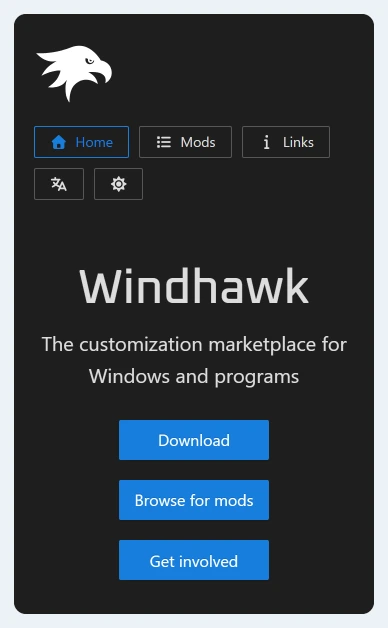
Read the mod's Details before you install it. Its developer-maintained instructions list the Windows versions it supports and explain its settings. Install the mod, then open its Settings.
The default setup can show online content as well as the date and time. Check the Top line and Bottom line entries and decide what you want on your taskbar.
For a simple two-line clock, use %time% for Top line and %date% for Bottom line. The mod fills these placeholders with the formatted time and date; the clock won't show the placeholder text itself.
Save your changes and check the clock before styling it. With the right content on each line, you'll know whether the font setting you're changing affects the time or the date.
Set the font for each line
Expand Top line style (Windows 11 version 22H2 and newer). In Font family, enter the name of an installed font. Start with a familiar Windows font such as Consolas if you want visibly different numerals.
Use the Windows 11 font list to check a standard font name. Enter the font's family name, not a downloaded font's filename or a path ending in .ttf.
Save the setting, then look at the time. Next, expand Bottom line style (Windows 11 version 22H2 and newer) and change its Font family if you want the date to match. Each line has its own style settings.
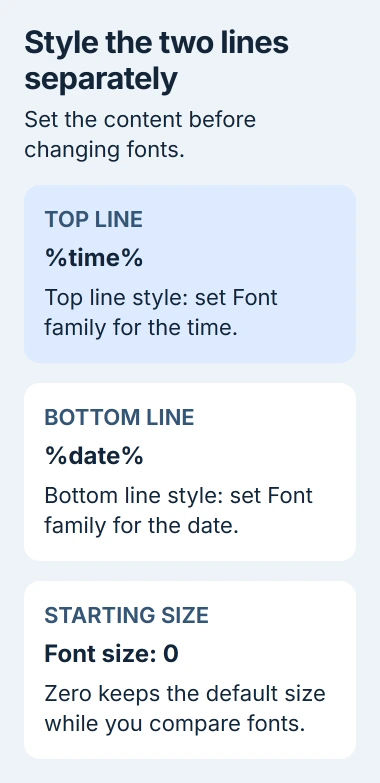
Leave Font size at 0 for the first comparison; the mod uses zero for the default size. If the new font reads well but looks too small, increase its size afterward and save again.
Font weight controls how heavy the strokes look. It doesn't select a different family. Check the normal weight before choosing Bold, since heavier letters can take more space in the same clock area.
Correct clipping without changing everything again
If part of the date disappears, first undo the last size increase. Check Clock max width (Windows 11 only) too: 0 means this setting doesn't limit the clock's width.
A long date format can need more room than a short numeric date. If a shorter date suits you, keep the font and shorten the date instead. Changing the text and styling together can hide which adjustment made the difference.
Leave Customize the old taskbar on Windows 11 off when you're using the ordinary Windows 11 taskbar. That option is for a restored older taskbar, such as one provided by ExplorerPatcher.
If the font doesn't change, check that the mod is enabled and that you edited the time line. If turning it off restores the normal clock, send the developer your Windows and mod versions and describe the problem.
If IT manages your PC and doesn't permit customization software, ask them before installing it. Keep the built-in clock until they approve an option that works with your computer.
The Short Version
Use the clock mod's Font family fields for the taskbar, with separate settings for its top and bottom lines. Check Windows and processor support, save each adjustment separately, and change size after the font works.
Checked November 5, 2026.

Isaac Smith is the founder and editor of PC Glance, a website that covers computers, laptops, and technology. He is a tech enthusiast and a computer geek who loves to share his insights and help his readers make smart choices when buying tech gadgets or laptops. He is always curious and updated about the latest tech trends.