

Use four separate text boxes for a two-by-two layout in PowerPoint. Make one block easy to read, copy it three times, then line up the rows and columns with even gaps.
Use the desktop app for this procedure. It keeps each block editable and lets you adjust the layout without squeezing four sections into one crowded text area.
Plan the four blocks before arranging them
Give each block one heading and a short explanation. Decide the reading order first: top left, top right, bottom left, then bottom right. Arrange related points in that order rather than putting them wherever a box fits.
A two-by-two layout works when the four topics have roughly equal importance. If the audience needs to follow them in order, make that order clear in the headings. Their positions alone may not explain the process.
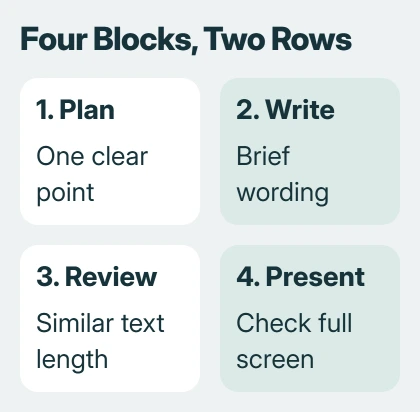
Check your slide dimensions before placing the text. Our PowerPoint slide-size guide covers that choice. Changing the slide size after arranging the blocks means more layout work.
I'd draft all four headings before formatting any box. A heading that takes several lines leaves less room for its explanation. It's easier to catch that while you're still working on the words.
Prepare one text block with the formatting you want
In Normal view, open the slide and choose Insert > Text Box. Draw a box across roughly one of the four planned areas, then enter its heading and short body text.
The PowerPoint text-box guide covers inserting and selecting a box. You'll be copying whole text boxes for this layout, so finish the first block's basic appearance before making copies.
Select the heading and choose its font size and weight from Home. Format the explanation separately if it needs a smaller size. Use the same heading and body styles across all four blocks.
Left alignment usually works well for explanatory text. Four centered paragraphs can be harder to scan because every line starts in a different place.
Microsoft explains editable slide text in both separate boxes and preset layout text areas. These boxes stay editable on this slide without changing the slide master, which controls shared layouts.
Copy the finished block, then replace its words
Click the text box's outside edge to select the whole box. Copy and paste it using Ctrl + C, then Ctrl + V on Windows, or Command + C, then Command + V on Mac.
Repeat until you have four boxes. Move the copies into rough positions, then replace each heading and explanation. Copying the whole box keeps its formatting. Selecting just the letters copies text rather than the whole box.
The text-box copying reference also applies to PowerPoint. Copying one finished block gives all four the same starting style, instead of making you format each one again.
Keep the box widths consistent as you edit. Narrower boxes wrap text onto more lines, so one block can look much taller even if it has only a little more text.
Shorten an overfull explanation before reducing its font. Aim for similar amounts of text so one block doesn't look crowded beside three short ones. That makes the four-part comparison easier to read.
Align the rows and columns as separate selections
Hold Shift and select the top two text boxes by their outside edges. Open Shape Format > Align, choose Align Selected Objects, then Align Top. Both boxes will start at the same height.
Line up the bottom two boxes the same way. Next, select the two left-hand boxes and use Align Left. Repeat with the two right-hand boxes to line up that column too.
The object-alignment reference shows two choices: Align Selected Objects and Align to Slide. Aligning all four to the slide's left edge would put them in one column.
Don't select all four and choose Align Top for this grid. That puts all four boxes along one top edge. Work with one row or column at a time.
After each alignment, check the result before selecting another pair. If boxes overlap, undo that alignment and check which boxes are selected and what they're being aligned to.
Make the gaps even without stretching the text
Leave an even outer margin around the four-block group, a clear space between columns, and a comfortable gap between rows. Keep the slide title outside that group if the slide needs one.
As you drag a block, PowerPoint's smart guides can show matching edges and equal spacing. The arrangement guide covers these temporary guides and the commands for spreading objects evenly.
Distribution spreads several objects along a line. For this two-by-two grid, you'll still need to check each row and column. Don't expect one Distribute command on all four boxes to build the whole layout.
If the headings line up but their explanations don't, check paragraph spacing inside the boxes. On Home, the Paragraph controls change line spacing and text alignment. Match those settings for the same kind of text.
The PowerPoint text-spacing options cover vertical alignment and paragraph spacing separately. Check both before adding empty paragraphs to push the words down.
Inspect all four blocks in Slide Show
Run Slide Show and read the four blocks in their intended order. Check the smallest body text, the longest heading and the spacing around the outside. Editing while zoomed in can hide text that's too small for the audience.
If one block still needs much more room, move its detail to another slide. Four balanced summaries are easier to present than four full paragraphs forced into the same space.
If alignment stays unavailable, select two complete boxes and try again. Try the same alignment in a new blank presentation if needed. When contacting Microsoft Support, name the command that fails and include the app's version.
The Short Version
Create one readable text box, copy it into four blocks, then edit the words. Line up each row's top edges and each column's left edges using Align Selected Objects. Balance the text and check the finished two-by-two layout in Slide Show.
Checked November 5, 2026.

Isaac Smith is the founder and editor of PC Glance, a website that covers computers, laptops, and technology. He is a tech enthusiast and a computer geek who loves to share his insights and help his readers make smart choices when buying tech gadgets or laptops. He is always curious and updated about the latest tech trends.