
KB5001716 is a legitimate update for the Windows Update interface, so you don't need to uninstall it just because you don't recognize the number. If installation failed, note the error and Windows version before choosing a fix.
It can show notices about problems keeping your PC up to date, including an unsupported Windows version. That notice needs a different response: installing this package doesn't upgrade Windows or replace its security updates.
1. Check the installed Windows version and update result
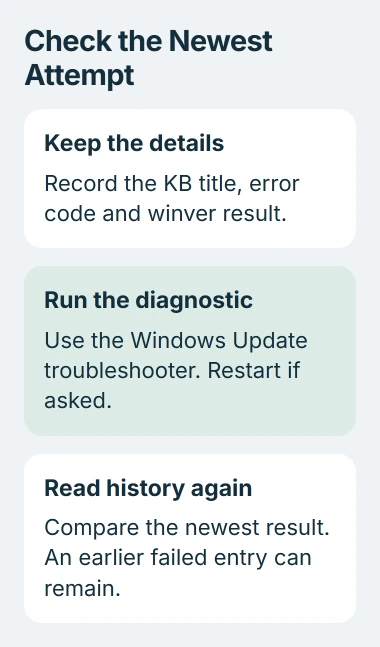
Press Windows+R, enter winver, then press Enter. Note the edition, version and OS build shown in About Windows. Keep those details with the full KB5001716 entry you saw in Windows Update.
Microsoft lists Windows 11 version 21H2 and Windows 10 versions 21H2 and 22H2 in its KB5001716 description. Being offered this update doesn't mean your Windows version still gets support.
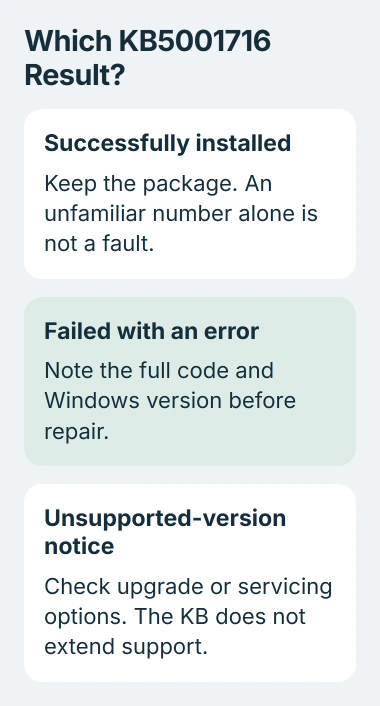
On Windows 11, open Settings > Windows Update > Update history. On Windows 10, open Settings > Update & Security > Windows Update > View update history. Look for the named update and its date and result.
If installation succeeded and you aren't seeing a failure now, go to section 4. If it failed, copy the full error code before trying again. That code describes this attempt; another PC receiving the package can have a different result.
If this KB appears under several dates, check the result beside each one. They aren't all failures just because the number repeats. Keep the full titles and dates so support can check whether the newer entry needs attention.
2. Complete the requested restart before another attempt
Save your work and return to Windows Update. If it offers Restart now, complete that restart before checking whether installation worked. Keep a laptop connected to power while Windows finishes.
After signing back in, select Check for updates and let the offered updates finish. Open history again and check the newest result for this package. An old failed entry can stay there after a later attempt succeeds.
If your PC is offline, reconnect before checking again. Open an ordinary webpage to check the connection. If the network needs you to sign in, finish that sign-in so Windows can download updates.
Opening a webpage checks your connection; it won't fix an installation error. If the package downloads but installation fails with the same code, run the troubleshooter next.
Windows Update delivers this package automatically where it's offered. Don't download an MSI or CAB installer from an unrelated site just because its name includes this KB number; that won't tell you why installation failed.
3. Run the Windows Update diagnostic for a repeated error
Use the update troubleshooting instructions for the Windows version you noted. On current Windows 11, you can run the troubleshooter through the Get Help app.
Open Start, search for Get Help, then ask it to troubleshoot Windows Update. Follow the prompts and note the result. If it asks you to restart, do that before checking for updates again.
Windows 11 also offers Settings > System > Troubleshoot > Other troubleshooters > Windows Update. On Windows 10, check Update & Security > Troubleshoot > Additional troubleshooters for the Windows Update entry.
Check Settings > System > Storage if Windows says there isn't enough space. Review cleanup suggestions and keep personal files you need. Follow your PC's warning, since a space target for a different upgrade may not fit this one.
If the error returns, use the Windows update error-code guide to choose a repair for that code. A failed entry in history doesn't call for resetting every part of Windows Update.
I'd start with one restart, one run of the troubleshooter and a check of the new result. If the code comes back, ask support to use those details to plan the next repair before you remove software.
4. Read an end-of-support notice as a separate job
KB5001716 can show notices about an unsupported Windows version or hardware requirements. Read what the notice asks you to change. Installing this small update doesn't fix the condition it reports.
Compare the exact message with winver. A feature upgrade changes your Windows version; a monthly quality update fixes the version already installed. KB5001716 handles update notices rather than doing either of those jobs.
For an offered Windows 11 feature upgrade, use the supported upgrade routes. Check eligibility and any compatibility message before choosing a separate installer.
Windows 10's ordinary support ended October 14, 2025. Consumer coverage through Extended Security Updates now ends October 12, 2027. Your PC must be eligible and enrolled for that coverage; KB5001716 doesn't enroll it.
The consumer ESU information explains that limited program. A work PC may have a different arrangement, so ask its administrator what coverage it has.
Dismissing the notice won't restore support for Windows. If your PC can't run a supported upgrade, ask support about moving to a supported system or getting suitable extended coverage before you rely on more security updates.
5. Decide about removal using the actual fault
The KB's current known-issues section lists no known problems with this update. It can still fail to install on an individual PC. Choose the next step from that PC's error or symptoms rather than removing the package from every computer.
Leave a successful installation in place if the unfamiliar number is all that's worrying you. For a failed install, follow the error code. If a new problem keeps happening after installation, tell support what happens and when it started.
For a work PC, give IT the model, Windows edition, version, full KB title and error. For your own PC, send those details through Get Help or your computer maker's support service.
Don't delete the update's individual files or scheduled tasks by hand. If support finds a reason to remove it, follow the supported removal steps for the package installed on your PC, then check the result.
The Short Version
Keep a successful KB5001716 installation. For failure, record the Windows version and code, restart and run the update diagnostic. Deal separately with any unsupported-Windows notice, since installing this package doesn't extend support.
Checked November 5, 2026.

Isaac Smith is the founder and editor of PC Glance, a website that covers computers, laptops, and technology. He is a tech enthusiast and a computer geek who loves to share his insights and help his readers make smart choices when buying tech gadgets or laptops. He is always curious and updated about the latest tech trends.