
To add a person to your Chromebook's sign-in screen, sign out and choose Add person at the bottom. That gives them their own sign-in profile. Adding a Google Account while signed in makes it available to apps and websites instead.
A separate profile makes sense for someone who regularly shares your Chromebook. Each person signs in with their own account instead of working inside someone else's session.
Sign out to reach Add person
Save your work, then select the bottom-right clock to open the status area. Open Power and choose Sign out. Locking the screen keeps you signed in, so use Sign out to set up the new person.
Google says to choose Add person at the bottom of the sign-in screen in its add-person instructions. Use this control rather than Add Google Account inside Settings.
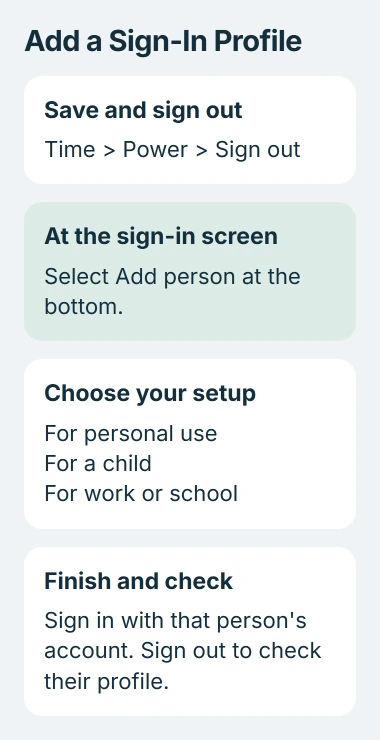
If someone else's profile is selected, go back to the sign-in choices and look for Add person. Use that control to start the new profile while keeping the existing one in place.
If Add person is unavailable or a school or work rule blocks the account, use the access checks later in this article. Don't enter the new password in an existing profile or delete school Chromebook data while its administrator checks.
Choose the right setup and sign in with that person's account
The Choose your setup screen offers For personal use, For a child and For work or school. Select the route that fits the account, then choose Next and follow the prompts.
For a personal profile, enter the new person's Google Account address or phone number, then the password when asked. If they use 2-Step Verification, they'll also need their verification device to finish signing in.
Use the account they want for bookmarks, apps and other information that syncs across devices. Two accounts can have similar display names, so check the full address before finishing setup.
If ChromeOS offers a PIN or device password afterward, follow those prompts for the new profile. The Chromebook password and PIN controls explain how those sign-in choices differ from changing the Google Account password.
For a child's profile, choose the child setup route and follow the parent approval steps. A supervised account has its own controls. Using an adult profile doesn't set up those protections for the child.
An account from your school or employer can have device enrollment or sign-in rules. If setup asks for something your administrator controls, send them the message and account address so they can tell you how to continue.
Confirm that the profile appears after signing out
Once the new person reaches the desktop, open the status area and check which account is signed in. Let account setup finish, then save any work and sign out through Power > Sign out.
Look for the new profile on the sign-in screen, then select it and sign in. This checks that the person can get back to their own desktop instead of using the previous person's session.
The account-management instructions use the same steps to switch users: sign out, then choose the other account. Try this before setting up options that keep several accounts signed in at once.
If the wrong account opens after setup, check the address you entered. Signing into Gmail in a browser tab doesn't by itself switch the Chromebook profile you're using.
I'd try signing into the new profile once before customizing its desktop. It's quicker to catch the wrong account now than after you've saved files and browser settings in it.
Use Add Google Account only for another account in this session
If you want access to a second email address within the same desktop, stay signed in. Open Settings > Accounts > Add Google Account, then follow the account prompts.
Apps and websites that support it can use that extra account while you're signed in. It doesn't create the separate profile you get by adding a person from the sign-in screen.
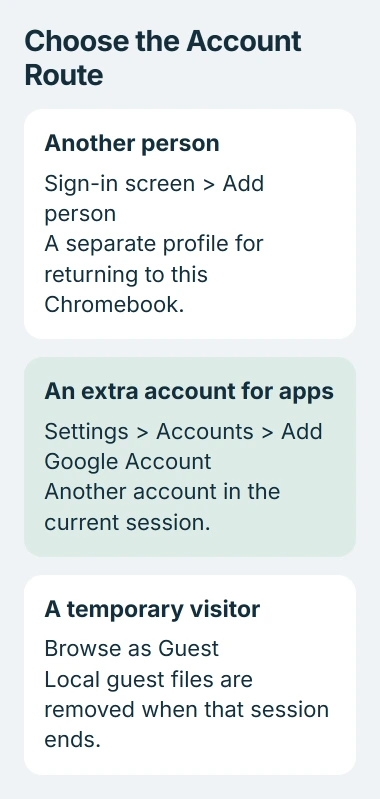
For another person you can select at startup, go back to the first set of steps. Adding the same address in different apps won't create a sign-in profile.
If you're lending the Chromebook briefly, Browse as Guest may fit better than a permanent profile. Guest mode doesn't have the Play Store, and ending the session removes files saved in that session and its browsing data.
Use guest browsing for temporary access. Someone who wants their usual apps and saved settings back each time needs their own account profile.
Have the owner check a blocked addition
On a personal Chromebook, the owner can open Settings > Privacy and security > Manage other people and review Limit who can sign-in. The owner can add an allowed account to the list without turning off the restriction.
The owner account can change these sign-in access controls. Signing into another profile doesn't automatically let that person change who can use the Chromebook.
If a school or work organization manages the Chromebook, ask its administrator about a missing Add person control or rejected address. Mention whether only organization accounts are allowed. Resetting won't change those permissions.
If the screen reports a connection problem, fix the Chromebook's Wi-Fi connection before trying setup again. Signing in needs a working connection; profile settings won't reconnect your network.
If it reports a wrong password, check the account address and exact error with that account's owner. Treat password recovery as a separate task, especially if the person has files stored only in an existing Chromebook profile.
Keep existing profiles and their local files
Adding a person doesn't require deleting the Chromebook's owner profile or another household member's profile. Keep them while you check the new one. Before any later removal, copy important files from Downloads somewhere safe.
The profile-removal instructions explain that removing a Chromebook profile doesn't delete the Google Account. Downloads stored only on that Chromebook can be removed with the profile.
If setup is still blocked, send the help community or administrator the message, account type and whether the Chromebook is managed. With those details, they can check account access, the owner's restrictions and the network.
The Short Version
Sign out, choose Add person and follow setup with the new person's account. Sign out again to check their entry. Use Settings Accounts to add an account within your existing profile. Ask the owner or administrator about restrictions.
Checked November 5, 2026.

Isaac Smith is the founder and editor of PC Glance, a website that covers computers, laptops, and technology. He is a tech enthusiast and a computer geek who loves to share his insights and help his readers make smart choices when buying tech gadgets or laptops. He is always curious and updated about the latest tech trends.