
Yes, some older Samsung watches work with an iPhone, including Galaxy Watch Active2 and Watch3. Newer Galaxy watches running Wear OS don't support iPhone pairing, so check the exact model before trying to connect it.
For a compatible older model, use the Samsung Galaxy Watch (Gear S) iPhone app. Seeing the watch in Bluetooth settings doesn't mean the companion app is ready to manage it.
Check the full watch name before installing anything
Find the full name on your watch, its original box or the phone's companion app. Galaxy Watch, Galaxy Watch3 and Galaxy Watch4 are different models. That number tells you whether iPhone pairing is supported.
Samsung says newer Wear OS watches don't support iOS in its phone compatibility list. Wear OS runs on those newer watches; iOS runs on your iPhone.
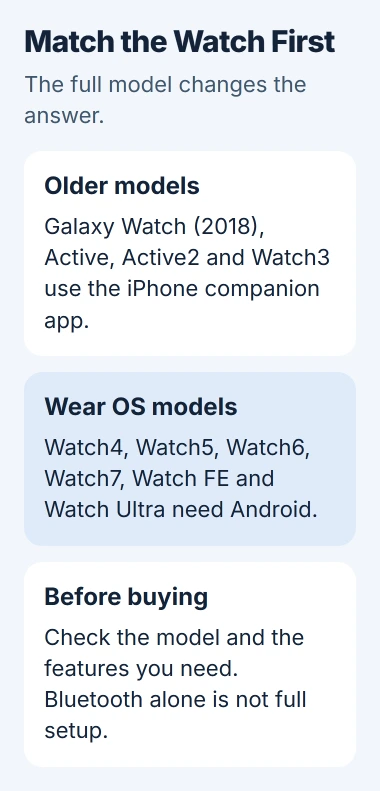
The original Galaxy Watch (2018), Galaxy Watch Active and Active2 are in the iPhone-compatible group. The iPhone app also lists Galaxy Watch3 as a supported device.
Watch4, Watch5, Watch6, Watch7, Watch FE and Watch Ultra are listed as incompatible with iOS. Turning on Bluetooth or installing an iPhone app won't make these models work with your iPhone.
I'd ask for the exact model name when buying a used watch. A listing that says only Samsung Galaxy Watch doesn't tell you whether you can pair it with your phone.
For physical damage on an older model, use the Galaxy Watch Active screen repair guide. Replacing its screen and choosing a compatible phone are separate jobs.
Match an older watch to the correct iPhone app
On the iPhone, open App Store and search for Samsung Galaxy Watch (Gear S). Check that the developer is Samsung Electronics Co., Ltd. before installing. Similar names can refer to different accessories.
The official app listing includes Gear S2, Gear S3, Gear Sport, Galaxy Watch, Watch Active, Active2 and Watch3. Match your watch to that list.
The listing gives iOS 9.0 or later as its minimum. Check whether the App Store on your iPhone offers the download. That old minimum doesn't tell you how every feature works on a much newer iOS release.
An iPad won't work in place of the iPhone. The app's description rules out iPad and iPod touch, even when the App Store's information panel lists more operating systems.
If the app isn't available in your region or won't install, note the exact message. Give support your watch and iPhone details instead of changing your Apple Account region to get past the download screen.
Start pairing inside the companion app
Charge the watch, place it near the iPhone and turn on Bluetooth in Settings > Bluetooth. Open the Galaxy Watch app and follow its connection prompts for your supported model.
Allow the app's Bluetooth request when it appears. The companion app needs that permission to connect to your watch. Without it, setup can fail even when Bluetooth is switched on.
Compare any pairing code shown on both devices before accepting it. Continue through the app's remaining setup, then check whether it shows the watch as connected and lets you open the watch's controls.
For the basic iPhone Bluetooth connection, follow the accessory setup steps. A watch also needs its companion app; seeing its Bluetooth device name doesn't finish that setup.
If the watch is still linked to another phone, check its own transfer instructions before resetting it. Save its data from the working connection first, because moving phones can require setting the watch up again.
Once connected, check that an allowed notification reaches your watch while your iPhone is locked. That checks a feature you'll use, rather than just the app's Connected label.
Check the features you need before relying on the pairing
The same watch can offer different features depending on the phone. Check your own essentials: notifications, activity records, calls and the settings you use every day.
The iPhone app needs Bluetooth and background refresh to stay in touch with the watch. If your watch connects only while the app is open, check the permissions requested during setup before removing the pairing.
Allow optional permissions for the features you want. Contacts access lets the app sync contacts; calendar access lets it sync your calendar. Declining one permission doesn't mean the whole Bluetooth connection has failed.
Check which phones each feature list covers. Much of the compatibility table compares Samsung phones with other Android phones. Those rows don't tell you which features work on iOS.
Older watches run Tizen, a different kind of watch software. Tizen watch app downloads have been discontinued, so an old store description doesn't mean its apps are still available.
Before buying an older watch mainly for one app, check that you can still get it. Keeping a watch that already handles your daily needs is a different decision from buying one for software you can't install.
Stop pairing attempts when the watch requires Android
For an incompatible Wear OS model, repeated restarts, network resets and Bluetooth removal won't add iPhone support. Use a compatible Android phone for that watch or choose a watch whose maker supports your iPhone.
An LTE or cellular version still needs a compatible phone for setup. Check the carrier's setup requirements before buying a mobile plan to try to get around the iPhone restriction.
For an Apple Watch instead, the Apple Watch connection checks apply to that watch's own pairing system. Those reset instructions aren't Samsung watch setup steps.
If an older supported Samsung model still won't connect, give support the full watch model, iPhone model, iOS version, app version and where setup stops. Include the error text and whether the app ever shows Connected.
The Short Version
Older Galaxy Watch, Active, Active2 and Watch3 models have an iPhone companion app. Newer Wear OS Galaxy watches require Android. Match the model first, pair through the correct app and check the features you need.
Checked November 5, 2026.

Isaac Smith is the founder and editor of PC Glance, a website that covers computers, laptops, and technology. He is a tech enthusiast and a computer geek who loves to share his insights and help his readers make smart choices when buying tech gadgets or laptops. He is always curious and updated about the latest tech trends.