
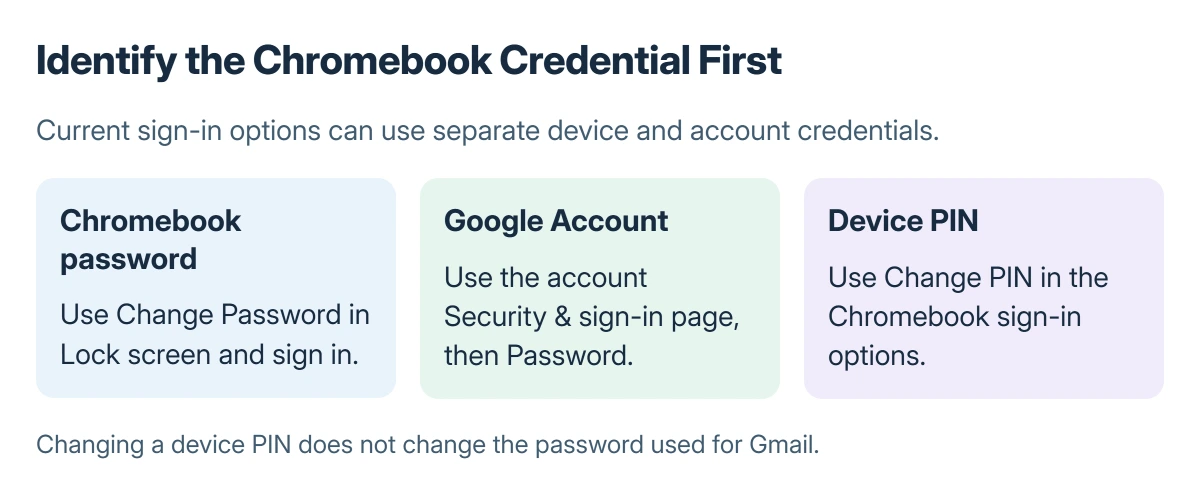
Chromebook password changes have three possible targets: the device password, the Google Account password, or a PIN. Current ChromeOS offers separate controls, so choose the intended credential first.
For the Chromebook's own sign-in options, open Settings > Privacy and Security > Lock screen and sign in. Changing the Google Account password is a separate operation.
Choose the credential that needs changing
Google says a Chromebook can use a Chromebook password or PIN as sign-in options alongside its Google Account. Its current Chromebook sign-in instructions describe the device controls.
Open the status area using the clock, select Settings, then choose Privacy and Security > Lock screen and sign in. Authenticate with the Google Account password when requested.
Status: device passwords, account credentials and local data recovery documented by Google, checked 23 October 2026. No sign-in setting or account credential was changed.
Under Sign-in options, choose Change Password for an existing Chromebook password. Enter the new password, enter it again, and choose Confirm. An initial password setup can instead show Setup Password.
For the PIN, choose Change PIN, provide the current PIN, then follow the new-PIN prompts. This does not change the password for Gmail or other Google services.
Change the Google Account password only when that is the goal
Open the Google Account for the intended address. Choose Security & sign-in, then Password in the sign-in section. Authenticate if asked, enter the replacement password and select Change Password.
Google states that this account password change signs the account out of many devices and services, with documented exceptions. Be prepared to authenticate again elsewhere.
A network error is a separate obstacle to account verification. Check the Chromebook connection problem before repeatedly replacing a password that may already be correct.
Protect local files before changing account access
Copy needed Downloads and other device-only files to a verified backup while access still works. Google says Local data recovery can preserve access to local data after an old password is forgotten, when the feature has been enabled.
Check Settings > Security & Privacy > Lock screen and sign in > Local data recovery. Google's local recovery instructions explain that account recovery alone does not restore access to locally encrypted files.
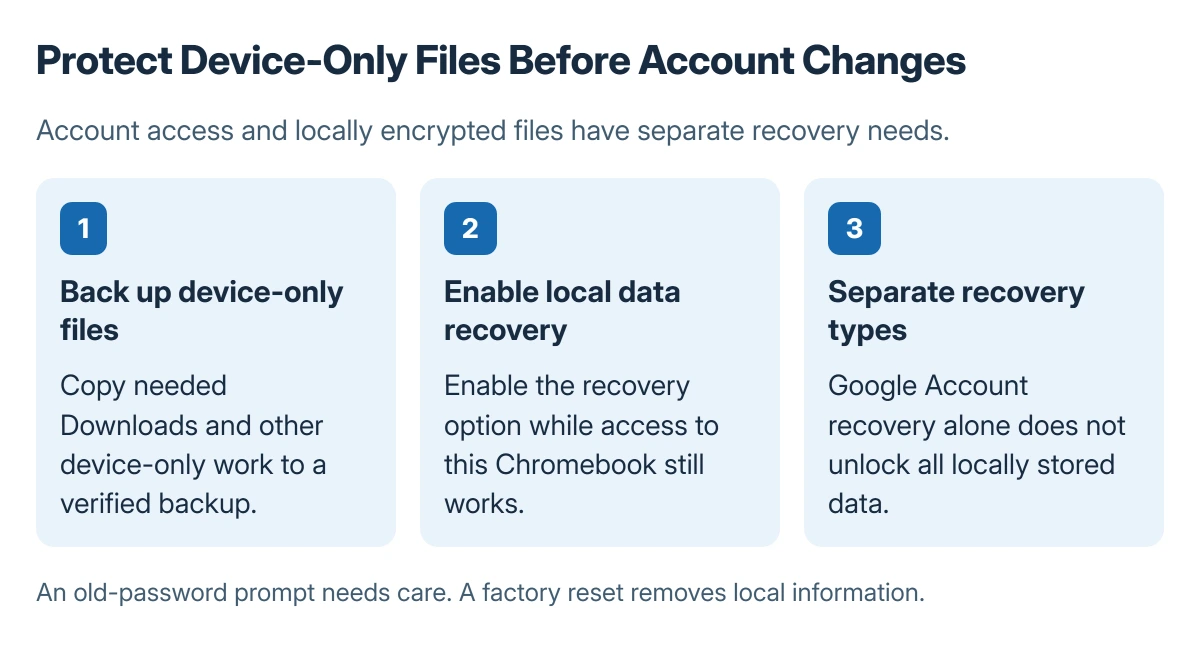
If a password change causes a sign-in problem, follow Google's sign-in troubleshooting for the exact message. Keep the previous password available for a local-data prompt rather than dismissing a data-loss warning.
A Chromebook factory reset removes local information. It should not be the routine next step for changing a credential or a PIN. Managed accounts may also need an administrator's assistance.
The Short Version
Use Lock screen and sign in for the Chromebook password or PIN. Use Google Account security for the account password. Back up local files and review Local data recovery before changing account access.
Where to Next
Record whether a failure occurs in device sign-in, Google Account authentication or local-data recovery. Those details determine the correct support route.

Isaac Smith is the founder and editor of PC Glance, a website that covers computers, laptops, and technology. He is a tech enthusiast and a computer geek who loves to share his insights and help his readers make smart choices when buying tech gadgets or laptops. He is always curious and updated about the latest tech trends.