

Clicking the red button on a MacBook closes that window, but many apps keep running. Select the app from your Dock, then reopen your document from its File menu or the Mac's Recent Items menu if the window doesn't return.
A minimized window can return straight away, while a closed document needs reopening. Use Safari's history controls for a closed page. You don't normally need to reinstall the app for any of these.
1. Bring the app forward and check its Window menu
Select your app from the Dock, the icon row normally along your screen's lower edge. Look at the app name beside the Apple menu at the top left. The app named there controls the menu bar.
Open Window in that top menu bar. If your document or main window is listed, choose its name. Your window may just be behind another one, even when the app is active.
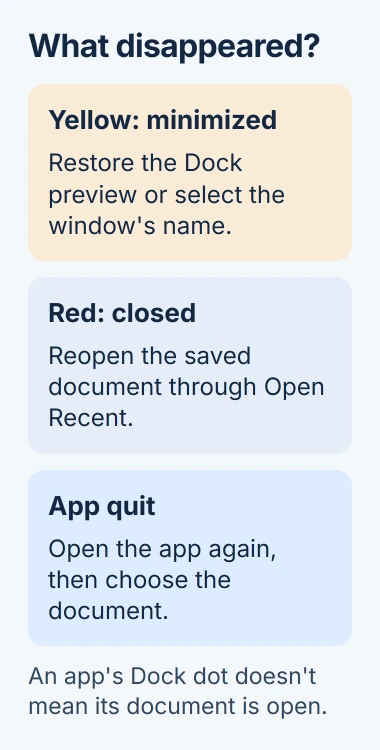
Apple explains in its window controls guide that closing a window and quitting an app are separate actions. A small dot beneath the Dock icon indicates an app that's running.
The dot doesn't mean your document is still open. An app can remain active with no document windows at all. That's why repeatedly clicking the same Dock icon sometimes seems to do nothing.
If the Window menu lists your window but it stays off the screen when selected, use the off-screen Mac window recovery steps. A window on a disconnected monitor needs moving back rather than reopening.
2. Restore a minimized or hidden window
The yellow button minimizes a window. It leaves the window open and moves it out of your working area. Look near the files and folders in the Dock for a small window preview, then click it.
Some Macs have Minimize windows into application icon enabled in System Settings > Desktop & Dock. In that case, there may be no separate thumbnail. Choose the window from the app's Window menu instead.
Pressing Command+H hides an app's windows without closing their documents. Select its Dock icon to bring it forward, or use Command+Tab to choose a running app from the app switcher.
If all your windows disappeared just after clicking the desktop wallpaper, click the wallpaper again. The earlier click may have moved them aside temporarily without closing anything.
If your document comes back with its contents intact, you can carry on working. If the app is running but the document isn't in its Window menu, reopen the file next.
3. Open the document, rather than a new blank page
Choose File > Open Recent if the app offers it, then select the document's name. Bring Pages, Preview or the program you were using to the front first, since the menu shows recent files for the active app.
Another route is Apple menu > Recent Items. Under Documents, select the file you closed. Under Applications, selecting the app only launches the program; it doesn't necessarily open the particular document you want.
The recent-items instructions cover both lists. If your file isn't listed, that doesn't mean it's been deleted. Recent Items doesn't show every file on your Mac.
If the file isn't listed, open Finder and go to the folder where you saved it. Double-click the document. For a file on an external drive, reconnect that drive before trying to open it.
File > New or Command+N creates a new item in many apps. Use it for a fresh window, rather than to recover an existing document's contents. Check the command name first, since apps don't all use shortcuts the same way.
I'd reopen the saved file before changing any Mac settings. It's the quickest way to tell whether you've simply closed the document or whether the app itself has a problem.
4. Use Safari's controls for a closed webpage
For a page closed in Safari, open Safari and choose History > Recently Closed. Select the tab or window that contains the page you need. That brings back the page, rather than an empty Safari window.
The History menu may also show Reopen Last Closed Tab, Reopen Last Closed Window or Reopen All Windows from Last Session. Choose the option that matches what you closed; the commands you see depend on that session.
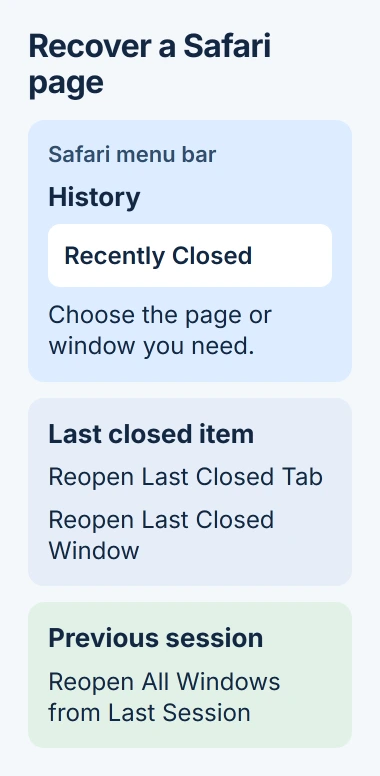
These Safari history controls work in Safari. If you use another browser, check its own history and recovery menu.
If Safari brings a page back as a tab when you wanted a separate window, check the Safari window settings. Recovering a page and choosing how future links open are separate tasks.
Keep windows for the next time you quit
To bring back windows in apps that support this, open System Settings > Desktop & Dock. In the Windows section, switch off Close windows for quitting an application. On older macOS, look in System Preferences > General.
This setting applies to windows you leave open when quitting the app. It won't undo a red-button close that already happened. Open the document again first, then leave its window open when you quit normally.
When you restart, select the Reopen windows checkbox if you want your session to return at login. This is separate from an app restoring documents after you quit and reopen it.
If a document comes back empty, check the app's saved versions or recovery options before saving over that file. Whether you can recover unsaved work depends on the app and what you chose in any save dialog.
If an app still can't open any window, tell its developer the app name, macOS version and what happens with File > Open. If it crashes unexpectedly, use the app's repair steps instead of repeating window commands.
The Short Version
Activate the app and check Window, then reopen your document through Open Recent or Recent Items. Use the Dock for a minimized window and History for Safari. Restoration settings apply to the next normal quit.
Checked November 5, 2026.

Isaac Smith is the founder and editor of PC Glance, a website that covers computers, laptops, and technology. He is a tech enthusiast and a computer geek who loves to share his insights and help his readers make smart choices when buying tech gadgets or laptops. He is always curious and updated about the latest tech trends.