
Google Play services near the top of your Galaxy Watch's battery list doesn't show which background task is using the power. Update the watch and its apps, restart it, then compare battery life before disabling a system service.
If Google Fit is installed on your Wear OS watch, try removing that app next. Removing it fixed one Watch5 owner's drain after an update, while another owner's watch kept draining.
1. Check watch battery use, then update and restart
Open the watch's Settings > Battery and check what's using power. Depending on your software, you may also see this in the paired phone's Galaxy Wearable app under Watch settings > Battery or Battery and device care.
Check that you're reading the watch's battery report. Google Play services can appear in your phone's battery list too, but that report covers the phone's apps and battery. Note the time period before comparing percentages.
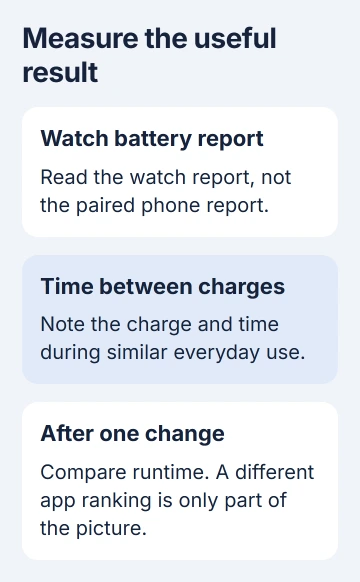
Note the charge and time, then check again after normal use. An app moving down the list doesn't mean the battery lasts longer. Keep your screen use, workouts and connections similar when comparing battery life after the next charge.
Samsung's watch battery guidance recommends updating apps and watch software. Open Settings > Software update > Download and install on your watch and install any available update.
For apps, open the watch's Play Store, scroll to My apps, and choose Update all if updates are available. That's the Wear OS update route; older watches use the Galaxy Store instead.
After installation finishes, hold the Home and Back buttons until the power menu appears, then tap Power off. Turn the watch back on with the Home button. Use it as usual once it reconnects to your phone.
These Play Store steps are for Wear OS Galaxy watches, including Watch4 and later. The original Watch Active and Watch3 use different software, so Google Play services fixes don't apply to those models.
2. Remove Google Fit if it's installed and unused
Look for Google Fit in your watch's app list. If you don't use it, check that any information you need is saved before removing it. Leave Samsung Health and your other apps unchanged while you compare battery life.
On the watch, touch and hold the Google Fit icon, tap Uninstall, then confirm. Alternatively, use Galaxy Wearable > Watch settings > Apps, select Google Fit and choose Uninstall if that control is available.
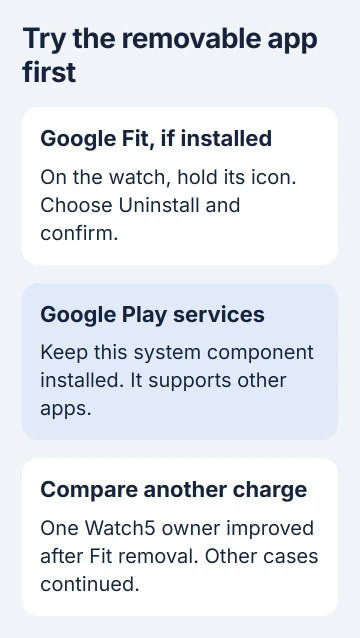
One owner reported that uninstalling Google Fit restored their previous runtime. Their battery life improved without clearing the cache or resetting the watch first.
That fix worked on a Watch5. The original Watch6 Classic owner's battery still drained after a reset with Fit left uninstalled. Try removing Fit if it's there, then check whether your own watch lasts longer.
After removal, compare how long the next charge lasts while using your watch as usual. If Google Fit wasn't installed, skip this step; installing it just for this test won't help.
3. Compare a stable phone connection and fewer radio searches
Keep your paired phone nearby and check that the watch stays connected. Searching for a weak connection uses power. Try keeping the phone beside you for a while and compare battery life before changing other features.
If you aren't using Wi-Fi, turn it off in the watch's Settings > Connections > Wi-Fi while keeping the Bluetooth phone connection. Turn Wi-Fi back on when you need the watch online without your phone.
On an LTE watch, Settings > Connections > Mobile networks may offer Always off. This turns off the watch's cellular connection without canceling your plan. Try it only when you can manage without cellular service on the watch.
Try each wireless connection separately and compare battery life after each change. Turning them all off changes too much at once. Leave an optional connection off only if the extra battery life suits how you use the watch.
If your phone also loses charge quickly, use the separate Android battery-usage checks. Limiting an app on your phone is different from removing it from your watch.
4. Use screen and power-saving controls for extra runtime
Open Settings > Display and turn Always On Display off if you don't need the clock visible all the time. Compare battery life while wearing it as usual. This reduces screen use even if Google Play services stays high in the report.
For short-term help, open Settings > Battery > Power saving. Read what it changes on your model before turning it on. It limits performance and some functions to extend a charge, but the background task causing the drain can remain.
On your phone, open Galaxy Wearable > Watch settings > Notifications > App notifications. Turn off app alerts you don't need on your wrist. This cuts down on screen wakes, vibration and data sent between devices.
I'd keep essential alerts on and turn off the optional ones first. Extra battery life isn't much help if you miss the alerts you need. Keep the changes that fit how you actually use the watch.
5. Report persistent drain before clearing system data
Keep Google Play services installed; other apps and account functions need it. Google's Play services guidance warns that erasing its storage can delete information and make you verify accounts or payment methods again.
Those phone and tablet menu paths don't fit every Galaxy Watch. Clearing the cache partition (temporary system storage) and taking away service permissions didn't fix the original owner's drain. Skip those changes based on this report.
Send support your model, software version, battery life, usage screenshots and what happened after each change. Mention a blank usage list too. The original owner's app-usage list stopped working again later while the drain continued.
If the case is lifting, damaged or unusually hot, stop wearing and charging it and arrange service. The Galaxy Watch screen-repair guide explains why physical damage needs an inspection for your model.
The Short Version
Update and restart, then compare battery life. Remove unused Google Fit if installed, try one connection change and cut optional screen use. Keep Play services installed and contact support if drain or battery-report problems continue.
Checked November 5, 2026.

Isaac Smith is the founder and editor of PC Glance, a website that covers computers, laptops, and technology. He is a tech enthusiast and a computer geek who loves to share his insights and help his readers make smart choices when buying tech gadgets or laptops. He is always curious and updated about the latest tech trends.