

You like one webpage per window, but Safari on your Mac keeps opening links as tabs. You want the tabs gone. Or as close to gone as Safari allows.
That is annoying when a dozen tabs pile up behind one window. I read Apple's Safari guide and a MacRumors thread where window fans shared how they work around it.
Can you turn tabs off completely?
The thread has about 4,000 views. It opens with a plain question: "Is there still a way to entirely disable tabs in Safari?"
No reply named a switch that removes tabs. Instead, owners combine two settings with a couple of clicks and shortcuts, which gets very close.
One owner said they had turned off every tab option in settings years ago and now open everything in windows.
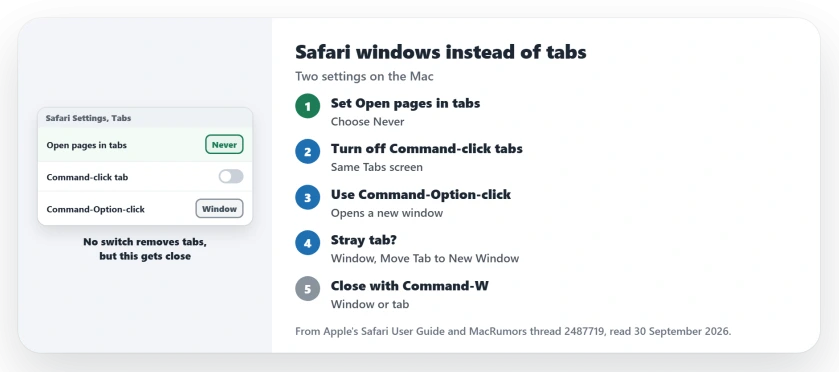
Status: checked 30 September 2026. Apple's Tabs settings can send new-window links to windows and change what Command-click does. Owners use two shortcuts to cover the rest.
1. Send new-window links to windows
In Safari, choose Safari, then Settings, then click Tabs. Find the menu called Open pages in tabs instead of windows and choose Never.
In its Safari guide, Apple says Never means: "Links designed to open in new windows open in new windows."
That covers links sites mark for windows. It does not change what your own clicks do, which is the next setting.
2. Make Command-click open a window
On the same Tabs screen, turn off the option that makes Command-click open a link in a new tab.
Apple gives this tip for anyone who wants "To use these Command-key shortcuts to open webpages in new windows instead of new tabs". With the option off, the same shortcut opens a window. Try it on any link.
3. Use the new-window click for everything else
The next shortcut is user-reported, from a member who found it listed in Safari itself. In their words: "Workaround: Command+Option+Click as described at the bottom of Safari > Settings > Tabs"
Another owner simply right-clicks a link and chooses Open Link in New Window. Stray tabs get closed straight away.
4. Turn a stray tab into its own window
Tabs still appear sometimes, for example from Command-T. Apple's steps move one out: "Drag the tab over the desktop or choose Window > Move Tab to New Window."
You can also drag a tab from one window into the tab bar of another, if you ever want to merge two.
To compare two separate windows, arrange them with Mac Split View or desktop tiles after creating the windows you need.
5. Close windows the same quick way
A member added the shortcut that makes window life easy. In their words: "Command-W (⌘W) closes a window or a tab."
I would learn that one first. It keeps the window count down without reaching for the mouse.
Other Safari problems on Mac
If Safari stutters when you scroll on macOS 27, the scrolling page covers the fixes. On iPhone, the disappearing tabs page explains what closes them.
And if you read foreign sites, the Safari translate page shows how far Safari carries a translation on its own.
Can I turn off tabs in Safari on Mac?
Apple's Tabs settings have no switch that removes tabs completely. Set Open pages in tabs to Never and turn off the Command-click option to get close.
How do I make Safari open links in a new window?
Use Command-Option-click, or right-click the link and choose Open Link in New Window. With the Command-click option off, Command-click opens a window too.
How do I move a Safari tab into its own window?
Drag the tab onto the desktop, or choose Window, then Move Tab to New Window.
The Short Version
- Safari has no switch that removes tabs.
- Set Open pages in tabs instead of windows to Never.
- Turn off the Command-click tab option.
- Use Command-Option-click for a new window.
- Or right-click and choose Open Link in New Window.
- Move a stray tab with Window, Move Tab to New Window.
- Command-W closes a window or a tab.
Where to Next
Open Safari Settings now, click Tabs, and set the menu to Never. Then turn off the Command-click option on the same screen.
If you have a better way to live without tabs, leave it in the comments. Window fans are a small but loyal crowd.

Isaac Smith is the founder and editor of PC Glance, a website that covers computers, laptops, and technology. He is a tech enthusiast and a computer geek who loves to share his insights and help his readers make smart choices when buying tech gadgets or laptops. He is always curious and updated about the latest tech trends.