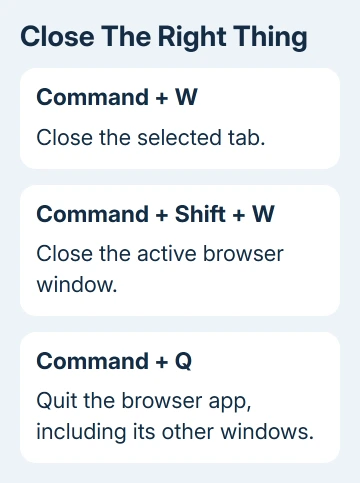
Command-W closes the active browser tab on a MacBook in Safari or Chrome. To clear a crowded Safari window while keeping one page, Control-click your chosen tab and choose Close Other Tabs.
Closing a tab, closing its window and quitting the browser do different things. Choose the smallest action for the cleanup you need, especially when another tab contains unfinished work.
In this guide
Close the current tab with the keyboard or pointer
Click inside the Safari or Chrome window to make it active, then press Command-W. The selected tab closes, and the browser switches to another tab if one is still open. Use Command, the key beside the space bar, rather than Control.
In Safari, you can also move the pointer over the tab in the tab bar and click the close control on its left side. Hovering first helps when the close button isn't visible until the pointer reaches the tab.
Chrome puts its close control on the tab itself too. A two-finger click on a trackpad opens the tab's context menu; Control-click is another way to open that menu without changing trackpad settings.
Save text in any unsent form before closing its tab. Some sites warn about unsaved changes, but don't count on every page offering that warning. A tab can disappear immediately after the shortcut.
When the last tab closes, its window can close as well. That doesn't automatically mean the browser app has quit. The app's name in the Mac menu bar helps show which program is still active.
Keep one Safari tab and close the rest
Apple says Safari's tab menu can close other tabs or the tabs on one side. Use the tab you want to keep as the starting point.
- Locate the page that should remain open.
- Hold Control and click that page's tab, or use a trackpad secondary click.
- Choose Close Other Tabs.
- Check that the intended page remains before repeating the operation in another window.
That command is more convenient than repeatedly pressing Command-W while guessing which tab will become active next. You can see exactly which page you're keeping before anything closes.
To close only tabs after a particular tab, Control-click it and choose Close Tabs to the Right. Safari's current guide also offers Close Tabs to the Left through the Option-click tab menu.
If there aren't any tabs on the right, the Control-click menu can show Close Tabs to the Left instead. Read the menu wording rather than choosing a familiar position by habit.
These commands close tabs in the window and view you're using. Check your other Safari windows and Tab Groups separately; they can still have open tabs.
Close a whole window or quit the browser
Press Command-Shift-W in the active Safari or Chrome window to close that window. In a normal window, clicking its red close button is another route. Check the window contains the tabs you mean to remove first.
For Chrome, Google's tab and window guide separates that shortcut from Command-Q, which quits Chrome entirely. Safari uses Command-Q to quit its app too.
I wouldn't use Quit as a shortcut for tidying one crowded window. It affects the app's other windows, and your startup settings may reopen the previous session the next time the browser launches.
The yellow window button minimizes the window. It doesn't clear the tabs. A minimized browser can still be running with the same pages open, even though the desktop looks empty.
For a workflow built around separate windows, the Safari window settings control how new pages open. Those preferences won't close existing tabs for you.
Recover a tab you closed by mistake
In Chrome, press Command-Shift-T to reopen a recently closed tab or window. Repeating the shortcut works back through recently closed items, so stop once the page you need has returned.
Safari offers History > Recently Closed for recent pages. Choose the entry by its title. Look in History for the command to reopen your most recently closed tab or window.
Reopening a page won't necessarily bring back text you hadn't submitted. If a reopened form is empty, check the site's own draft feature rather than repeatedly closing and reopening the same tab.
Private browsing handles history differently. Don't close a private page assuming that the normal Recently Closed list will preserve it. Keep anything you need before ending that private session.
If a page returns when you quit and reopen the browser, the browser may be restoring your previous session. That doesn't mean Command-W failed. Close the unwanted tab while the browser is running, then check what remains before quitting.
Is the shortcut acting on another app?
Command-W acts on the active app. If Finder is active, it can close a Finder tab or window instead of the browser tab behind it. Click the browser first and check the app name in the menu bar.
For Finder tabs, use their close control or Command-W for the selected tab. A document app may treat Command-W as closing a document and ask whether to save it. Read that prompt before continuing.
The same Mac keyboard shortcuts work on Intel and Apple silicon MacBooks. There isn't a different close-tab procedure for the processor type, and an external keyboard still needs to send the Mac Command shortcut.
If Safari is unresponsive, use Apple Support's Safari-on-Mac help. Report whether Safari freezes on a particular site or across several sites.
For Chrome, use its Help menu to report a tab problem you can repeat. Include the browser version and site address.
For tabs on your phone instead, the iPhone Safari close-all steps use a different tab overview. The Mac's Control-click menu isn't available there.
The Short Version
Press Command-W to close the selected tab. Safari's Close Other Tabs keeps your chosen page. Use Command-Shift-W for the window or Command-Q for the entire browser. Save unfinished work before a bulk cleanup.
Checked November 10, 2026.