
A Dell laptop's touch screen can stop responding even when the picture looks fine. Restart your laptop, then check that HID-compliant touch screen is enabled in Device Manager before changing display settings.
The touch sensor works separately from the part that shows the picture. Check Windows first, then your model's touchscreen setting and repair options. Use a mouse or the touchpad for these checks.
1. Confirm that this screen supports touch
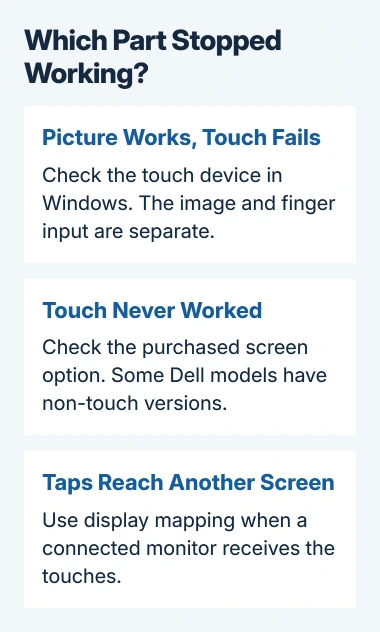
Check the original order details for your exact laptop. Dell sells some models with a choice of touch and non-touch displays, so another laptop with the same family name can have a different screen.
In Windows, right-click Start, select System, and read Pen and touch under the device specifications. Compare that report with your order, especially if touch has never worked since you bought the laptop.
If your order lists a touch display but Windows reports none, keep checking. A disabled device or firmware setting can hide the hardware from Windows. That report alone isn't a reason to buy another panel.
If the picture itself is black, striped or flickering, use the Dell LCD picture test instead. Passing the color test means the screen can show a picture; it doesn't tell you whether touch works.
2. Restart and remove anything interfering with the glass
Save your work, open Start > Power, and select Restart. After signing in, try a tap in Settings and a swipe in another app. If touch fails in just one app, check that app before changing settings for the whole laptop.
Turn the laptop off before cleaning the screen. Use a soft microfiber cloth, lightly dampened if needed, and leave the glass dry before turning it on. Follow the screen-cleaning instructions for the surface.
If you recently added a screen protector, remove it and try touch again. Bubbles or the wrong material can interfere with touch. Think back to whether the problem started just after you put it on.
Unplug USB accessories you don't need and disconnect the dock, then try touch again. If it works, reconnect each accessory in turn. If one makes touch stop working, leave it disconnected and tell support which device caused it.
I'd try these quick checks before removing the driver. They don't take long or change your Windows setup. If every app still ignores touch with the screen clean and accessories removed, check the device entry next.
3. Enable the touch device in Windows
Right-click Start > Device Manager, then expand Human Interface Devices. Look for HID-compliant touch screen. HID is Windows' name for a group of input devices, including the touch sensor.
Right-click that entry. Choose Enable device if it's offered. When the menu offers Disable device, the device is already enabled; selecting that would turn touch off.
The Windows touchscreen control explains this enable and disable action. Leave unrelated HID devices alone, since the same category holds other input hardware.
Try the screen again after enabling it. If the entry is missing, check the model's firmware setting in the next section. If it's there with an error symbol, open Properties and write down the device-status message for support.
4. Check the model's touchscreen setting
Restart the laptop and press F2 repeatedly as it starts to open BIOS, the laptop's built-in settings. Use the keyboard to look for a touchscreen option in the display settings.
The location varies by Dell model, and some models don't offer this switch. Use your model's manual rather than assuming that every laptop has an identical Display page. Skip this check if your model doesn't offer the switch.
If Touchscreen is disabled, enable it, save that change, and restart Windows. Leave other firmware options as they were. A screen disabled here can disappear from Windows even though its picture continues working.
Dell recommends checking this switch in its touchscreen troubleshooting steps. An enabled touchscreen setting needs no change; continue with Windows updates.
5. Update Windows, then reinstall the touch entry if needed
On Windows 11, open Settings > Windows Update > Check for updates. Windows 10 uses Settings > Update & Security > Windows Update. Install the offered system updates and restart when asked.
If SupportAssist is installed, open it from Start and check the offered software updates for your model. Follow its instructions for any driver or firmware update. Keep the laptop connected to power during a firmware update.
If touch still doesn't work, return to Device Manager > Human Interface Devices. Right-click HID-compliant touch screen, choose Uninstall device, confirm, then restart the laptop.
Windows finds the device again and reinstalls its built-in touch driver, so I'd try this before a random touchscreen-driver download. After restarting, check both the device entry and whether a tap works.
If taps register on the wrong connected display, use the touchscreen monitor-mapping steps. If taps appear on another display, Windows is receiving them but sending them to the wrong screen.
6. Follow a failure that happens only after sleep
For touch that works after a restart but fails after waking, open the touch device's Properties in Device Manager. Open Power Management if that tab is present.
Clear Allow the computer to turn off this device to save power, then select OK. Restart, put the laptop to sleep, wake it, and repeat the same touch check.
Some touch drivers don't have that tab. Skip this setting if you can't see it. The additional touch checks describe this specific wake-from-sleep case.
If touch still fails, give Dell your model, Windows version, device-status message and the results of these checks. If the panel is cracked or fails a touch diagnostic, have it checked for repair instead of resetting Windows again.
The Short Version
Confirm touch support, restart and check the glass, then enable the touch device. Review its firmware switch and supported updates before reinstalling the driver. For failures after sleep, check device power management.
Checked November 5, 2026.

Isaac Smith is the founder and editor of PC Glance, a website that covers computers, laptops, and technology. He is a tech enthusiast and a computer geek who loves to share his insights and help his readers make smart choices when buying tech gadgets or laptops. He is always curious and updated about the latest tech trends.