
For a check mark in Excel on Windows, select a cell and open Insert > Symbols > Symbol. Choose Wingdings, enter character code 252, and insert the mark. That gives you a fixed symbol for a completed item.
For a box you can click on and off, use Insert > Checkbox in supported Microsoft 365 versions instead. Choose the behavior you need first: a symbol and an interactive checkbox store different things in the cell.
Choose a fixed mark or a clickable box
Use a fixed mark for a finished report, an approval list or a checklist you plan to print. It stays in the cell until someone edits or deletes it, just like other text.
Use a checkbox for a list people will keep updating. Clicking it checks or unchecks the box, and formulas can read that choice. It isn't just a decorative character pasted over a cell.
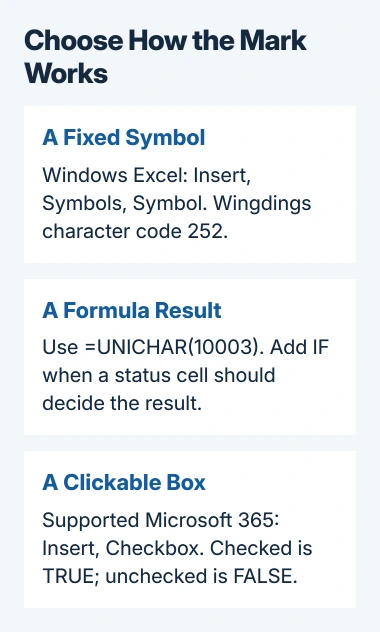
Microsoft explains the difference between a fixed mark and a checkbox in its symbol instructions. Those steps are for desktop Office on Windows. A Mac's ribbon can put the commands in different places.
I'd use a separate status column beside the item names. That keeps names readable and lets you copy, clear or format the marks without changing the task description in the next cell.
Insert the Wingdings mark in desktop Excel for Windows
Click an empty cell where the mark should appear. To keep text that's already in the cell, start editing that cell and put the cursor where you want the mark before opening the symbol dialog.
- Open Insert, then Symbols > Symbol.
- In Font, select Wingdings.
- Enter 252 in Character code.
- Select Insert, then Close.
The selected character should appear as a check mark in the cell. Code 254 in the same font is the alternative with a surrounding box. That box is still just a symbol; clicking it won't check or uncheck it.
Check the font as well as the code. The same number can give you a different character in another font. Look at the dialog's preview before inserting it; you should see the mark you want.
For a whole status column, format the first finished cell before copying it. Choose the size, color and alignment on Home, then check that the mark fits the row without crowding the item beside it.
Use a Unicode mark when a formula should decide the result
Unicode gives each text character a number. The UNICHAR function turns that number into the character you see.
A plain check mark uses decimal 10003. A symbol list may show the same number as hexadecimal 2713, a different way of writing numbers. Both refer to the same character.
In an empty cell, enter this formula and press Enter:
=UNICHAR(10003)The cell should show a check mark. Use this method when you want a formula to create it or don't have the Windows Symbol dialog available. Choose a normal font that can display the character.
The UNICHAR reference covers the function in supported Windows and Mac Excel versions. The number tells Excel which character to display; it doesn't set the character's size.
For example, put a task's status in B2 and enter this formula in C2:
=IF(B2="Done",UNICHAR(10003),"")Typing Done in B2 makes C2 display a mark; another status leaves C2 empty. You can change the example to use your own status words. Keep the formula in C2; B2 holds the status it reads.
If Excel displays the formula as text, check that the entry starts with = and that the cell isn't using Text format. After changing the format, edit and confirm the formula again so Excel calculates it.
For a calculation that still won't update, use the Excel formula-update checks. Changing fonts won't repair a formula that Excel isn't calculating.
Copy the finished mark without mixing up fonts
To repeat the same fixed symbol, copy its cell and paste it into the other status cells. Normal paste carries its formatting too. Check that the destination cells don't contain information you need to keep.
If the copy becomes a letter or an unexpected shape, inspect its font. A Wingdings character needs Wingdings for its intended appearance. Changing that font can change what the character looks like.
Copying a mark made by a formula can change which cells the formula reads. After copying C2 down the column, check the next formula to make sure it reads the status on the right row.
To keep the mark without its formula, copy the result and use Paste Special > Values where you paste it. The formula-copy and paste options explain choosing values separately from formulas and formatting.
Add a checkbox when people need to change the state
In a supported Microsoft 365 desktop version, select the cells for your checklist and choose Insert > Checkbox. Click a box to change it, or select its cell and press Spacebar.
These in-cell checkboxes hold TRUE when checked and FALSE when unchecked. A formula that reads the cell gets that TRUE or FALSE value instead of a Wingdings character.
The newer Checkbox command isn't available in every older Excel edition. If it's missing, check File > Account for your product and update status. The fixed symbol and UNICHAR methods don't depend on that newer checkbox control.
Stick to one method in your status column unless you need different behaviors. Clickable boxes, typed letters and formula marks can look alike while storing three different kinds of information.
Check the workbook where it will be used
Save the workbook, reopen it and inspect the marks at normal viewing size. If you'll print the list, check File > Print to see whether the symbol and its item stay together and remain readable.
Have a recipient check a sample row in their Excel version. If the symbol is wrong, tell support how you inserted it, which font it uses and which Excel version opens the file.
The Short Version
Choose Wingdings code 252 for a fixed symbol, UNICHAR for a formula result, or Insert > Checkbox for an interactive list. Keep symbol fonts intact and inspect copied formula references.
Checked November 5, 2026.

Isaac Smith is the founder and editor of PC Glance, a website that covers computers, laptops, and technology. He is a tech enthusiast and a computer geek who loves to share his insights and help his readers make smart choices when buying tech gadgets or laptops. He is always curious and updated about the latest tech trends.