
Two monitors can run from a mini PC with two supported display outputs, such as dual HDMI or HDMI plus USB-C video. Check the model's supported combinations, then give each screen its own connection.
The small case isn't the limitation. What matters is which ports carry video, which can work together and what resolution each combination supports.
Read the display specification before buying an adapter
Find your mini PC's full model name on its label or in your order details. Open the maker's support page and look for its manual, port diagram or multiple-display table. Similar-looking models can have different connections.
Check both the number of supported displays and the supported port combinations. Several sockets in a photo don't tell you whether they all carry video or can work at the same time.
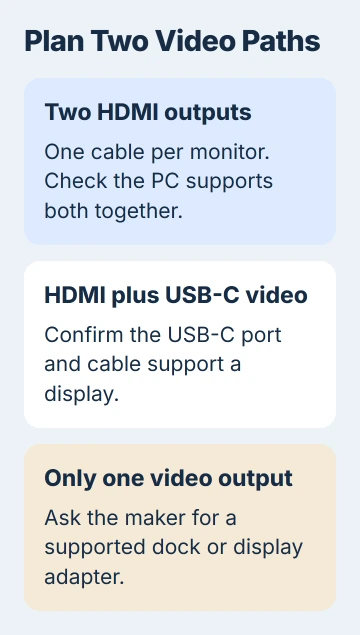
For example, ASUS says HDMI plus USB-C is a two-display option for specific NUC 12 Pro X and Extreme kits. It also lists two USB-C outputs as another combination for those models.
That table applies to the NUC kits it names. Find the matching table for your own mini PC; compact Windows computers don't all have the same ports or display limits.
Check the resolution and refresh rate as well as the display count. Refresh rate is how often the screen updates each second. A mini PC that supports two screens may not run both at your monitors' highest settings.
If the listing gives only one maximum resolution, ask the maker what works with two screens connected. I'd check that before ordering a dock, especially if both monitors have a high resolution or refresh rate.
Match each monitor to an actual video output
Check the inputs on the backs of your monitors. If both have HDMI, you can use two HDMI outputs on the mini PC when its specification supports that setup. Each monitor gets its own cable.
With HDMI and DisplayPort outputs, use one for each monitor. Match each cable to the PC's output and the monitor's input. Connect directly at first, so there are fewer parts to check if a screen stays dark.
USB-C needs a closer check because the same socket shape has several uses. Look for a display feature in your mini PC's specification, such as DisplayPort over USB-C or a supported Thunderbolt display connection.
Don't count a USB-C socket listed only for data as a video output. An adapter can't add a display signal to a port that doesn't supply one. Check the cable's video support as well as the computer's.
If your mini PC sends video through USB-C and your monitor takes DisplayPort or HDMI, choose an adapter that works in that direction. A cable made to send video the other way may not work.
Write down how you'll connect each screen before plugging anything in. For example: PC HDMI to left monitor HDMI, then PC video-capable USB-C to right monitor DisplayPort. Those details also help if you need support.
Get one screen working before adding the other
Start with one monitor connected directly to the mini PC. Turn on the screen, open its own input menu and choose the input matching the cable, such as the numbered HDMI input you've used.
Once Windows appears, connect the second monitor to the other supported output. Turn it on and select the matching input. If the screen is set to an unused HDMI input, it can look as though the PC isn't sending a picture.
If the second monitor stays dark, try it with the first monitor's working cable and output. If it shows a picture, the screen can receive a signal. Check its original cable, adapter or PC output next.
Try the second screen's original cable on a working screen if the connectors fit. Keep the other connections in place during each check. Swapping every part at once leaves you unsure which replacement helped.
This check is especially useful with a USB-C adapter. If the monitor works directly over HDMI but stays dark through the adapter, check that connection before replacing the screen.
Choose Extend once both displays are detected
Press Windows + P and choose Extend to give each screen its own workspace. Duplicate shows the same desktop on both. If both show the same picture, your connections may be working; try changing the display mode.
Open Settings > System > Display. If one screen is missing, expand Multiple displays and select Detect. Microsoft's display setup instructions cover these controls.
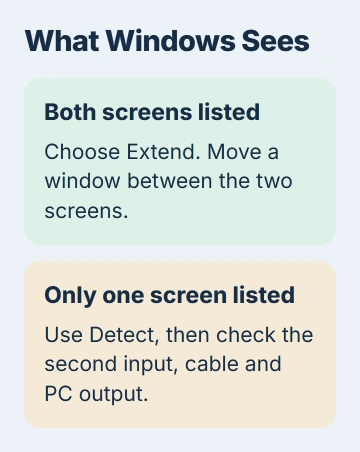
Once Windows lists both screens, follow the two-monitor arrangement steps to match their positions, choose the main screen and adjust each screen's scale.
Move a window from one screen to the other. If it moves between them, Windows is extending your workspace rather than showing the same picture twice.
One HDMI socket needs more than a simple splitter
A basic HDMI splitter repeats one signal. It can put the same picture on two screens, but it doesn't give Windows a second independent desktop. Buying one won't solve a missing second output for Extend.
A compatible dock or USB display adapter may give you another way to connect. Ask your mini PC maker which products work with it. Before buying, check the adapter's operating-system requirements and limits with two screens.
For a USB-C dock, check what it needs from the PC as well as which monitor sockets it has. Two HDMI sockets on a dock don't mean every USB-C computer can run both screens.
A supported DisplayPort multi-stream hub can carry separate display signals, unlike a basic HDMI splitter. Your PC and the hub must both support the way you plan to connect the screens.
Stop at the hardware limit when neither cable is faulty
If both monitors work separately but won't work together, recheck the exact two-display table. Install the graphics driver recommended for your mini PC, then repeat the direct two-output connection.
If this setup used to work, try the second-monitor detection checks. Tell the manufacturer your PC and monitor models, how each screen connects and whether Windows lists one or two displays.
If the maker confirms your connections support only one screen, use an expansion option it supports or different hardware. Pressing Detect repeatedly can't change that limit.
The Short Version
Check the mini PC's exact two-display specification, use two supported video paths and test each screen directly. Choose Extend after both are detected. A basic HDMI splitter copies a picture; it doesn't create another workspace.
Checked November 5, 2026.

Isaac Smith is the founder and editor of PC Glance, a website that covers computers, laptops, and technology. He is a tech enthusiast and a computer geek who loves to share his insights and help his readers make smart choices when buying tech gadgets or laptops. He is always curious and updated about the latest tech trends.