
Microsoft Word can fail to open when an add-in, template or damaged Office installation gets in the way. Restart your PC, then try winword /safe to see whether Word opens without the extras it normally loads.
These steps are for Word installed on Windows. If Word opens normally but one document won't, check that document before repairing the whole Office suite.
1. Restart, then launch Word from Start
Save any open work, then choose Start > Power > Restart. When Windows comes back, search Start for Word and open the app itself rather than double-clicking the document that failed.
If Word shows its start screen, create a blank document. If that opens, Word itself can run, even if your original document still won't open.
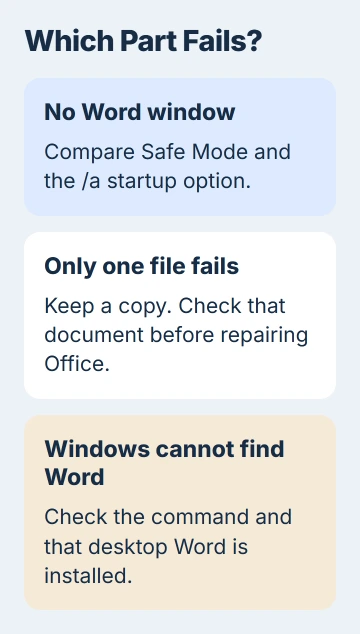
Try another document you know opens correctly. If that works too, keep a copy of the troublesome file and focus on recovering that document. Don't overwrite its only copy while trying to recover it.
If Word opens but extra blank documents keep appearing, use the Word blank-window update checks. That behavior differs from a program that won't launch at all.
If no Word window opens, write down any error before continuing. For a Windows cannot find message, check that Word is installed. A crash message or a startup logo that disappears means Word has started to load.
2. Update Office through another working app
Open Excel or another installed Office app if one still works. Choose File > Account > Update Options > Update Now. If Enable Updates is offered first, select it and then check for updates.
Microsoft's Office startup troubleshooting puts updates before its add-in and repair checks. Let the update finish, then try Word from Start again.
If none of your Office apps open, move to the next section. On a work PC, IT may control updates, so you might not see the update controls.
Write down the error and which other Office apps fail. If only Word fails, check the files it loads at startup. If several Office apps won't open, you'll also need to check the Office installation they share.
3. Try Word's Safe Mode
Press Windows + R, enter winword /safe and press Enter. Keep the space before /safe. If Word opens, look for Safe Mode in its title bar.
Safe Mode loads fewer extras when Word starts. If it works, you can get to Word's settings even though Word won't open normally.
Go to File > Options > Add-ins. At Manage, choose the relevant add-in list, such as COM Add-ins, then select Go. Clear one add-in's checkbox, select OK, close Word and try a normal launch.
If Word now opens normally, leave that add-in off and check its maker for an update. If Word still won't open, try the remaining add-ins one at a time. Note what you change so you can turn useful ones back on.
If Word opens but you can't select text, use the Word selection checks. Opening Word in Safe Mode doesn't explain every problem you might have with a document.
If Windows can't find winword, confirm the spacing and check that desktop Word is actually installed. A browser shortcut to Word for the web isn't the Windows program this command starts.
4. Check templates and settings with the /a switch
Close Word, open Windows + R again and run winword /a. This starts Word without automatically loading add-ins or global templates, which apply across documents. It also keeps Word from reading or changing its settings files.
The Word startup instructions explain this check. If Word opens with /a but won't open normally, check the files and settings that /a skips.
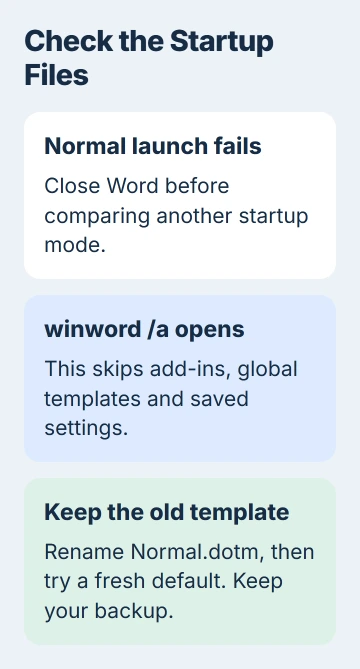
Next, check Normal.dotm, the template Word uses for default document styles and customizations. If the change doesn't help, you can undo it before repairing Office.
If /a also fails, skip the template change and move on to repair. I'd make each startup change separately so you can tell which file or setting helped.
5. Rename Normal.dotm while keeping the old template
Close Word and other Office apps. In File Explorer's address bar, enter %appdata%\Microsoft\Templates and press Enter. Find Normal.dotm in the folder that opens.
Give it a different name, such as Normal-backup.dotm, then start Word normally. If you can't see file extensions, use View > Show > File name extensions in Windows 11 to see the full filename.
When the original template is renamed or moved, Word creates a fresh default template on its next start. The new one won't contain customizations stored in the old template.
Keep the backup, especially if you use custom styles or macros. If Word opens with the fresh template, check the customizations in your old one before bringing them back.
If the change doesn't help, close Word. Move any newly created Normal.dotm out of the folder, then restore the backup's original name. If your organization uses a different template location, ask IT before changing its files.
6. Repair the installed Office product
In Windows 11, right-click Start > Installed apps. Find Microsoft 365, your Office suite or standalone Word. Open its three-dot menu > Modify and accept the administrator prompt if you have permission.
If Office uses Click-to-Run, its streaming installer, try Quick Repair first. If Word still fails, connect to the internet and use Online Repair. An older installer may instead offer Repair > Continue.
Repair works on the product you selected. If Word is part of an Office suite, it repairs the whole suite, even if only Word is giving you trouble. Close your other Office work first.
Follow the repair prompts and restart if asked. Then open Word from Start and create a blank document again. If that works, try your original document.
When Word still won't launch
Tell your IT team or Microsoft Support which error appeared, your Office version and what happened with Safe Mode, /a and repair. Check Windows updates and your PC maker's current drivers before getting help reinstalling Office.
Keep your document backups and the account you'll need to reinstall your licensed Office product. If repair fails, consider reinstalling Office with support before resetting Windows. Reinstalling Office doesn't mean deleting your documents.
The Short Version
Restart and launch Word itself, update Office, then compare Safe Mode and /a. Keep a backup when checking the Normal template. Use Quick Repair, then Online Repair, if Word still won't open.
Checked November 5, 2026.

Isaac Smith is the founder and editor of PC Glance, a website that covers computers, laptops, and technology. He is a tech enthusiast and a computer geek who loves to share his insights and help his readers make smart choices when buying tech gadgets or laptops. He is always curious and updated about the latest tech trends.