
Yes, regular Chromebooks can use Gemini at gemini.google.com. The separate Gemini in Chrome feature currently requires Chromebook Plus, so use the web app when your browser doesn't have the Gemini button.
Open the website first and check that chat works with your account. Then add an app shortcut if you want quicker access from the Chromebook's launcher or shelf.
Start with the web app on an ordinary Chromebook
Open Chrome and visit Gemini's web app. Some features work without signing in, while additional features and saved activity need an eligible Google Account.
If you see a sign-in option, select it and choose your intended account. Your personal account may have access even when a school account on the same computer doesn't.
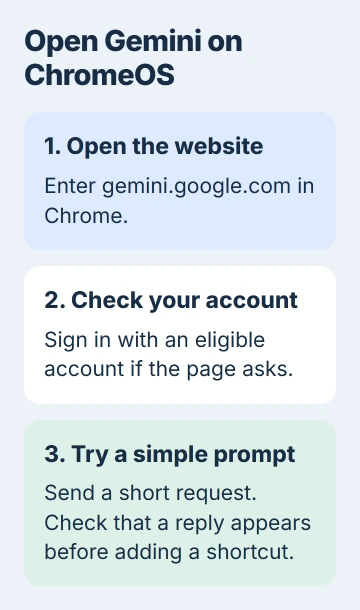
Google says Chrome is supported in its Gemini web instructions. You don't need a Chromebook Plus to open the website and start a chat.
Look for the prompt box and enter a simple request, such as asking for an explanation of a familiar topic. Submit it and wait for a response. This checks that chat works before you change any browser settings.
If the page opens but says your account can't use Gemini, go to the account section later in this guide. A shortcut opens the same service, so installing one won't give your account access.
Separate the website from Gemini in Chrome
Gemini's website runs in a browser tab or an app window. Gemini in Chrome works inside the browser, beside the page you're viewing. That separate feature can use tab content you share with it.
The current integration requirements list Chromebook Plus, Mac and Windows computers. Access also depends on your account, region, language, Chrome version and whether the feature has reached you.
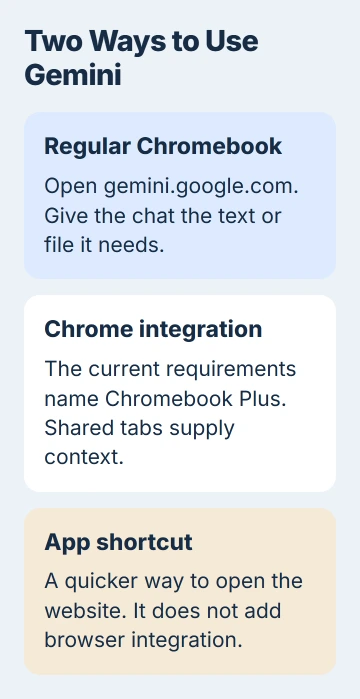
On a regular Chromebook, use the website. Changing a hidden flag won't turn your computer into a Plus model, and it isn't a supported way around that requirement.
The website also gets information differently. Opening Gemini in one tab doesn't share the text of your other tabs with it. Give the web chat the material you want it to use.
If you have a supported Plus model and its browser button has disappeared, use the missing Gemini button checks. Those controls are for Gemini in Chrome.
Make Gemini easier to open
After the website works, leave its page open in Chrome. Open the three-dot menu > Cast, save, and share > Install page as app if that option is available, then follow the installation prompt.
Some websites also show an install button in the address bar. The web-app installation steps cover both ways to install.
Open the Gemini app from the launcher and check which account it uses. The separate window is convenient, but it still uses the online Gemini service. Installing it doesn't give your Chromebook an offline version of Gemini.
To keep it on the shelf, right-click its app icon and choose Pin to shelf. If installation isn't offered, bookmark the working page instead. A bookmark is enough to avoid searching for the service each time.
I'd check that the website works before installing anything. If the app window then fails, you can compare it with the working tab instead of wondering whether your account has access.
If the app window isn't useful, keep the website bookmark and remove the installed copy. You're only changing how you open Gemini; your Google Account stays in place.
Give a web chat the material it needs
Type your question in the prompt box and explain what you need help with. To have a passage explained, paste the relevant text into the chat and say which part is confusing.
For a file or image, select Add files if it's available and follow the prompts. Check that the right attachment appears before you send the message. Upload options can vary with your account and the service's limits.
Start a New chat when moving to an unrelated subject. If that option isn't visible, open the side menu first. A separate chat for each task makes the right conversation easier to find later.
Compare names, dates and calculations in the reply with your source material. A confident answer can still contain mistakes. Check a Chromebook's actual menu when an instruction doesn't match your screen.
Keep private school or workplace material out of a personal chat unless your organization permits it. Choosing the correct account matters when you're using a document you received through work or school.
Check account access when the website refuses to start
For a school account, your administrator needs to turn on the service. A work account needs a supported Workspace edition, and you must meet the age requirement. Ask your administrator about access rather than reinstalling Chrome.
For a supervised personal account, a parent manages access through Family Link. Keep the account's real age and its existing supervision settings. A new shortcut won't change those controls.
The web app is also limited to supported countries and languages. If you get an availability message, read what it says and check the web app's requirements. Gemini in Chrome has a separate set of requirements.
On a managed Chromebook, you may be allowed to open a website but not install it as an app. If Gemini works in a normal tab but the install command is blocked, ask your device administrator for permission to install it.
Remove the shortcut or get help with a failed page
To remove an installed Chromebook app, find its launcher icon, right-click and choose Uninstall. Remove browsing data only if you also want that website's stored browser data removed.
If the website won't load, note its message and try another site. Tell Gemini Help or workplace IT what happened and which kind of account you're using. That helps them check whether access is blocked or the page itself won't load.
The Short Version
Use gemini.google.com on a regular Chromebook, check account access and optionally install the page as an app. Chromebook Plus browser integration is a separate feature. A shortcut opens the website; it doesn't add automatic tab sharing.
Checked November 5, 2026.

Isaac Smith is the founder and editor of PC Glance, a website that covers computers, laptops, and technology. He is a tech enthusiast and a computer geek who loves to share his insights and help his readers make smart choices when buying tech gadgets or laptops. He is always curious and updated about the latest tech trends.