

Clearing cookies on Android starts inside your browser. In Chrome, open Settings > Privacy and security > Delete browsing data. Choose a time range and select Cookies and site data, leaving passwords unselected to keep them.
For trouble with one website, remove that site's data first. Chrome lets you do this while keeping other websites' saved sessions. Samsung Browser has its own cleanup menu, so clearing Chrome won't clear that browser too.
Check the browser and what you need to remove
Open the page you're having trouble with and check which app it's in. A website opened from a message may be in Chrome, Samsung Browser or a small browser window inside another app.
Return to the browser you use for that site before deleting data. Each browser can save its own sign-in for the same website, so clearing one won't automatically change another.
Cookies help a website remember that you're signed in and save preferences. Cache stores downloaded parts of pages, such as pictures. History records pages you've visited. You can select these separately on the deletion screen.
Before clearing cookies, have the site's password and anything you need to verify a sign-in ready. Your password manager can still hold the password when the website needs a fresh sign-in.
The cookie sign-out explanation covers that difference. Keeping a saved password won't keep you logged in after the website's session data is removed.
Remove one site's cookies in Chrome
I'd choose this route when only one website has a stuck login or needs a fresh session. Open that website in Chrome, then tap the Page info control at the address bar's left end.
Select Cookies and site data. Beside the stored data, tap the Delete control and follow any confirmation shown. Return to the page and reload it to see the result.
Google describes this single-site route in its Android cookie instructions. Page info is the browser's control beside the address. It isn't the website's own cookie-consent banner.
A new consent banner or sign-in prompt can be normal after this. The site has lost information it kept in that browser. Choose your consent settings and sign in again when you return to your account.
If it fails again right after you sign in, note what happens. A rejected password, a server that's down and blocked cookies call for different next steps.
Clear Chrome cookies for a selected period
Open Chrome, tap its three-dot More menu, then Settings > Privacy and security > Delete browsing data. Check the data categories on that screen before confirming deletion.
- Choose the intended Time range.
- Select Cookies and site data.
- Unselect the categories you want to keep, including passwords.
- Tap Delete data and review the confirmation.
Choose All time to remove all existing cookies from that Chrome installation. A shorter period can leave older cookies intact, so clearing the last few minutes won't clear every site's session.
Some Chrome versions also offer Delete browsing data directly in the main menu. That quick panel can start with a short time range and include other data. Open More options to inspect its selections before confirming.
The browsing-data controls describe those choices. Select just the category you need so you clear cookies without also removing tabs, history or passwords.
Return to a site whose session you meant to remove and check what happens. Reload it so it requests the page again; how a still-open page looks isn't enough to judge whether the cleanup worked.
Use Samsung Browser's own deletion screen
Open Samsung Browser, which may still be named Samsung Internet on your phone. Tap its menu, then Settings > Personal browsing data > Delete browsing data.
Select Cookies and site data. Review every other selected category, particularly Passwords and Autofill data, and leave those unselected when you want to keep them. Tap Delete data, then confirm Delete.
The Samsung browser cleanup instructions list these categories together. The menu can look different between browser versions. Look in the browser's personal browsing-data settings for the cleanup controls.
Reopen the affected site in that same app and sign in if asked. Chrome and Samsung Browser keep separate data, so test in Samsung Browser after cleaning it. Switching apps halfway through can leave you testing the wrong browser.
If you use another browser, check its Privacy or browsing-data settings and read its help before deleting. Android doesn't have one cookie button that clears all your browsers at once.
Understand why a sign-in can survive or return
Chrome can keep your Google Account sign-in during cookie deletion when the browser itself has that account signed in. Seeing a Google service recognize you afterward doesn't automatically mean the delete action failed.
A website can also create new cookies as soon as you return. Clearing stored cookies removes existing data; it doesn't permanently block the site from saving another cookie during your next visit.
If a login or checkout inside another page says cookies are blocked, check the Android cookie-permission controls. Removing data and allowing a necessary cookie are separate actions.
Avoid using Android's Clear storage command on the whole browser just to remove cookies. That removes more app data than the browser's cookie category, and a routine site cleanup doesn't need it.
Follow the result if the website still fails
Try the same address after the cleanup and note the exact error. If the layout is broken, the cache category may be the one you need. If the site rejects your sign-in details, use its account-recovery option.
If the browser app itself keeps closing, use the Android app-crash checks. Cookie cleanup needs a browser that stays open long enough to reach its settings.
If only one browser fails, give its support team the browser version, phone model, web address and error. If the site fails in different browsers, send those results to the people who run it before clearing more sign-ins.
The Short Version
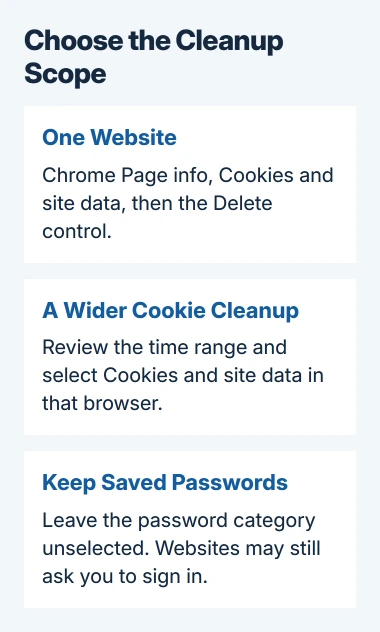
For one website, remove that site's data first. For a wider cleanup, review Cookies and site data and the time range in the correct browser. Keep saved passwords if needed and expect to sign in again.
Checked November 5, 2026.

Isaac Smith is the founder and editor of PC Glance, a website that covers computers, laptops, and technology. He is a tech enthusiast and a computer geek who loves to share his insights and help his readers make smart choices when buying tech gadgets or laptops. He is always curious and updated about the latest tech trends.