
A Samsung Chromebook can show a photo slideshow through Set wallpaper & style > Screen saver. Turn it on, choose Slide show and a photo source, then plug in the charger so it can run while the Chromebook is idle.
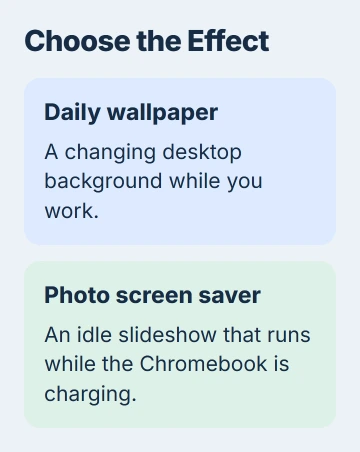
Decide where you want the photos to appear. Daily wallpaper changes the picture behind your apps. The screen saver fills the display when you're away from the keyboard.
Choose daily wallpaper or an idle slideshow
Use Wallpaper to change the background behind your apps. For supported image sources, ChromeOS offers daily changes or a refresh control. It doesn't have a Windows-style timer for every folder of pictures on your Chromebook.
Use Screen saver for photos that appear and animate while you're not using the computer. You can choose the photo source, animation and how long the display stays on before the Chromebook sleeps.
Google says its wallpaper and screen-saver instructions apply to Chromebooks, including Samsung models running ChromeOS. A Samsung phone uses Android wallpaper menus instead of these ChromeOS controls.
School and workplace administrators can limit these choices on their Chromebooks. If the controls are blocked, ask your administrator. You don't need to remove device management or reset the computer to change its wallpaper.
Open the Chromebook's personalization controls
Right-click the Chromebook desktop and choose Set wallpaper & style. With a touchpad, a two-finger click opens that menu. Select Screen saver for the idle photo display.
If an app covers the desktop, minimize its window first. Right-clicking inside a web page opens the page's menu instead, which won't contain the Chromebook's wallpaper controls.
You can also select the time, open Settings, choose Wallpaper and style, then Set your wallpaper & style. This opens the same controls without needing an empty patch of desktop.
Check that you're looking at screen-saver controls before choosing photos. A browser's New Tab background picker only changes that tab. If you've opened it instead, return to the ChromeOS personalization controls.
Keep daily desktop changes separate
For a changing picture behind your apps, follow the Chromebook desktop wallpaper steps. The wallpaper picker has its own daily-change controls; they don't select the idle slideshow's animation.
Return to the main personalization page and choose Screen saver. The slideshow controls aren't inside Wallpaper, so you won't find them by staying in that picker.
Choose a photo collection that suits the display
Choose a small album of pictures you'd be happy to display. With a large album, you might not recognize every photo and wonder whether you selected the wrong source.
Other people can add or edit pictures in a shared album. If you want to keep showing the same set of photos, use an album you control rather than a shared collection that keeps changing.
The wallpaper picker's My Images option lets you choose a downloaded background picture. It doesn't turn a folder into a screen-saver slideshow. The screen saver uses Google Photos or Art gallery instead.
Set up a photo screen saver for the slideshow effect
Return to Set wallpaper & style and select Screen saver. Turn its switch on. Under Screen saver animation, choose Slide show if you want that style of photo display.
Choose Google Photos for your own albums or Art gallery for the available artwork. Select the source, then check that the screen saver shows the collection you chose.
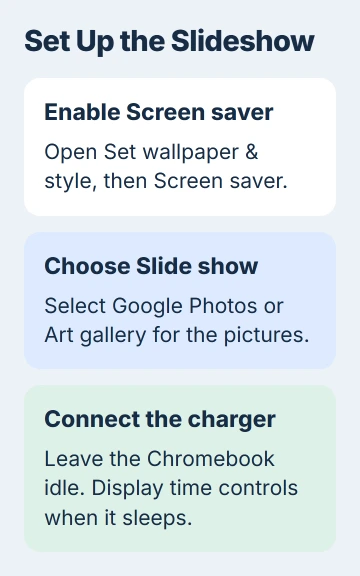
The screen saver runs while charging to save battery power. Plug in your Chromebook and leave it idle to check the result. If it doesn't start on battery, that alone doesn't mean it's broken.
School and work accounts currently can't use the screen saver option. If you're signed in with one and the option is missing, ask your administrator. Installing a wallpaper app won't change that account restriction.
This slideshow isn't an animated wallpaper. The screen saver appears when you're not using the Chromebook; it doesn't keep playing behind a window while you're typing or browsing.
Choose how long the screen saver stays visible
In the screen-saver controls, open the display-time menu. Choose one of the offered durations: 5 minutes, 10 minutes, 30 minutes, 1 hour or Forever.
This sets how long the screen saver runs while charging before your Chromebook sleeps. It doesn't change how long you wait for the first photo or how quickly the photos change.
I'd choose a time limit if you're leaving the laptop on a desk overnight. Choose Forever when you want it to keep showing photos while plugged in instead of going to sleep after a short presentation.
If it doesn't look right, change the photo source or animation one at a time and check again. See whether the issue is how the pictures look or how long they stay on screen.
Fix a missing image without resetting ChromeOS
If your pictures are missing, check which Google Photos account and album you've selected. The account on this Chromebook may differ from the one you use on another device.
Changing the screen-saver timer won't bring back a picture from the wrong album. Check the source first. Once you have the pictures you want, return to the display controls.
For a Samsung phone, use its Galaxy wallpaper controls instead. The Samsung name appears on both products, but an Android phone doesn't use this ChromeOS personalization screen.
If your personal Chromebook still won't use the picture or photo source, tell Chromebook support the model, ChromeOS version and where you got stuck. Include which collection or album you selected.
The Short Version
Use Wallpaper for daily desktop changes and Screen saver for an idle photo slideshow. Select the intended collection, choose Slide show when wanted and connect the charger for the screen saver. Managed accounts can restrict these options.
Checked November 5, 2026.

Isaac Smith is the founder and editor of PC Glance, a website that covers computers, laptops, and technology. He is a tech enthusiast and a computer geek who loves to share his insights and help his readers make smart choices when buying tech gadgets or laptops. He is always curious and updated about the latest tech trends.