
A hard reset can fix a Dell laptop's black screen by clearing a stuck power state. With a removable battery, you can drain the remaining power; some models with a built-in battery instead support a reset of their startup software.
The charger connection and button timing differ between these resets. Neither reinstalls Windows like a factory reset. Check which procedure your laptop needs before holding the power button.
1. Check what the laptop is doing before forcing it off
Look for a power light, spinning fans, a Dell logo or a response from the keyboard. The next checks differ depending on whether your laptop has no response at all or reaches Windows with a dark screen.
If Windows seems to be running, try Windows + Ctrl + Shift + B once. This restarts the graphics driver; a beep or brief flicker may follow. A returned desktop means you can save your work before doing anything more disruptive.
Don't interrupt a Windows reset or BIOS update just because the screen goes black. BIOS is the startup software that runs before Windows. If you're forcing off an ordinary frozen session, you'll lose work you haven't saved.
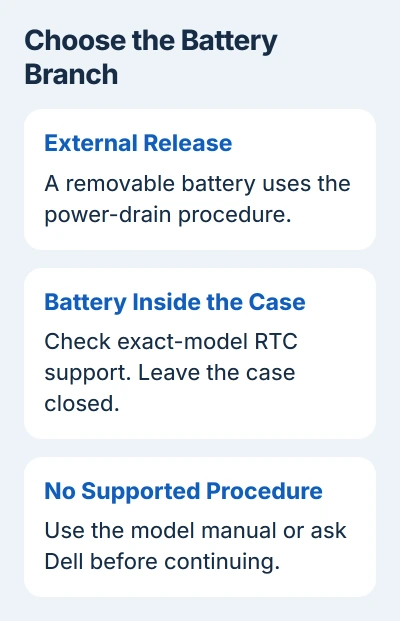
Microsoft's blank-screen checks include the graphics shortcut. If it doesn't bring the picture back, check your battery type and which reset your model supports.
2. Match the reset to your battery and model
Find your model on the laptop label, then check its manual. A removable battery has an external release; an internal one sits behind a screwed-on base cover. Leave an internal battery in place for these steps.
Dell says to use its RTC instructions for a nonremovable battery. RTC means real-time clock. On supported models, this reset also changes settings in the laptop's startup software.
Look for your exact model in the supported list in the RTC reset instructions. An Inspiron, Latitude or XPS label by itself isn't enough to confirm support.
Let IT choose the procedure on a managed work laptop. RTC reset can restore BIOS defaults and remove Intel vPro provisioning, the setup an organization uses to manage it remotely. That's more than a removable-battery power drain.
If your model isn't supported or its manual gives a different recovery procedure, follow those instructions. Opening the laptop or holding Power longer won't replace the model check.
3. Drain power when the battery is removable
Follow these steps only if your battery has a normal external release. Shut the laptop down first. If it's frozen, hold Power until it turns off, then release the button.
- Disconnect the AC adapter from the laptop.
- Remove the battery using the model's release procedure.
- Disconnect USB devices, the dock and memory cards.
- Hold Power for 15 to 20 seconds, then release it.
- Refit the battery and reconnect the AC adapter.
- Press Power normally and watch for the Dell logo.
The long hold drains power left in the laptop after you've disconnected its power sources. Holding Power with an internal battery still connected isn't the same procedure.
If the laptop starts, let Windows load and save important files before reconnecting accessories. Add them one at a time so a fault that returns with a dock or device is easier to recognize.
If the screen stays black, note any change in the power light or fans. Go to section 6 rather than removing the battery over and over.
4. Use RTC reset only on a supported built-in-battery model
If your laptop uses BitLocker encryption, have its recovery key ready before starting. After a change to the startup software, Windows may ask for the key. On a managed laptop, let IT restore the settings it needs.
Turn the laptop off and disconnect external accessories. Keep its AC adapter connected for RTC reset. The charger stays connected here, unlike the removable-battery power drain, so follow one set of steps at a time.
Hold Power for about 30 to 35 seconds, watching for the power LED to blink three times. Release the button when that happens. Leave the laptop connected while it completes its restart sequence.
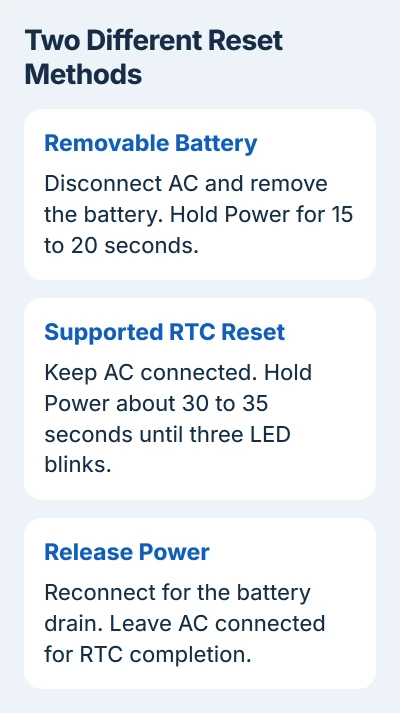
The reset cancels if you disconnect AC power or hold the button for less than 25 seconds or longer than 40 seconds. Holding it longer doesn't make the reset stronger.
Some models restart several times while the reset finishes. If you see the Dell logo, the laptop is showing a picture again. Wait for Windows to load before deciding that startup is working.
5. Handle changed settings or a reset that won't start
RTC reset can change the date, time and BIOS settings. If the picture returns but Windows won't start, press F2 at the Dell logo to enter setup. Have the previous settings checked, including the drive setting called SATA operation mode.
Don't choose RAID On or AHCI at random. The required setting depends on how Windows was installed. Give Dell or IT the new startup message if you don't know the earlier configuration.
A BIOS administrator password can also disable manual RTC reset on affected systems. If the reset never responds as expected, tell support about that restriction rather than trying to bypass it.
I'd stop if one correctly performed attempt makes no difference. Trying different button timings won't help much when support still needs to check the model, a firmware restriction or a hardware fault.
6. Send the remaining black-screen symptom to the right check
If power returns but the laptop's panel stays dark, use the Dell LCD color-test guide. Its D-plus-Power test checks whether the panel can display colors without Windows.
If the Dell logo appears and Windows then fails, record the exact message. The Dell Windows recovery choices explain software repair and factory-reset options, including which choices delete files.
If the correct reset gets no response, give Dell your Service Tag. Describe what the adapter does, any repeating amber/white light pattern and whether a logo ever appears. Those details help support choose power, startup or display checks.
The Short Version
For a removable battery, disconnect it and AC before the 15 to 20 second power drain. A supported RTC reset keeps AC connected and uses different timing. If the screen stays black, check changed firmware settings or arrange service.
Checked November 5, 2026.

Isaac Smith is the founder and editor of PC Glance, a website that covers computers, laptops, and technology. He is a tech enthusiast and a computer geek who loves to share his insights and help his readers make smart choices when buying tech gadgets or laptops. He is always curious and updated about the latest tech trends.