

Delete a Mac's cache through the app that created it, starting with the one that's misbehaving. Remove the affected site's data in Safari; in Chrome, select Cached images and files and leave the other categories unselected.
For system caches, let macOS manage cleanup instead of emptying unfamiliar Library folders. A cache holds temporary copies an app can rebuild. Its settings, downloaded projects and original documents need different treatment.
Pick the cache that matches the job
A stale picture on one website calls for a smaller cleanup than a Mac that's too full to install an update. Note whether you're fixing one app, one website or storage across the computer before deleting anything.
Browser caches save page files, such as images, to speed up repeat visits. Cookies keep your sign-in session and site preferences. A button that removes both deletes more than cached pictures alone.
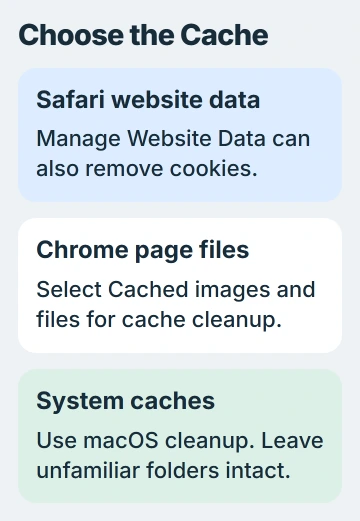
I'd start inside the affected app. A browser cleanup won't remove another app's cache, and a large System Data reading doesn't tell you which folder is safe to empty.
For a website where keeping your sign-in matters, check the deletion choices before confirming. The cookie-removal explanation describes why losing cookies can mean signing back into several services.
Save anything you're editing in the affected app first. Let uploads and downloads finish before closing it for cleanup, so an interrupted transfer doesn't confuse your check afterward.
Remove one website's stored data in Safari
Open Safari and choose Safari > Settings > Privacy. Click Manage Website Data, search for the affected website and select its entry. Choose Remove when you're ready to delete that site's stored information.
Apple documents Remove All as another choice in its Safari cleanup instructions. For one faulty site, remove that site's entry rather than the whole list.
This removes more than cached pictures. It can sign you out or change how the site behaves. Have a working way to sign back in before removing the site's entry.
Reopen the affected website. Check the exact thing that was wrong, such as an old image or a page that wouldn't display properly. Look for the correct content and check that signing in works again.
If several unrelated websites have the same problem afterward, stop repeating the deletion for each one. Check the wider browser or connection problem instead. Clearing stored files can't repair a website that's offline.
On older macOS versions, Safari's menu can call its settings Preferences. The Privacy pane and Manage Website Data control are the parts you're looking for.
Select Chrome's stored page resources
Open Chrome's three-dot menu and select Delete browsing data. Choose the time range that fits the problem. All time reaches older stored files, while a shorter range limits the period you're clearing.
Select Cached images and files and review every other selected category. Leave cookies, browsing history and unrelated data unselected if you only intend to remove cached page resources. Confirm with Delete data.
The Chrome deletion reference explains how cached page files differ from browsing history, download history and site data. Each checkbox removes a different kind of data.
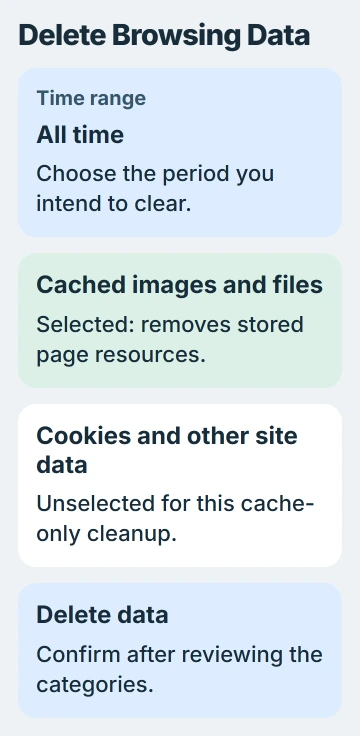
Reload the affected website after the cleanup. Its first load can take longer because the browser must download those resources again. That's expected while the cache is rebuilt.
Check the page in the Chrome profile you just cleaned. Each profile and browser has its own stored data, so clearing one you aren't using won't change the page that's giving you trouble.
If clearing the cache doesn't help, note that result. A login loop may need a check of that site's cookies, while a refused connection or an unavailable website needs a different fix.
Handle app and system caches through their own controls
For a non-browser app, check its own Settings, Storage or Help for a named cache control. Read what that control removes. A command called Delete Downloads or Reset App can remove information you intended to keep.
Use that app maker's instructions when its cache lives in a Library folder. Don't delete Application Support, an entire app container or a folder just because its name looks temporary. Those locations can also hold working data.
The Mac storage guidance describes starting in safe mode to clear certain system caches. macOS rebuilds them as needed, but clearing them can temporarily make room for a task such as an update.
The System Data cleanup checks cover that method. Safe mode clears system caches; it doesn't remove every Safari cookie or every third-party app's downloaded files.
After using safe mode, restart normally. The safe-mode instructions differ between Apple silicon and Intel Macs, so follow the route for your processor.
If you're unsure which kind of Mac you have, Apple menu > About This Mac identifies a Chip on Apple silicon models or an Intel Processor. Use that information before following startup-button instructions.
Check the result and choose lasting storage cleanup
On macOS 13 Ventura and newer, check available space under System Settings > General > Storage. Earlier versions use About This Mac > Storage. Let it finish calculating before you compare the numbers.
The space you free by clearing caches won't stay empty forever. Apps rebuild useful temporary files, and your browser saves page files again as you revisit websites.
For lasting room, review known downloads, unused apps and old device backups through the storage controls. Check files in Trash before emptying it; their disk space isn't released simply by moving them there.
If one app quickly fills the disk again, note its name, version, what you were doing and how quickly free space changes. Send those details to its maker instead of repeatedly deleting a folder when you don't know what it holds.
The Short Version
Remove a site's data in Safari or select cached page files in Chrome. Let macOS handle system caches. Lasting storage cleanup means removing known unwanted files, with app data and unfamiliar Library folders left intact.
Checked November 5, 2026.

Isaac Smith is the founder and editor of PC Glance, a website that covers computers, laptops, and technology. He is a tech enthusiast and a computer geek who loves to share his insights and help his readers make smart choices when buying tech gadgets or laptops. He is always curious and updated about the latest tech trends.