
To get Android app update notifications, allow alerts from your app store, usually Google Play Store or Samsung Galaxy Store. Check the categories it offers so you can choose update alerts separately from promotions.
An available-update alert, a notice that an update finished and an Android system-update reminder tell you different things. Decide which one you want before changing notifications or automatic updates.
Find which app sent the update message
Swipe down to open your notifications, then touch and hold the update message. Open its settings to see which app sent it. Browsers, games and Google Play Store can all mention updates, but each has its own alert controls.
Google's notification controls let you change settings from the notification itself. Start with the alert itself when its sender isn't clear.
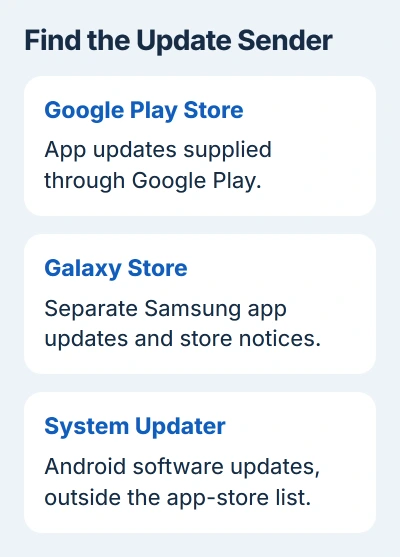
If it names Android software or a security update, use the Android system-update checks. Enabling Google Play Store alerts won't change a notification sent by your phone's system updater.
A message inside an app may be its developer asking you to install a newer version. Check the app's usual store listing for an Update button. Those messages aren't always Play Store notifications.
For an unfamiliar alert in a browser, close the page and check the app store directly. A website's claim that every app is outdated isn't a reason to install its download.
Allow notifications from Google Play Store
On many Android phones, open Settings > Notifications > App notifications. Change the app filter to All apps if necessary, choose Google Play Store, and enable its notifications.
Alternatively, press and hold the Play Store icon. Choose App info > Notifications. The route varies by phone maker, but check that the resulting settings page identifies Google Play Store.
Check the main notification switch first. If it blocks all alerts from the store, turning on one category may not be enough. Allow the store's notifications before choosing which update alerts you want.
If your phone asks whether the store can send notifications, allow it if you want alerts. That permission doesn't install updates or change your Wi-Fi download preference.
If the list shows only apps that sent recent notifications, Play Store may be missing because it hasn't sent any. Look in the full app list before assuming the store has disappeared.
Choose the update categories your phone actually offers
Inside the store's notification settings, look for Notification categories or a list of individual notification types. If update-related categories appear, enable the ones matching the alerts you want to receive.
An available-update reminder tells you something is waiting; a completed-update notice tells you it's installed. Read each category's wording. Turning off completion notices doesn't necessarily stop reminders about pending updates.
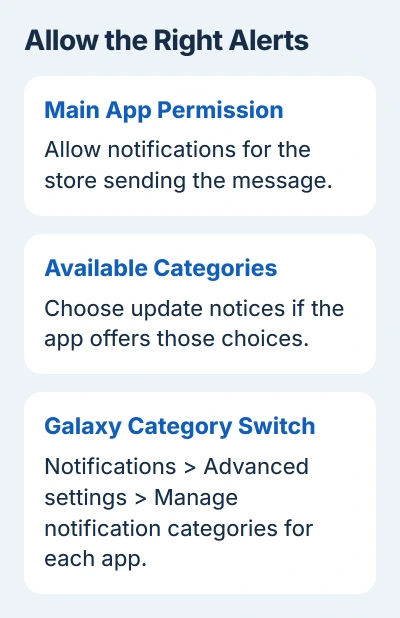
The categories and their names vary with the app and phone version. Some apps have only a main notification switch. Use the options shown on your phone; there may be no separate update controls.
If you want updates to appear quietly, open the relevant category and check whether Silent is offered. A silent notification can still appear when you swipe down to see alerts, even though it makes no sound.
Do Not Disturb and other notification modes can silence alerts too. Swipe down and look for the notification before deciding it never arrived. An alert that's silent isn't the same problem as one that never appears.
Reveal the category controls on Samsung Galaxy
Open Settings > Notifications > Advanced settings and enable Manage notification categories for each app. Return to App notifications, select the store, and inspect Notification categories if available.
Samsung's category instructions explain this extra switch. Until you enable it, your Galaxy may show the app's main permission but hide the individual notification types.
For Galaxy Store itself, open Galaxy Store > Menu > Settings > Notifications to reach its controls. Then choose from the available categories. Galaxy Store and Google Play Store have separate settings, even on the same phone.
Some Galaxy Store alerts are promotions, not notices about apps waiting for updates. If those bother you, turn off the promotional category when it's available and keep useful update notices enabled.
The Galaxy Store notification rules also list Important updates as a category you can't disable. If that control is locked, it may be working as intended.
Match alerts to your automatic-update choice
In Google Play Store, tap your profile picture and open Settings > Network preferences > Auto-update apps. Review whether apps update automatically and which connection they're allowed to use.
Automatic updates and notifications have separate settings. Once an update installs, it may no longer need a reminder. Changing a notification category won't undo an update that's already installed.
To approve routine updates yourself, choose Don't auto-update apps and check the list regularly. Google Play can still install critical security updates regardless of that ordinary update preference.
To save your cellular data, choose Update over Wi-Fi only for automatic downloads. Turning off notifications only changes the alerts you see; it doesn't stop updates using cellular data.
Use the Android app-update procedure for the actual installation list. A notification isn't required to open that list, and dismissing an alert doesn't complete the update.
Check pending updates when no notification arrives
In Play Store, open your profile menu and choose Manage apps & device. Under Updates available, choose See details if offered. Use Update beside an app, or Update all for the pending list.
If the app listing shows Open instead of Update, your installed copy isn't being offered an update right now. Don't uninstall it just to force a notification; you could lose information stored only on your phone.
If updates won't install, check your connection, free storage and any account sign-in error. Work through those download problems separately; notification settings won't fix a failed installation.
I'd check the pending list when a particular app needs a fix. Allowing notifications lets the store send alerts, but it doesn't promise a scheduled reminder for every release.
Give store support your phone model and Android version, plus the app that sent the alert and its category names. Say whether an update is waiting in the list so they can tell whether the alert or the update itself is missing.
The Short Version
Identify the sender, allow store notifications and choose update categories when offered. Galaxy may need its category switch enabled first. Check the pending list when a needed update has no alert.
Checked November 5, 2026.

Isaac Smith is the founder and editor of PC Glance, a website that covers computers, laptops, and technology. He is a tech enthusiast and a computer geek who loves to share his insights and help his readers make smart choices when buying tech gadgets or laptops. He is always curious and updated about the latest tech trends.