An Android system update notification means an update is waiting to download, install or finish with a restart. Check it in Settings first, especially if the message appears on a website rather than in your phone's updater.
Swiping away the notification doesn't install the update. If the alert disappears, open the update screen to see what's left to do.
In this guide
Check which update the phone is offering
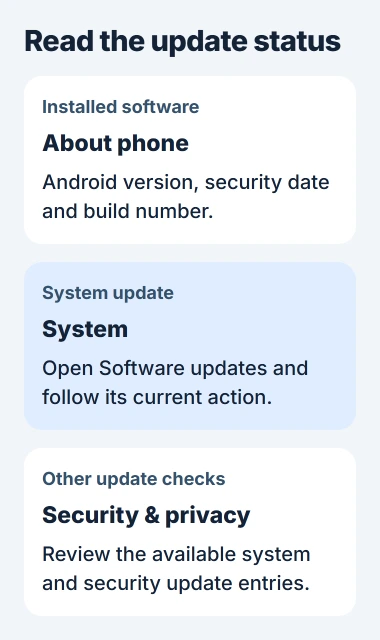
Open Settings > About phone > Android version. A tablet may use About tablet. Look at the Android version, security update date and build number, which identifies the software installed on your device.
Google says Android has separate update entries for its operating system, security patches and Google Play system. Those dates don't have to match for an update to have worked.
Chrome and Gmail update through their app store listings; an Android system update changes the phone's software. Use the Android app update steps for individual apps.
If the sender is an app store, adjust its update-alert categories rather than changing the Android installation reminder.
I'd open Settings before responding to an unfamiliar update message. That way, you can check the update without trusting a button on a website.
Prepare power, space and a usable backup
For a large update, use Wi-Fi and start with at least 75% battery. Leave it plugged in if its installation instructions call for that.
For a phone that won't charge reliably, fix the Android charging problem before starting. An update isn't the right moment to discover that your cable only works at one angle.
Check your backup too. The Android backup settings let you review what's included and start a backup. Review the backup of your device settings separately from your synced photo library.
If the updater says it needs more space, remove unneeded downloads or backed-up files, then reopen it. Keep any files you still need until you've checked the other copy.
Updates need different amounts of free space. Use the amount your phone asks for instead of guessing how many gigabytes to delete.
Open the system updater and read its current stage
On many Android phones, go to Settings > System > Software updates. Some versions use Software update or System update. Search Settings for software update if your manufacturer's menu differs.
Use this Settings route from the device update guide if you cleared the notification or your phone was offline. You can continue there without waiting for another alert.
Read the button before tapping it. Download means your phone hasn't downloaded the update yet. Install starts installing it. A restart request means you still need to restart the phone to finish.
If the screen says your device is up to date, it may have no more updates available. Note that message if the notification keeps returning, instead of dismissing it again.
Updates aren't offered to every model at once. Availability depends on the manufacturer, device and mobile operator, so another person's newer version doesn't mean your updater has stopped working.
Use the Galaxy menu when the phone is Samsung
On a Galaxy phone, open Settings > Software update. Depending on the model and carrier, the next control can be Download and install, Check for updates, Check for system updates or Check for software updates.
The Galaxy update guide shows these carrier differences. Don't look for a separate System menu when your Galaxy already has Software update in the main Settings list.
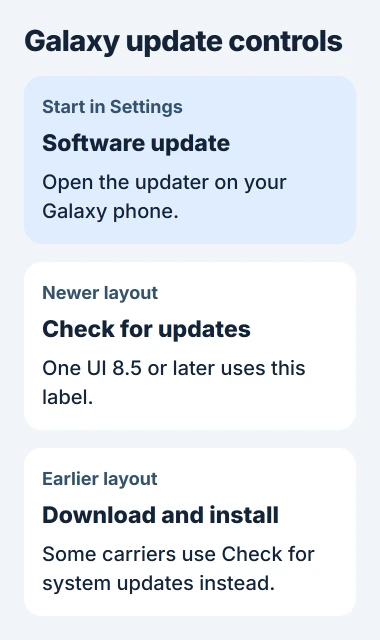
Look for Check for updates on the newer One UI layout. The current software instructions use that label for One UI 8.5 or later, rather than the earlier Download and install.
Complete the download and installation prompts. Auto download over Wi-Fi downloads the update; you may still need to install it or restart. Check for those prompts before assuming your phone finished overnight.
Return to the update screen afterward and check its result. If it now reports the latest software, the system update is finished even when an individual app still has its own update waiting.
Finish the restart and check the other update entries
On a Pixel, the downloaded update installs while you can still use the phone. A later restart makes it active. Other Android phones may restart as part of installation; let that finish before checking the version.
After unlocking it, return to About phone > Android version and read the installed information. Check that the entry matches what the update offered; the Android version number doesn't change for every security patch.
On supported Android versions, Settings > Security & privacy also shows update status. The security settings guide explains which system update checks you'll find there.
Check any separately offered Google Play system update as well. Finishing one kind of update doesn't mean every other update entry must show the same date.
A download fails, or the same alert returns
For an interrupted download, reconnect to a reliable network and check the updater's message. Android can retry a failed download over the following days, with another notification when it tries again.
If the alert returns after restarting, read what it names: an app, Android software or a Google Play system update. Give support that wording so they can check which stage is unfinished.
If work manages your phone, send those details to your administrator. For a personal phone, ask the phone maker or mobile operator for help and include the model, build number and error. An older phone may no longer get updates.
For a Moto G Stylus (2023, 4G), follow its restart and recovery sequence when installation leaves the phone unresponsive.
The Short Version
Open the updater in Settings. Back up your data and charge the phone, then finish the download, installation and restart. Galaxy phones have their own menu. Check for a separate Google Play system update too.
Checked November 5, 2026.