

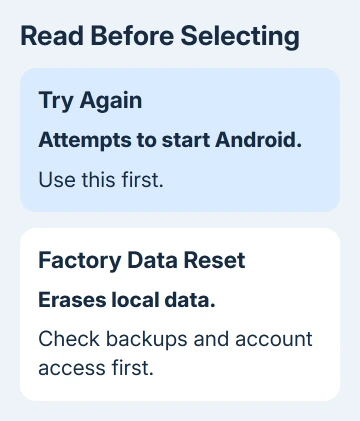
Cannot load Android system means the phone couldn't finish starting. If recovery offers Try again and Factory data reset, choose Try again first. If recovery comes back, check repair options before choosing the reset that erases local data.
A phone that reaches its lock screen and then crashes has different options from a device trapped in recovery. Pixel has an official software-repair tool; other Android brands need their own recovery instructions.
In this guide
1. Choose Try again and watch where startup stops
On a recovery screen offering Try again, use the volume keys to move the selection and the Power button to choose it. Follow any key instructions shown on your device. Don't select Factory data reset while trying to restart.
Note whether startup reaches the lock screen, opens Android, or returns to recovery. Record both the model and complete error wording. If the screen shows a software build, write that down too, especially after an update.
If it opens normally, copy important files while you have access. Even if you don't yet know why startup failed, use that chance to back up your data before another attempt or a repair appointment.
If it reaches the PIN screen and crashes just after unlocking, try starting without downloaded apps next. If it can't reach that screen at all, go to software repair. Repeated retries won't protect files or fix a persistent failure.
A completely dark phone is another problem. Use the Android power and display checks when there is no recovery text or startup logo to work with.
2. Try safe mode when the phone gets far enough to start
Safe mode runs Android without your downloaded apps. It's useful when Android can start but an installed app might have triggered the failure. If your phone can't leave recovery, it may not get far enough to use safe mode.
On a Pixel, start with the phone off, press Power, then hold Volume down when the startup animation appears. Keep holding it until startup completes. A Safe mode label near the bottom tells you it worked.
If a Pixel 6 or later lets you use its power menu, hold Power + Volume up, then touch and hold Power off or Restart and accept the safe-mode prompt. Earlier Pixels use their Power button to open the power menu.
On a Galaxy, open the power menu, touch and hold Power off, then choose Safe mode. Starting from off, pressing Volume down during Samsung's logo animation is another route. Other makers can use different controls.
If the phone stays usable in safe mode, back up your files and remove recently installed apps one at a time after restarting normally. Test after each removal. If it still returns to recovery, move to the maker's software-repair route.
The Android backup explanation helps separate account backups from photos, downloads and app-specific transfers. You can't use the normal Settings backup controls from recovery mode.
3. Use Pixel's software-repair option before a factory reset
For Pixel 4a and later, including Fold, Google's factory-reset guidance recommends its Update & Software Repair tool. It may let you update the software without a factory reset.
Use a computer and a USB cable that connects the phone to it. Open Pixel Update & Software Repair and follow the tool's device and connection instructions. Leave the cable attached until your chosen operation finishes.
Read the description before accepting. An update that keeps data and a reset that deletes it aren't the same choice. Your phone model and the offered software determine the choices. Check whether the repair you selected keeps your files.
If it offers an update without resetting, try that option and check whether Android starts afterward. If the only available operation erases data, check your backups just as you would before a factory reset, then decide whether to continue.
If the tool can't connect or says it can't work with the installed software version, record that message for support. Don't downgrade the phone or unlock its bootloader as a shortcut to using a different image.
For Galaxy, Motorola, OnePlus and other brands, use the maker's support instructions. The Pixel tool isn't a general Android repair utility. Give support the recovery message and ask about software repair for your exact model.
4. Decide whether to reset before confirming data loss
A factory reset removes data stored on the phone. Photos and files already saved elsewhere can be restored from those copies, but unbacked-up local files are lost. Check the actual backup dates from another device when possible.
Check the login details for the Google Account already on this phone. Setup after a reset can require that account. If the account password was recently changed, the Pixel preparation instructions say to wait 24 hours before resetting.
For a Pixel, charge to at least 70% before a reset. Keep Wi-Fi or mobile service available for the setup afterward. If you don't have a separate copy of important data, I'd ask support about saving it before choosing to erase the phone.
If the recovery error screen offers Factory data reset and you're ready to erase the data, select it, then read and accept the confirmation. This differs from Try again; check the screen wording to confirm which operation you selected.
If a Pixel instead shows the full Android Recovery menu, select Wipe data/factory reset, then Factory data reset. When Data wipe complete appears, choose Reboot system now and follow setup.
5. Use the Pixel button route only when recovery isn't open
When the recovery menu is already visible, you can use it directly. If it isn't, the current Pixel button instructions start with the phone off. The buttons differ between current and earlier devices.
For Pixel 6 and later, hold Volume down + Power until Fastboot appears, for a maximum of 30 seconds. For earlier Pixels, the current instructions specify Volume up + Power. Release when the screen appears so the phone doesn't restart again.
Find Recovery mode with Volume up or down, then choose it with Power. If No command appears, hold Power, briefly press Volume up, then release both quickly. That opens Android Recovery, where the reset choices in the previous section apply.
Use another maker's exact model procedure for a non-Pixel phone. A remembered Pixel or Galaxy combination can open the wrong menu. If no recovery screen can be reached, report that to the maker before attempting further software changes.
6. Ask for service if recovery keeps returning
If the phone still fails after software repair or a completed reset, use Pixel Phone Help > Contact us, or the other maker's repair service. Give them the model, build, full error, the safe-mode outcome and repair-tool message.
Ask if the model needs a supported reinstall or a hardware check. Ask about saving your data before approving the work. A reset that helps only briefly also needs reporting; repeated erases aren't a lasting repair.
The Short Version
Try again first, then use safe mode if Android can start. On a supported Pixel, check Update & Software Repair for a possible update without erasing. Check backups and account access before resetting. A returning warning needs service.
Checked November 13, 2026.
 If you have any business, I can build it online






