

Android System has stopped means a system process crashed, so restart the phone first. When the message keeps returning, check free storage and downloaded apps before erasing the phone.
The wording matters. A popup while Android still opens is different from a recovery screen saying it can't load Android. If your phone opens, follow the fixes until the action that caused the error works without another popup.
In this guide
1. Restart, then read the process name
Dismiss the popup and open the power menu. For a Pixel from the 6 series onward, hold Power + Volume up, then tap Restart. On a Galaxy with a Side key, hold Side + Volume down until the power menu appears, then choose Restart.
Older phones can have a separate Power button that opens that menu on its own. Use the normal restart first when the screen responds. For a frozen Galaxy, hold Side together with Volume down for longer than seven seconds.
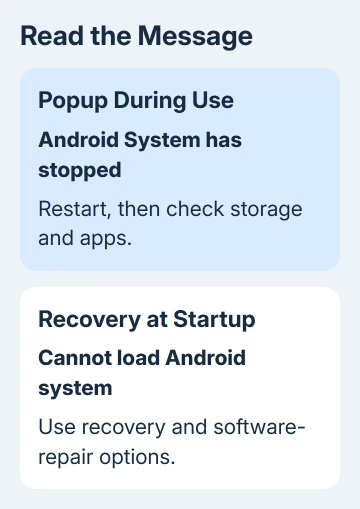
Read the app or process name before closing the next alert. System UI, Google, and Android System aren't interchangeable names. If only one downloaded app crashes, check that app's settings and update it.
Repeat what you were doing before the error, such as unlocking or opening Settings. If the popup doesn't return, leave the remaining settings alone. If it returns, note whether it follows one app or appears throughout the phone.
Google recommends restarting and checking software, storage and downloaded apps in its crash troubleshooting steps. They don't call for deleting the system process named in an error.
2. Make room when storage is nearly full
Open Settings > Storage on a Pixel or similar handset. On Galaxy models, look under Settings > Device care > Storage; some versions call the parent menu Battery and device care.
Check how much space is free, rather than the total capacity printed on the box. Android can start having problems when less than 10% of storage is free. If your phone is nearly full, free some space before testing apps again.
Remove downloaded videos or other files you can replace. Check Downloads for large files you already copied elsewhere. For pictures you want to keep, confirm the backup has finished before removing the local copies.
The Android backup guide explains what the account keeps and what still needs a separate copy. A signed-in account by itself doesn't mean every file or app conversation is backed up.
Restart after freeing space and repeat the same action. If you already have plenty of free space, move on to updates. Clearing every app's stored data would create extra sign-ins without telling you which part caused the crash.
3. Finish system and app updates
On Pixel, check Settings > System > Software updates. Some Android versions say Software update. On Galaxy, open Settings > Software update, then Download and install (One UI 8.0 or earlier) or Check for updates (8.5 or later).
Let the phone finish installing and restart when asked. An update waiting for its restart hasn't finished replacing the running software. Keep the charger available if the phone asks for more battery before installation.
For an unfamiliar update notification, check the update inside Settings. That gives you the phone's own updater rather than relying on a message that happens to use Android's name.
Next, open Play Store, tap your profile picture, then Manage apps & device. Install available app updates. Apps and Android get their updates separately, so check both.
Use the phone after restarting. If a particular app was installed or updated just before the crashes, note it for the safe-mode comparison. Don't uninstall built-in components simply because their names appear in the crash message.
4. Start without downloaded apps
Safe mode switches off downloaded apps temporarily. Check whether the error returns with those apps switched off. You don't have to delete them all to find out.
For Pixel 6 and later, open the power menu with Power and Volume up. Press and hold the onscreen Power off control (or Restart) and accept OK. Check for Safe mode along the bottom edge.
For an older Pixel, turn it off, turn it on, then hold Volume down when the startup animation begins. Keep holding until startup finishes. This startup route also helps when the popup makes the power menu hard to use.
On Galaxy, open the power menu, touch and hold Power off, then tap Safe mode. Another route is to start from off and press Volume down as Samsung's startup logo appears, keeping it held until the phone finishes starting.
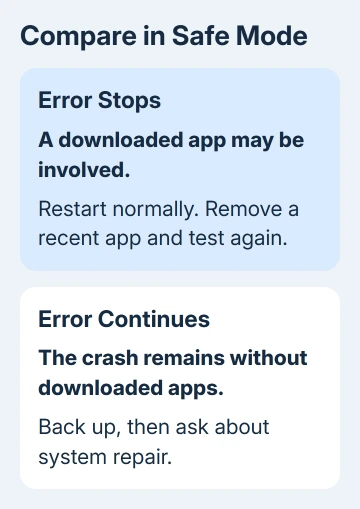
Try the built-in screen or action that brings up the alert. On Pixel, safe mode turns on Airplane mode automatically; switch Airplane mode off for a check that needs Wi-Fi or calls. Downloaded apps won't be available.
If the error stops, restart normally and uninstall a recently added app. Retest each time to learn which removal stopped the crashes. I'd start with the app added just before the crashes, rather than remove a whole group together.
If the message still appears in safe mode, continue to the final step. A crash in safe mode points away from downloaded apps. Don't erase the system app named in the popup.
5. Back up before considering a reset or repair
Copy important data while the phone still opens. For a Pixel, the reset menu is Settings > System > Reset options > Erase all data (factory reset). Galaxy uses Settings > General management > Reset > Factory data reset.
Resetting erases installed apps and local data. Check the backup, account password and any app-specific transfers before choosing it. If you need to save files that aren't backed up, ask the maker about repair before resetting.
After resetting, check the phone before restoring the suspected app. Bringing back the same troublesome app can bring back its crashes. If the alert returns during a fresh setup, report that result to support instead of resetting again.
Use Pixel Phone Help's Contact us, or Samsung Support's Galaxy repair booking. Give the error, model, Android version, the safe-mode result and any update just before the crash. Ask about software repair and warranty service.
The Short Version
Restart, check free space and finish system and app updates. Safe mode helps separate downloaded-app trouble from a continuing system crash. Back up before resetting, and ask the phone maker for repair when the error survives a fresh setup.
Checked November 13, 2026.
 If you have any business, I can build it online






