A frozen Moto G Stylus 2023 can need a forced restart during an update: keep Power pressed for about 30 seconds. The next step changes depending on whether the phone still responds, the screen is frozen or the startup logo keeps repeating.
Leave an installation that's still progressing to finish.
In this guide
1. Check whether the phone is frozen or still downloading
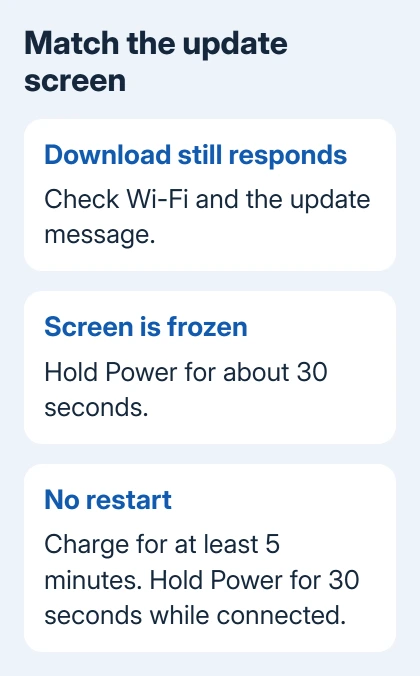
Read the current screen first. If Settings still responds and the update is downloading, check the Wi-Fi connection. A stalled download isn't the same problem as a phone that won't respond to touch or buttons.
These steps are for the moto g stylus (2023), the 4G model. The moto g stylus 5G (2023) is a different phone. Don't select its software or follow a different model's recovery instructions because the year matches.
For a responsive phone, open Settings > System updates > Check for updates. Follow the update screen's instructions. Use Wi-Fi for the download, especially when the update would otherwise use a limited mobile-data plan.
Write down the message if installation fails and returns you to Settings. A download error, too little space and a phone that keeps restarting need different fixes. Keep the wording for support rather than repeating the same attempt.
Update duration varies. Keep waiting while the progress indicator changes. Use the restart procedure for a frozen phone, rather than interrupting visible installation progress.
2. Hold Power for about 30 seconds
For an unresponsive screen, keep Power pressed for about 30 seconds. Keep holding rather than making a series of short presses. The phone should restart and reach its normal lock or Home screen.
Motorola recommends this restart in its model-specific frozen-screen steps. This restarts the phone without choosing a factory reset to erase your files.
If the phone opens normally, unlock it and check the update status before retrying. Back up anything important while the phone is accessible. Then continue with the storage and update checks in section 4.
If the logo appears but the phone keeps starting over, note that result. The Power button got a response, but Android isn't finishing startup. Repeating that restart won't tell you any more about why it's stuck.
3. Charge it, then repeat the restart once
If the first restart fails, connect a compatible USB charger to a wall outlet and leave the phone charging for at least five minutes. While it's still connected, hold Power for 30 seconds again.
This is the next step in the model's frozen-screen instructions. It lets the phone try starting again with a charger connected. A screen that stays dark isn't always a sign of an update failure.
The 4G Moto G Stylus 2023 doesn't support wireless charging, so use its USB charging port rather than a charging pad. A laptop can also charge it more slowly than a suitable wall charger.
When switched off and charging, the phone can show a battery outline and percentage. A completely empty battery may need some charging before that appears. Watch for that response before deciding the display has failed.
If no charging response appears with a compatible charger, use the Android charging checks before relying on the battery for recovery.
If the screen stays black, call the phone from another phone. Ringing with no visible display points toward a screen problem. Tell the repair team that it rings; that detail changes what they need to check.
4. If Android opens, protect the data and check space
Open Settings > System > Backup. Check Backup by Google One, choose the account you use, and follow the backup controls shown. Photos and videos need their Google Photos backup checked separately.
Files in Downloads or other folders may need copying or uploading separately. An enabled backup switch doesn't mean every app has saved every item. The Android backup settings explain what the account backup includes.
Next, inspect Settings > Storage. Almost-full internal storage can contribute to freezing. Remove files you no longer need after saving the copies you want, then check for app updates in Google Play.
The slow Android phone checks explain the difference between storage space and working memory when the phone starts but remains sluggish.
Return to Settings > System updates > Check for updates. If the phone now completes the update and restarts normally, check the installed Android version under Settings > About phone > Device details > Android version.
Use the update offered for this phone and its carrier or region. The model's software-update instructions explain that releases don't reach every owner at the same time.
I'd back up while it's working, before trying a deeper repair. Even a brief recovery gives you a chance to save files you won't be able to reach if it stops starting again.
5. Use recovery reset only after accepting the data loss
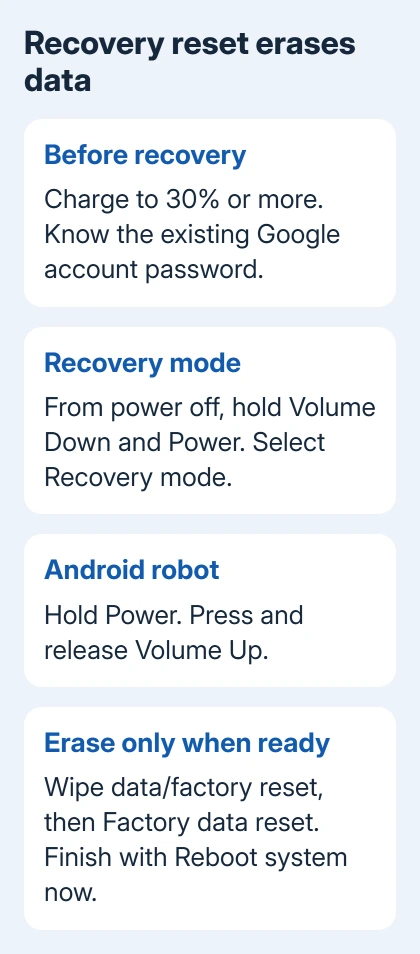
When the phone won't unfreeze, the next repair in this model's instructions is a factory reset. This erases the phone's local data. If important files exist only on the phone, speak to support before choosing an erase command.
Have the Google account username and password previously used on the phone, plus its screen-lock details. After changing that Google password, wait 24 hours before the phone reset, as its model instructions require.
Charge the battery to 30% or more, then turn the phone off. Follow the external-reset procedure for this model:
- Hold Volume Down and Power together until the phone turns on.
- Use Volume Down to reach Recovery mode, then press Power.
- At the robot and exclamation symbol, hold Power, then press and release Volume Up.
- Highlight Wipe data/factory reset using the volume keys. Press Power to choose it.
- Select Factory data reset, confirm, then choose Reboot system now after the reset finishes.
Allow several minutes for the reboot. If it doesn't finish, the model guide says to keep Power pressed until the display turns black, then release it to start normally. Setup should follow a successful reset.
When the update still won't finish
The model's startup-repair page also recommends Software Fix on a Windows PC to reinstall Android. Ask Motorola Support about this route when restart and reset fail, or when you need help choosing the next repair.
Give them the exact 4G model, update message, whether it reaches Recovery mode, and whether it rings with a black screen. Don't substitute a 5G firmware file or treat reinstalling software as a way to recover unbacked-up files.
The Short Version
For a frozen 4G Moto G Stylus 2023, keep Power pressed for roughly 30 seconds. If needed, charge for five minutes and retry while connected. Back up if it starts. Recovery reset removes local files; accept that loss before proceeding.
Checked November 10, 2026.