
Messages stored in iCloud appear in the Messages app on an iPhone, iPad or Mac, rather than an iCloud.com inbox. Enable cloud syncing for Messages on your chosen device, using your usual Messages account.
An iCloud Backup can contain messages that weren't already syncing, but it isn't a folder of conversations you can open online. Check whether your messages were syncing or only backed up before trying to retrieve an old chat.
Choose a supported device for the conversations
Start with your iPhone, iPad or Mac signed into the account that holds the messages. Open Messages and select a conversation. That's where text and attachments from Messages in iCloud become available to read.
Apple lists those three device types in its Messages setup guide. On a Mac, you'll use the Messages app too. There isn't a separate viewer for the iCloud copy.
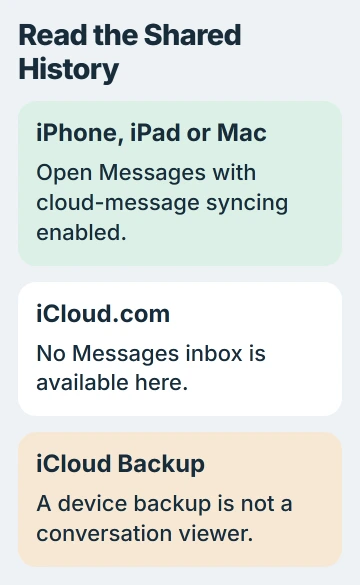
The iCloud.com app list includes services such as Mail, Photos and Notes, but doesn't offer a Messages app. Changing its home tiles won't add an online message library.
Mail is email, even when it uses the same account as your iPhone. Opening iCloud Mail won't reveal iMessage, SMS or other conversations from the phone's Messages app.
Photos work differently: you can open the iCloud photo library in a browser. Don't assume a feature available for that library also exists for Messages.
Turn on cloud access on the iPhone or iPad
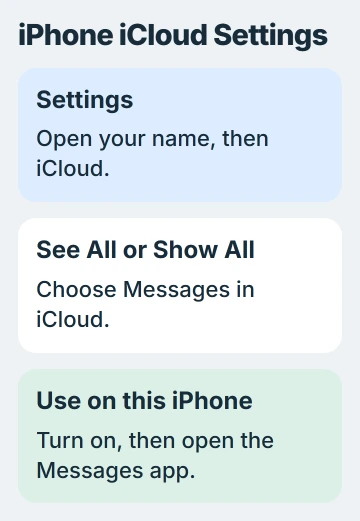
Open Settings > your name > iCloud. Choose See All, or Show All on versions using that label, then select Messages in iCloud. Turn on Use on this iPhone, or the matching iPad switch.
For iOS and iPadOS 16 through 17.1, choose Show All > Messages, then turn on syncing for the device. The iPhone label is Sync this iPhone; the iPad uses Sync this iPad. The newer menu name applies from version 17.2 onward.
Return to the Messages app to read the conversations. They won't appear as text documents in Files or iCloud Drive. Those apps handle a different kind of cloud content.
You'll need two-factor authentication and iCloud Keychain. Check that the account at the top of Settings is the one you used for these messages, rather than a second account you created for something else.
If Messages itself uses another account, inspect Settings > Apps > Messages > Send & Receive on current iOS. Before iOS 18, open Messages from the main Settings list. Correct an account mismatch before expecting matching history.
With syncing on, your devices share the same message library. Deleting a conversation to tidy one device can delete it from the others too, so keep conversations you still need.
Allow the history to arrive, then read the chat
Leave the device connected to the internet after enabling the feature. The initial history can take time to appear, and new messages can work while older conversations are still arriving.
The shared-message overview explains that messages stay in iCloud, with recently opened content kept on your device. Attachments count toward your iCloud storage too.
Open a known conversation from the list rather than judging the library only by its latest message. Check a specific older item you remember and open an attachment if that's what you need to retrieve.
To find text already available on the device, use the Messages search field and enter a recognizable word or the person's name. Tap a result to open its conversation. Search doesn't open the contents of an old device backup.
If the chat is present but hard to locate, the iPhone message-search guide covers person and attachment filters. Search filters can't replace cloud history that hasn't arrived yet.
The wait depends on your message library and connection. If older messages still don't appear, check whether another signed-in device has them and whether new messages reach this one. The next check depends on those answers.
Use Mac Messages when you want a larger screen
Open Messages > Settings > iMessage on your Mac and select Enable Messages in iCloud. Match its account with iCloud and your iPhone's Messages sign-in, then open a conversation in the Mac app.
For gaps on the Mac after setup, follow the Mac message-sync checks. Those steps check account differences, Sync Now, receiving addresses and missing carrier texts as separate problems.
Installing iCloud for Windows won't let you read this shared message library. Linking a phone to a PC gives you a separate connection to that phone, with different features from downloading your iCloud message history.
If your only computer is a Windows PC or Chromebook, use Messages on a supported Apple device. Signing into iCloud in a browser won't give you a Messages viewer.
Check whether the messages are in a backup instead
When Messages in iCloud wasn't enabled, your phone's messages may be included in its iCloud Backup. When message syncing was enabled, that synced content wasn't included again in the daily device backup.
The iCloud Backup contents guide explains which messages go into a backup. Its date and size don't tell you whether it contains every conversation you want.
Turning on Messages in iCloud now won't let you browse conversations in an old backup. Restoring a device backup is a separate recovery task, so don't erase a working phone just to see what an old backup might contain.
I'd check the Messages app on any device that still has the conversation before considering a restore. If the history is missing everywhere, tell Apple Support whether message syncing was enabled when it was last visible.
Include the account used, device versions, backup date and whether another device still shows the chat. This helps support tell whether you have an access problem, syncing hasn't finished or the messages need recovery.
The Short Version
Read iCloud messages in Messages on an iPhone, iPad or Mac with the same account and Messages in iCloud turned on. iCloud.com has no Messages inbox. Reading a shared message library and recovering a device backup are separate tasks.
Checked November 5, 2026.

Isaac Smith is the founder and editor of PC Glance, a website that covers computers, laptops, and technology. He is a tech enthusiast and a computer geek who loves to share his insights and help his readers make smart choices when buying tech gadgets or laptops. He is always curious and updated about the latest tech trends.