
iPhone headphones can stay silent because the plug isn't seated, an adapter isn't compatible or audio is playing through another device. Start a song and raise its volume, then check the connection before buying another pair.
Wired headphones, a Bluetooth pair that won't connect and a broken remote need different checks. Use the steps for your connection; a port that charges the phone can still fail to recognize headphones.
1. Check playback and volume before changing settings
Play a familiar recording and check that its playback timer moves. Press the iPhone's volume-up button while that recording plays. That changes the volume of the audio you're trying to hear.
Try another recording or app if the first stays quiet. If the second app plays sound, check the first recording or player. If both stay silent, check where your iPhone is sending the sound.
Open Control Center. For Face ID models, pull down from the screen's top-right corner. For a Home-button model, slide upward from the bottom. Open the playback destination control and select your headphones if they're listed.
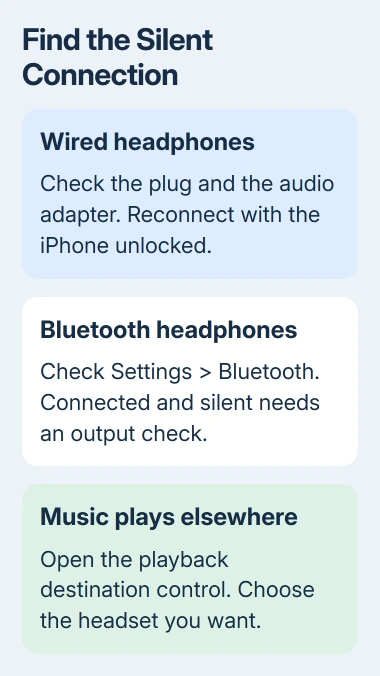
Apple recommends checking volume, connections and another pair in its headphone troubleshooting steps. If your headphones don't appear in the output list, check their plug or Bluetooth connection next.
2. Match the headphones and adapter to the iPhone
Check the connector on the phone itself. An iPhone 15 or later has USB-C. Older models generally use Lightning, while some older iPhones also have a round 3.5 mm headphone socket.
USB-C EarPods connect directly to a USB-C iPhone. Headphones with a round plug need a compatible USB-C audio adapter on that phone, or a Lightning audio adapter on a Lightning model.
A connector that fits isn't enough. The accessory needs to support audio with your iPhone. Check its compatibility list, especially if you're using several adapters to connect a Lightning headset to a USB-C phone.
The USB-C audio instructions list supported connections, including USB-C headphones and a compatible headphone adapter. A charging-only cable or adapter won't carry audio.
For this check, remove any hub or extension and use the simplest supported connection. If headphones work when plugged straight into your iPhone but not through the adapter, test the adapter before arranging a phone repair.
3. Reseat the plug and inspect the parts that carry sound
Remove the phone case if it stops the connector going all the way in. Disconnect the headphones, inspect the plug and reconnect it firmly without forcing it. A case can leave a plug looking connected while it sits slightly short.
Look for a frayed cable, a bent connector or damage near the remote. Then check the mesh on each earbud. A blocked mesh can make one side much quieter even when the electrical connection still works.
For loose debris on an earbud mesh, use a clean, dry brush with soft bristles. Don't put liquid into the phone's port or push tools against its contacts; packed debris or visible damage calls for service advice.
Listen again after reconnecting. If sound returns only while you hold the cable at an angle, tell the accessory maker. Bending the connection to keep listening isn't a lasting fix.
4. Unlock the phone before reconnecting a wired accessory
Disconnect the headset or adapter, unlock your iPhone, then plug it in again. Respond to any accessory approval request. Reconnecting while unlocked gives the phone another chance to recognize the headphones.
The wired accessory permission rules explain why a wall charger can work while headphones don't. Your iPhone handles charging from a power adapter separately from connecting to an accessory.
If this changes the result, the iPhone USB-C permission guide explains the current Wired Accessories choices. I'd keep the setting that allows accessories while unlocked rather than opening access whenever the phone is locked.
If reconnecting while unlocked changes nothing, use the next section for Bluetooth headphones. For a wired pair, skip to the balance and headphone comparison checks.
5. For Bluetooth, check the connection before resetting it
Open Settings > Bluetooth and find your headset. If it isn't connected, charge it, turn it off and on, and follow its own pairing instructions. A headset already listening to another computer may need that connection removed first.
If previously paired headphones won't connect, tap their information button, then Forget This Device. Put them into pairing mode and select them again on your iPhone. Check their instructions for the pairing button or control.
If the entry says Connected but music is silent, return to the playback destination check. Re-pairing repeatedly won't help when the phone is playing through a different output or the app has paused.
If the connection drops during playback, use the headphone disconnection checks. Check the wireless signal and whether another device is connecting to the headphones.
6. Check balance when only one side is quiet
Open Settings > Accessibility > Audio & Visual and look at Balance. Put the slider in its center if it has moved toward L or R. Play the same recording after changing it.
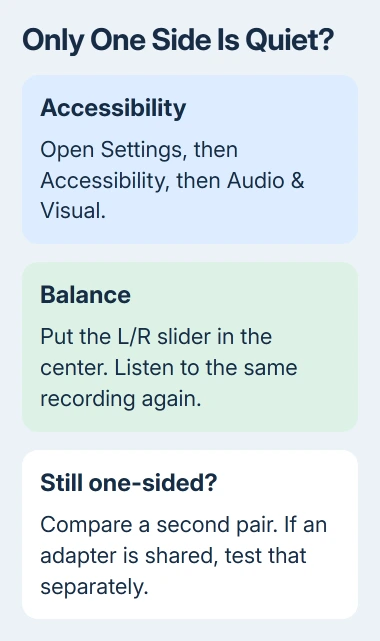
That setting changes the left-right audio balance. If moving it to the middle brings back the missing side, the setting may have been the problem. Leave it centered unless you need a different balance.
If the setting was already centered, try another recording and another pair. One silent earbud across different devices points toward that headset, its cable or its mesh rather than a single music app.
If both sides play normally but the EarPods center button won't pause, follow the separate play/pause button checks. Audio playback and remote-button commands can fail separately.
7. Restart, update and compare before arranging a repair
Restart your iPhone, then reconnect the headphones. Check Settings > General > Software Update for an available iOS update. Install it when you have time to finish, then listen again.
Borrow a second compatible pair if possible. For wired headphones using an adapter, keep track of whether you changed the headphones, the adapter or both. A shared faulty adapter can make two good pairs sound broken.
If another pair works, tell the original headset's maker its model and what you tried. If several compatible pairs fail on your iPhone, contact phone support and explain whether both wired and Bluetooth audio fail.
The Short Version
Check that audio is playing, turn up its volume and choose the headphones as the output. Check the plug and adapter, then reconnect while unlocked. Use Bluetooth checks for a wireless pair and try another pair before arranging service.
Checked November 5, 2026.

Isaac Smith is the founder and editor of PC Glance, a website that covers computers, laptops, and technology. He is a tech enthusiast and a computer geek who loves to share his insights and help his readers make smart choices when buying tech gadgets or laptops. He is always curious and updated about the latest tech trends.