
An enabled Wi-Fi Calling switch doesn't mean the iPhone has connected to your carrier through Wi-Fi. Check for the carrier's Wi-Fi indicator in Control Center, then compare another Wi-Fi network if calls still won't use it.
That comparison helps when you can browse the internet but can't make Wi-Fi calls. Some networks don't support the connection Wi-Fi Calling needs. The problem can also be with your carrier line rather than your phone or router.
1. Check whether Wi-Fi Calling is actually available
Check the carrier name inside Control Center. On Face ID iPhones, open it by swiping down at the top right. A Home-button iPhone uses an upward swipe from the bottom instead.
Look for Wi-Fi with the carrier name. The ordinary curved Wi-Fi signal icon only shows a wireless network connection; it doesn't tell you that carrier calls are using Wi-Fi Calling.
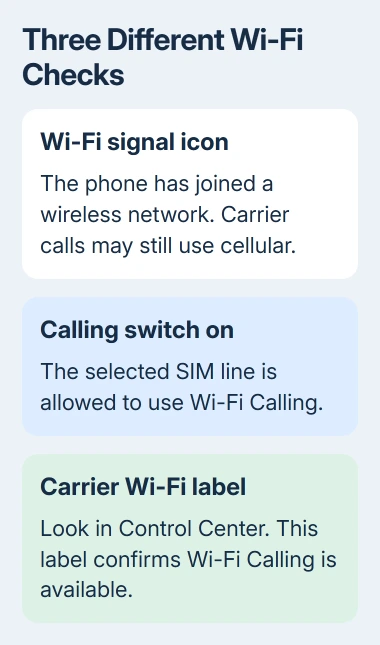
Apple's Wi-Fi Calling instructions use that carrier indicator to confirm availability. Once it appears, place a normal phone call and ask the recipient to speak. Check audio in both directions.
On a dual-SIM phone, check which number you're calling from. If one line can use Wi-Fi Calling, the other still needs its own carrier activation.
A missing or unavailable switch needs a carrier activation check. If it's on but calls still won't work, confirm that your line is supported before comparing Wi-Fi networks.
2. Confirm that the carrier supports this line
Open Settings > Cellular and select the affected line when more than one is listed. Open Wi-Fi Calling and check Wi-Fi Calling on This iPhone. Finish any activation or emergency-address request that appears.
If activation fails or Wi-Fi Calling never becomes available, ask your carrier whether it supports the feature for your plan, iPhone and current country. Support varies by carrier and region.
Tell support whether Wi-Fi Calling ever worked. Mention any recent SIM change, number transfer or plan change so they know what changed on your line.
If your software is current and your carrier supports Wi-Fi Calling, have the carrier check your line's activation and any service problems. A failed call doesn't mean you need to erase the phone.
If the carrier confirms that your line is supported and active, restart and compare networks next. Keep the case number so support can pick up from there if calling still fails.
3. Restart the iPhone and allow time to reconnect
Restart your iPhone normally, then wait for Wi-Fi to reconnect. Before placing another ordinary call, check Control Center for the carrier Wi-Fi label.
On Face ID models, hold Side plus either Volume button to reveal the power-off slider. On an iPhone SE (2nd or 3rd generation), hold Side alone. Slide to power off; press Side until the startup logo appears to turn it on.
Give each change time to take effect. The calling repair sequence calls for a two-minute wait between steps. Switching settings repeatedly without waiting makes it hard to tell what helped.
If calling now works, check it again at the location where it normally fails. If it stays unavailable, move to a different Wi-Fi connection rather than immediately clearing all the phone's network settings.
4. Try a separate Wi-Fi network with internet access
Join another working Wi-Fi network, check the carrier indicator and try a call. Use a separate connection, such as a trusted friend's home Wi-Fi. Another access point on the same office network won't give you that comparison.
If Wi-Fi Calling works there, tell support which network worked. Check the original network next. Your phone doesn't need an immediate factory reset when it can make Wi-Fi calls on another connection.
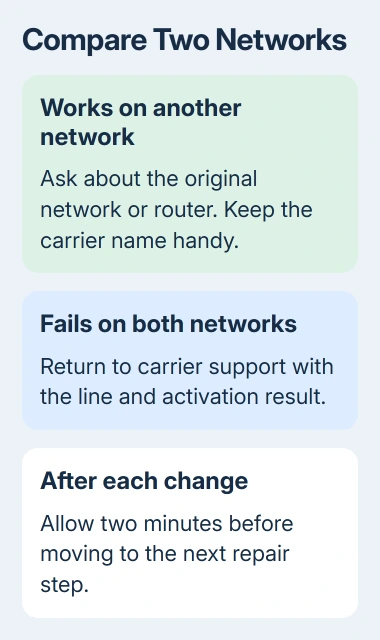
On a hotel, cafe or workplace network, finish any required network sign-in before trying a call. If your iPhone can't get online, fix that Wi-Fi problem first. Wi-Fi Calling needs internet access too.
At home, restart the router when it won't interrupt someone else's work, then try calling again. If someone else manages the network, ask them whether it allows carrier Wi-Fi Calling.
I'd test another network before editing the router configuration. Report that browsing works but Wi-Fi Calling fails, and name the carrier. Leave firewall changes to the person who manages that network.
5. Switch the feature off and back on for that line
Return to Settings > Cellular > the affected line > Wi-Fi Calling. Turn Wi-Fi Calling on This iPhone off, then turn it on again. Complete any request to enable it or confirm the emergency address.
Wait two minutes, then check Control Center and try the same ordinary call. If your iPhone has several lines, keep the other line's settings unchanged during this check.
If your iPhone can make Wi-Fi calls but your Mac or iPad can't, the phone's connection is working. Check Calls on Other Devices and the Mac or iPad's calling setup before resetting the iPhone's working network.
If calls fail over both Wi-Fi and cellular, use the Call Failed checks. If cellular coverage is missing, check SOS or No Service.
Ask your carrier to check the voice service, including account restrictions or an outage, when calls fail over both connections.
6. Check software and carrier updates before a reset
While connected to the internet, open Settings > General > About. Accept an offered carrier settings update. These settings help the iPhone work with the mobile network.
The carrier update procedure also applies after you insert a new SIM or set up an eSIM. Note the carrier version shown on About if support asks which settings your phone is using.
Check Settings > General > Software Update for an offered iOS update. Finish any required restart and reconnect to the Wi-Fi network used for your comparison. Then check the carrier indicator and make the call again.
7. Use Reset Network Settings as the final phone-side step
Have the Wi-Fi password ready first. Reset Network Settings removes saved network settings, including previously used Wi-Fi networks and VPN settings not supplied by device management. It doesn't erase your photos or messages.
Go to Settings > General > Transfer or Reset iPhone > Reset > Reset Network Settings. Confirm the requested passcode and reset, reconnect to Wi-Fi, then check calling after the phone has had time to reconnect.
If calling fails on several networks, send your carrier the comparison, iOS version and activation message. If only one network fails, share the result with its administrator or internet provider.
The Short Version
Check the carrier Wi-Fi label, confirm support for the correct line and restart. Compare a different network, then toggle the feature with time between checks. Update carrier settings and iOS before using the final network reset.
Checked November 5, 2026.

Isaac Smith is the founder and editor of PC Glance, a website that covers computers, laptops, and technology. He is a tech enthusiast and a computer geek who loves to share his insights and help his readers make smart choices when buying tech gadgets or laptops. He is always curious and updated about the latest tech trends.