
Finder opens a local folder on a Mac through its sidebar, the Go menu or a typed path. For the quickest route to your own folders, click Finder, choose Go > Home, then open the folder you need.
To open an exact location, choose Go > Go to Folder and paste its path. Check where it leads if you need files kept on your Mac: Documents or Desktop can be part of iCloud Drive rather than stored only on the computer.
Start in Finder and open your Home folder
Click Finder's face icon in the Dock. Look for Finder beside the Apple menu in the menu bar. That tells you you're using Finder's Go menu rather than another app's menu.
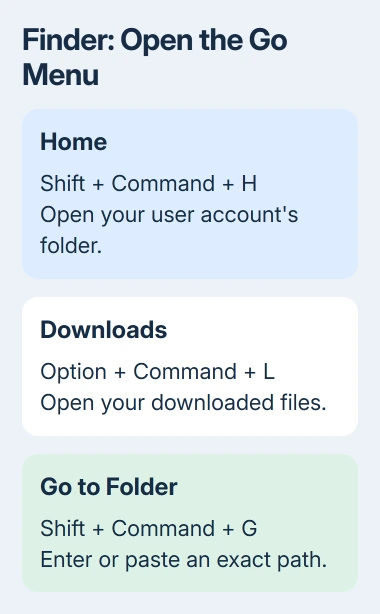
Choose Go > Home, or press Shift + Command + H. This opens the Home folder for the account you're signed in to. Double-click a folder inside it to open it, just as you would on the desktop.
Apple explains that Home command in its Finder keyboard reference. Option + Command + L opens Downloads directly; Shift + Command + O opens Documents.
Clicking a folder once highlights it without opening it. Double-click it, or select it and press Command + Down. Pressing Return with a folder selected normally lets you rename it instead.
Choose Go > Enclosing Folder to open the folder that contains the one you're viewing. That helps when you want a neighboring folder without starting from Home again.
Open a known folder by pasting its path
In Finder, choose Go > Go to Folder, or press Shift + Command + G. Type the location and open the matching folder, or paste a complete path and press Return to go there.
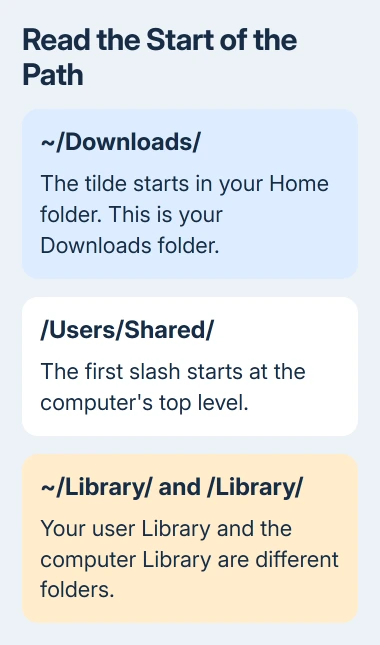
For example, ~/Downloads/ opens Downloads inside your Home folder. The tilde (~) at the start stands for your Home folder, so you don't have to know or type your account's short username.
The Go to Folder procedure explains how matching folders appear as you type. Press Tab to accept a suggested path, or select the correct match from the list.
Paste just the path, without a surrounding sentence, copied quotation marks or a Terminal command. Check the full path before opening a suggestion with a similar name.
If the folder doesn't appear, open the folder that should contain it and look inside. A renamed or moved folder won't be at its old path, though you might still have another copy elsewhere.
Understand which starting point the path uses
A path starting with / begins at the top of your Mac's folder structure. A path starting with ~ begins in your Home folder. Two paths can end with the same folder name but lead to different places.
For example, /Users/Shared/ opens the computer's Shared folder, while ~/Pictures/ opens Pictures for your account. These show the two starting points; your project or download may be somewhere else.
/Library/ and ~/Library/ are different folders too. The first serves the whole Mac; the second belongs to your account. Use the exact path in the app's instructions when looking for settings or support files.
For your account's Library, hold Option while opening Finder's Go menu, then choose Library. Opening the folder doesn't require changing hidden-file settings across the whole Mac.
Leave unfamiliar Library files in place unless a specific repair tells you what to change. Being able to open the folder doesn't mean its files are safe to delete or rename.
Check whether the location is local or in iCloud Drive
Choose View > Show Path Bar in Finder. The row near the bottom shows which folders contain the current item. Use it to check where your folder is, especially when several folders have similar names.
Select a folder and press Command + I for Get Info if you need its details. You can also Control-click a folder in the path bar and choose the command to copy its pathname.
Desktop and Documents can be stored in iCloud Drive. If that's turned on, opening Documents through a shortcut still takes you to the synced folder, not a separate local copy.
A file in iCloud may need downloading before you can open it without internet access. Check its iCloud status; seeing the filename in Finder doesn't mean the full file is already on your Mac.
I'd check the path before moving anything just to make it local. Opening the folder is harmless, but moving synced files or turning off syncing can change where your other devices find them.
If you need a new folder after reaching the right destination, use the Mac folder creation steps. A fresh folder with an old name won't restore the original files.
Keep a useful folder in the sidebar
Once you've found the folder, drag it into the Finder sidebar's Favorites section. That adds a shortcut so you can open it again without retyping its path.
If the sidebar is hidden, choose View > Show Sidebar. If the toolbar is hidden too, choose View > Show Toolbar first. The sidebar customization guide explains where these controls are available.
Adding the shortcut doesn't move your files. If it stops working, check whether the folder was renamed or moved, or whether its drive is disconnected, before replacing the shortcut.
For an external disk, check that it's connected and available to Finder, then select it under Locations. Pasting the path again won't help until the Mac can access that disk.
When the folder opens but access is refused
A permission message means the folder exists, but your account isn't allowed to use it that way. Check that it's your folder and you're signed in to the right account, then ask its owner or administrator for access.
If you need to use the same folder in Terminal, follow the Terminal folder-opening procedure. Opening a folder in Finder doesn't change which folder Terminal is working in.
If you still can't access an ordinary folder of your own, send support its path, the exact message and your macOS version. Hide private usernames before sharing screenshots of the path publicly.
The Short Version
Open Finder and use Go > Home, a sidebar favorite or Go to Folder with an exact path. Check whether the path starts with ~ or / and whether it leads to iCloud Drive. Reconnect a missing drive or sort out access if permission is refused.
Checked November 5, 2026.

Isaac Smith is the founder and editor of PC Glance, a website that covers computers, laptops, and technology. He is a tech enthusiast and a computer geek who loves to share his insights and help his readers make smart choices when buying tech gadgets or laptops. He is always curious and updated about the latest tech trends.