
A Galaxy Watch that starts rebooting after an app install needs that app removed before you try a full reset. Restart once if needed, then uninstall the app from your paired phone if the watch won't stay on long enough.
These steps focus on Galaxy Watch4 and later models running Wear OS. If the watch never reaches its face, it needs different recovery steps from a watch that restarts only when you open the new app.
1. Get back to a usable watch face
If the watch responds, close the new app and restart normally. Hold Home/Power and Back together until the power menu appears, tap Power off, then turn the watch on again with Home.
For a frozen watch, keep both buttons held until Rebooting… appears, then release them and let startup finish. Samsung recommends a forced reboot before removing apps or resetting in its frozen-watch instructions.
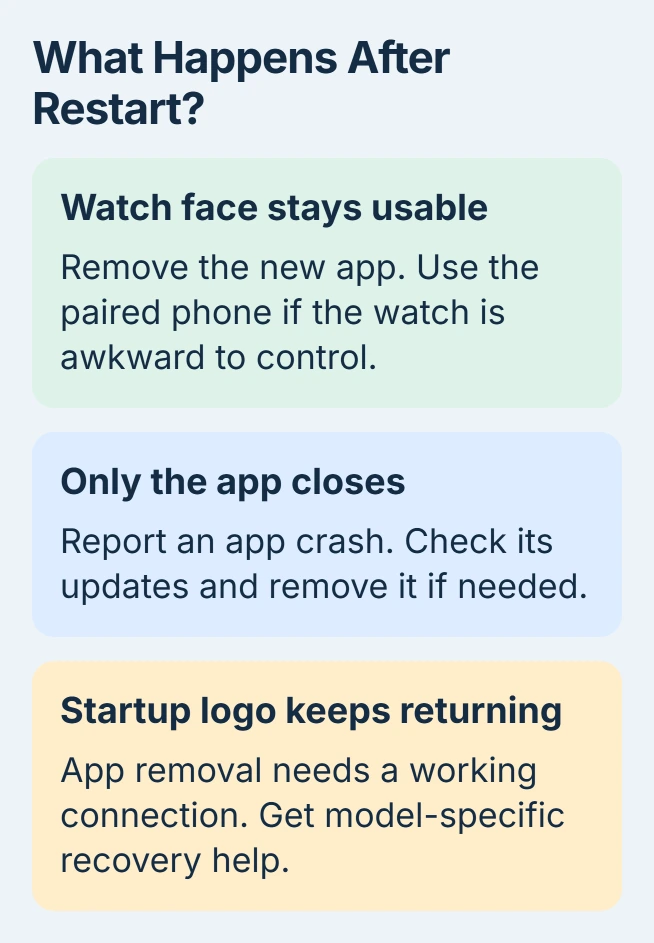
After the restart, check that the normal watch face responds. Open a settings screen without launching the new app. Notice whether the whole watch restarts or only the app closes.
Have a damaged or stuck button checked if it stays pressed. A tight case can also press a button, so remove any accessory touching the buttons before trying again.
If the watch keeps restarting before you can use its face, skip to the last section. Forcing more restarts won't give the phone the steady connection it needs to remove an app.
2. Remove the new app from the paired phone
Open Galaxy Wearable on your paired phone and check whether the watch is connected. Opening the app won't let you remove a watch app while the watch is disconnected.
Choose Watch settings > Apps, select the recently installed app, then tap Uninstall and confirm. The watch-app management steps cover this route on Wear OS models.
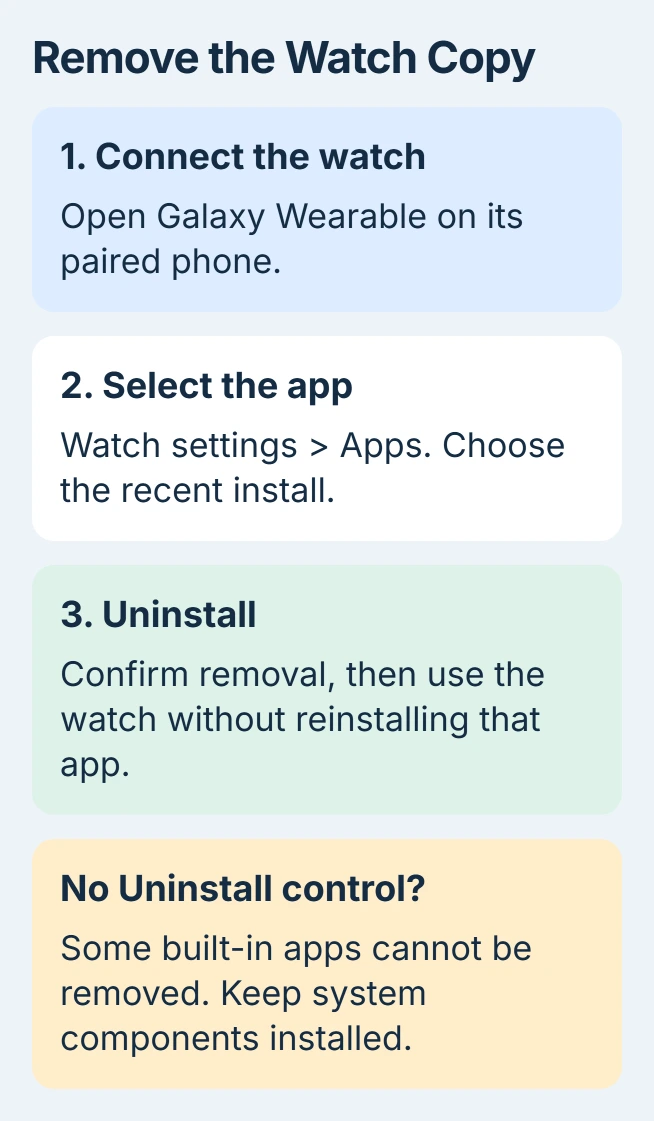
Some Galaxy Wearable layouts put the list under Apps or Apps screen. Use the connected watch's controls. Removing the phone's copy in Android Settings doesn't remove the watch's copy.
Without an uninstall control, the selected app may be built in and can't be removed that way. Leave system apps alone. Check the app's exact name and when the restarting began before trying to remove a different one.
Once the app is removed, use the watch normally without reinstalling it. If the restarts stop, send the developer the app name and installed version, plus your watch model and software version, so they can check compatibility.
I'd remove the one new app first. If you remove several together, you lose track of which caused trouble. A reset would erase far more than one app.
3. Use the watch's own uninstall control if it stays on
On the watch, swipe up from the face to open its apps. Touch and hold the unwanted app, select Uninstall, then confirm. Use this route if the watch responds but you don't have the paired phone with you.
Another supported route is the watch's Play Store. Open its My Apps list, choose the app and scroll to Uninstall. The Wear OS app controls also provide its update options.
Choose one route and let the removal finish. If the watch restarts halfway through, reopen the app list and check whether the app is still there. It may have restarted before it could remove the app.
If you installed a watch face rather than an ordinary app, switch to a built-in face while you check the watch. Leave the downloaded face unused until the watch is stable, then use its removal option when offered.
An app closing back to the watch face is a crash; the watch repeatedly showing its startup logo is a reboot. Tell the developer which happens so they know whether they're checking an app crash or a watch restart.
4. Update the watch and its connected software
Once the watch stays usable, open Settings > Software update > Download and install on it. Install the compatible update offered for your model and let it finish before using the watch again.
The paired-phone route is usually Galaxy Wearable > Watch settings > Watch software update. Check the watch model shown in the app before starting, especially if you have several paired watches.
Check the watch's Play Store app list for app updates too. These are separate from the watch software update, so finishing one doesn't mean the other is done.
On the phone, update Galaxy Wearable and the installed plugin for that watch through the app store you used to install them. The plugin is the phone software that connects Galaxy Wearable to your particular watch model.
After updating, use the built-in apps before reinstalling the troublesome one. If the watch still reboots without that app, keep checking the watch instead of reinstalling the same app repeatedly.
For a watch that stays on but loses charge quickly, use the Galaxy Watch battery-use checks. An app using a lot of battery needs different checks from a watch that keeps showing its startup logo.
5. Preserve the backup before considering a reset
If restarts continue, open Galaxy Wearable > Watch settings > Account and backup on the connected phone. Check the backup options and the date of the saved backup. The menus and automatic backup options depend on your watch software.
The watch backup guidance lists the data it can save. The watch backup doesn't include saved music, so it won't restore everything stored on the watch.
A factory reset erases the watch's personal data and settings. Have your Samsung account sign-in details ready. If your watch has an LTE mobile plan, ask your carrier how to reactivate it.
For a usable watch, open Settings > General > Reset, read the information and confirm only when you're ready. The phone can also offer Galaxy Wearable > Watch settings > General > Reset.
After setup, leave the suspected app uninstalled while checking whether the watch remains stable. Restoring that app straight away can bring the restarts back before you can check the watch without it.
6. Get model-specific help for a continuous boot loop
If the watch restarts before your phone can connect, tell Samsung the model, last app installed and where startup repeats. Ask about recovery options before agreeing to steps that erase the watch.
Wear OS recovery differs from the older Galaxy Watch Active2 boot-loop procedure. Don't stop at an older model's Recovery selection and assume its reset sequence matches yours.
Arrange service if the watch still reboots after a reset without the new app installed. Explain what happened after removing the app and updating, and mention any recent damage or charging trouble. More app downloads won't help explain it.
The Short Version
Restart once, remove the recent app through Galaxy Wearable or the watch, then check stability. Update the watch and phone software if needed. Back up before a reset, and get model-specific support when the startup logo keeps repeating.
Checked November 6, 2026.

Isaac Smith is the founder and editor of PC Glance, a website that covers computers, laptops, and technology. He is a tech enthusiast and a computer geek who loves to share his insights and help his readers make smart choices when buying tech gadgets or laptops. He is always curious and updated about the latest tech trends.