
When the App Store won't load, check the connection; when a download fails, follow its download or payment message. Start with a page in Safari, then try the store on another connection before changing your account.
Note the exact error you see. A connection alert, an app stuck waiting and a billing request need different fixes, though each can look like the App Store isn't working.
1. Check whether the store or the connection is down
Try loading a familiar page in Safari. If it fails, check whether a second device can use that Wi-Fi. Restart the router when neither device connects, and ask your internet provider for help if both remain offline.
If Safari works, check the App Store entry on System Status. Read any incident details to see which services are affected.
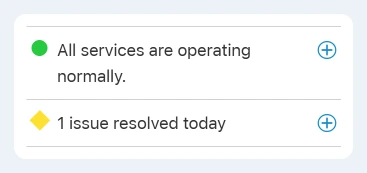
When an App Store incident is listed, retry after that service recovers. Signing out, resetting settings or repeatedly entering payment details won't repair a service outage.
If the status page reports normal service, continue with a different connection. Apple's store-connection instructions recommend comparing networks when the app won't load or downloads stop.
A normal status page can't confirm that your own connection works. A new or regional problem might not be listed yet. If the error keeps appearing, note its wording and the time for support.
2. Compare Wi-Fi with cellular data
Open Settings > Wi-Fi and temporarily turn Wi-Fi off if your mobile plan allows a data check. Open the App Store again. Try a small app page first rather than starting a large download over a limited plan.
If the store works on cellular but not Wi-Fi, your account can reach it through that other network. Tell whoever manages the router or your internet provider. On public Wi-Fi, finish its sign-in page in Safari if required.
If cellular doesn't work either, open Settings > Cellular. Confirm Cellular Data is on, then check that the App Store is allowed to use it in the app list. The cellular menu may be labeled Mobile Service in other regions.
An iPad without cellular service needs a different Wi-Fi network for the same comparison. Try another trusted Wi-Fi connection, since that iPad won't have the iPhone's cellular menu.
If you use a personal VPN or network-filtering app, disconnect it briefly and retry the store. If the store then works, check that app's settings or contact its provider. Ask your administrator to handle changes to a workplace VPN.
Turn your normal connection back on after the comparison. Note which network worked so you can give support the result.
3. Restart and check the date before changing accounts
Restart the iPhone normally, then open the App Store again. On a Face ID model, hold a volume button with Side until the power slider appears. On a Home button model, use its Side or Top power button.
After the phone shuts down, hold Side or Top to start it again. If the store works after restarting, that points to a temporary phone or app problem. If the same error remains, check the clock next.
Open Settings > General > Date & Time. Check the displayed date, time and time zone. Turn Set Automatically on when available, or correct an obviously wrong value.
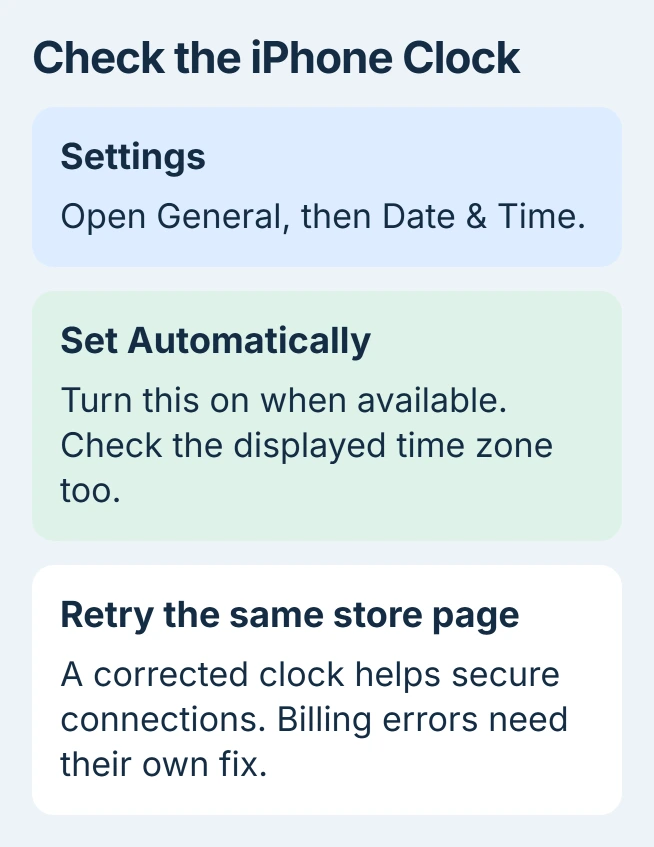
A wrong clock can stop the phone connecting securely to the store. Fixing the date can help that connection, but it won't pay an unpaid purchase or change your App Store region.
Check Settings > General > Software Update for a compatible iOS update. Back up important data before installing it. After the update and restart, try the same store page to see whether anything changed.
4. Unstick an app that stays waiting
If the store opens but an app on the Home Screen stays dim or waiting, touch and hold that app. Choose Prioritize Download when it appears, then watch whether the progress indicator starts moving.
For a failed update, tap your account picture in the App Store. Check pending updates and try that app individually. One failed app update needs different checks from a store that won't load at all.
If the message says you need more space, open Settings > General > iPhone Storage. Remove content you can replace or offload an unused app, then retry. The space needed depends on the app's download and installation.
I'd keep a troublesome app installed until its saved work is safe. Deleting and reinstalling can remove information stored only inside that app, while prioritizing the download and restarting leave it in place.
If a message says the app requires a newer iOS version, compare that requirement with the latest version your iPhone supports. Changing Wi-Fi or payment details won't make the app compatible with an older iOS version.
5. Follow billing and verification messages directly
A free app can still require a valid payment method. Open Settings > your name > Payment & Shipping when the store asks for payment information, and correct the method or follow its displayed instructions.
An unpaid balance can trigger verification required or a billing alert about an earlier purchase. The unpaid-purchase procedure explains how to retry payment or pay that order using another valid method.
When Fix Payment Information appears, open it and choose Try Again after correcting the problem. An unpaid balance can block free downloads too, so you'll need to resolve the payment issue even if the app is free.
An age-confirmation request is a different check. Use the App Store age-verification steps to complete that specific check without changing a working password.
If the App Store icon itself is gone, use the missing App Store controls. Check for Screen Time restrictions and the missing app before following these connection fixes.
6. Give support the failure that remains
Contact Apple Support if the store still fails after the network, clock, restart and relevant purchase checks. Give them the exact message, iOS version and iPhone model, along with the Wi-Fi and cellular results.
If a workplace or school manages your phone, ask them about download restrictions. For an unpaid order you can't resolve, ask billing support about that order. Resetting the phone won't fix an unpaid account charge.
The Short Version
Check service status and compare connections for a store that won't load. Restart and correct the clock, then follow the specific download or billing message. Keep the network result and exact error for support if the problem continues.
Checked November 6, 2026.

Isaac Smith is the founder and editor of PC Glance, a website that covers computers, laptops, and technology. He is a tech enthusiast and a computer geek who loves to share his insights and help his readers make smart choices when buying tech gadgets or laptops. He is always curious and updated about the latest tech trends.