
An Echo can play your phone's audio over Bluetooth once the two devices are paired. Open the speaker's Bluetooth settings in the Alexa app, choose Pair A New Device, then complete the connection on your phone.
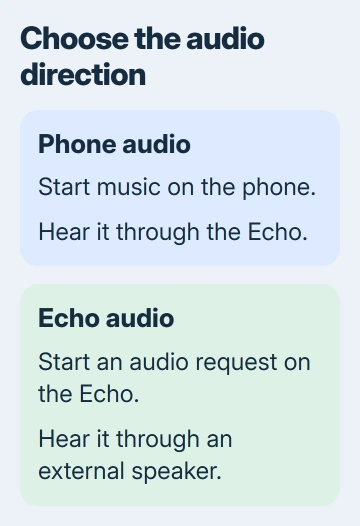
Connecting an external Bluetooth speaker works from the same Alexa menu, but sends sound in the other direction. Pick the connection that puts the sound in the right place.
Prepare the Echo and the device you want to pair
Start with an Echo that's already set up in your Alexa account. For a new speaker still waiting for setup, finish its Wi-Fi connection first so you can select it in Devices.
Bring your phone close to the Echo. Charge a portable speaker before trying to pair it. Disconnect the accessory from another nearby device if that connection keeps taking over while you're setting this one up.
Use Alexa for the Echo's saved Bluetooth connections and your phone's Bluetooth settings for the phone's connections. Seeing the Echo in Alexa doesn't mean your phone has finished pairing with it.
Amazon says to use the Echo's Bluetooth device list to pair a phone or speaker. Select the Echo in the room with you, especially if several have similar names.
Pair your phone so music plays through the Echo
- Open Alexa on your phone and select Devices.
- Select the Echo you want to use, then open Device Settings.
- Select Bluetooth Devices, followed by Pair A New Device.
- Open your phone's Bluetooth settings and select the Echo when its name appears. Complete any pairing request shown on the phone.
On an iPhone, use Settings > Bluetooth and leave Bluetooth on while you look for the speaker. The accessory-pairing controls let you select its name and enter a code if the accessory asks for one.
On an Android phone, open Settings > Connected devices > Connection preferences > Bluetooth. Depending on the phone, Pair new device appears under Connected devices instead. Select the Echo in the list of available devices.
Wait for the phone to show the Echo as connected. Then play something in your music, podcast or video app. Pairing saves the connection; playback checks that the sound reaches the speaker.
Raise the phone's playback volume and the Echo's volume gradually. A ringtone-volume change isn't the same as changing the volume of the song playing in your app.
If the phone reports a connection but sound stays on the phone, open the app's audio-output control and select the Echo. Disconnect other headphones temporarily if they keep receiving the audio instead.
Pair an external speaker to play the Echo's audio
Turn on the external speaker and put it in Bluetooth pairing mode using its own button or instructions. Turning it on doesn't always put it in pairing mode; it needs to be ready for a new connection.
In Alexa, open Devices, select your Echo, and go to Device Settings > Bluetooth Devices > Pair A New Device. Select the external speaker when it appears and let the connection finish.
Ask the Echo to play something and listen at the external speaker. That tests the Echo-to-speaker connection. Playing a song on your phone tests a different connection and can lead you to check the wrong device.
I'd start with one speaker and one Echo close together. Once that connection works, move the speaker to its intended position and try playback again. A connection that drops only after the move needs a range or interference check.
Keep the two routes separate when changing settings. For phone-to-Echo playback, choose the Echo on the phone. For Echo-to-speaker playback, choose the external speaker in the Echo's Bluetooth device list.
Reconnect a device you've already paired
Turn Bluetooth on for the phone or external speaker and bring it within range. Say Pair Bluetooth to the Echo. Some previously paired devices also reconnect automatically when they're nearby.
That command reconnects a device you've already paired. Pair A New Device isn't needed every time you come home. Check the connected-device list before trying to pair again.
If the Echo reconnects to somebody else's phone, disconnect that phone before selecting yours. When a device should no longer reconnect at all, remove its saved entry using the next section.
With Bluetooth playback, your phone chooses and plays the recording. Asking the Echo itself to stream a song is different: the Echo plays it through its connected service.
Remove an old connection when pairing keeps failing
Open Alexa > Devices, select the Echo, and open its settings. Choose Bluetooth Devices, select the troublesome device, then select Forget Device. This removes that saved connection from the Echo.
On an iPhone, go to Settings > Bluetooth, open the Echo's information button, then Forget This Device. On Android, open the saved device's settings and choose Forget.
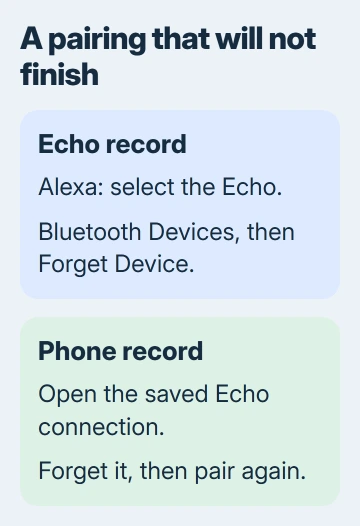
Pair the devices again after both have forgotten the old connection. That's more useful than repeatedly tapping a saved name that never finishes connecting.
For continuing dropouts, keep the devices close, charge the portable accessory, and move away from possible interference including baby monitors and microwave ovens. Ask the Echo to Check for software updates before retrying.
If only the Echo fails, give Amazon support both device models. Explain whether the Echo never appears, pairing fails, or audio won't play. For an external speaker, ask its maker whether it supports the connection you're trying to make.
The Short Version
In Alexa, select the Echo and open Bluetooth Devices, then Pair A New Device. Finish phone pairing in its Bluetooth settings, or select the external speaker in Alexa. Test playback before relying on saved reconnection.
Checked November 6, 2026.

Isaac Smith is the founder and editor of PC Glance, a website that covers computers, laptops, and technology. He is a tech enthusiast and a computer geek who loves to share his insights and help his readers make smart choices when buying tech gadgets or laptops. He is always curious and updated about the latest tech trends.