
Connect an Echo Dot to Wi-Fi through the Alexa app on your phone. Add it as a new device for first-time setup, or open its existing settings to change networks after replacing your router or changing its password.
Pairing the Dot in your phone's Bluetooth settings won't give it a home Wi-Fi connection. Use Alexa to set it up with your Amazon account and Wi-Fi password, then check that it can answer an online request.
Prepare the phone, speaker and network details
Plug the Echo Dot into power using its supplied adapter. Keep the phone and speaker beside your router during their first connection. Open your phone's app store and install or update Amazon Alexa.
Sign in to the Amazon account you want to use with the speaker. Have the home Wi-Fi name and password ready. The wireless password belongs to the router; it can be different from the password you just used to sign in.
Check that your phone can get online through the home network. On Android, Google's Wi-Fi connection steps explain choosing a network and entering its password. A cellular connection can hide a home internet outage.
If your phone also can't get online through the router, fix the network first. Repeating speaker setup won't repair that connection. Keep the Dot plugged in while checking the phone so it can finish starting.
Add a new Echo Dot in Alexa
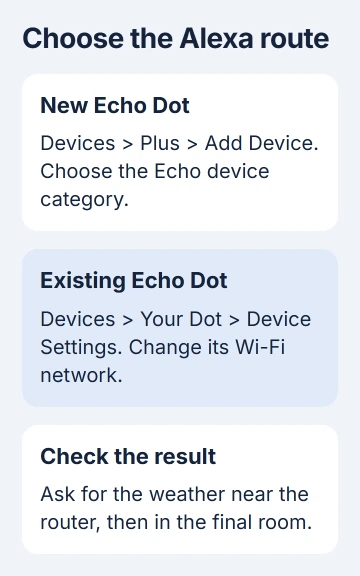
Open Alexa > Devices, tap the plus button, then choose Add Device. Select Amazon Echo, followed by Echo, Echo Dot, Echo Pop and more. Follow the prompts for the device you've plugged in.
Amazon's Echo Dot setup instructions give that route. The sixth-generation setup page calls the product category Echo & Alexa instead. Choose the matching category in your app.
When Alexa asks for a wireless network, choose your home network and enter its password. Check capitalization and spaces. If several names look similar, compare them with the router details you prepared before continuing.
Follow the setup prompts for your model. Older and newer Dots can use different buttons for setup and reset, so use the app's directions to find and connect your device.
On models with an orange setup light, orange means the Dot is in setup mode or trying to connect. Wait until the app confirms the connection before putting the speaker in its final room.
An Echo Dot with a clock still uses the phone app for this task. Its time display doesn't work like an Echo Show's touchscreen, so the Show's setup instructions won't fit your Dot.
Change Wi-Fi on a Dot you've already set up
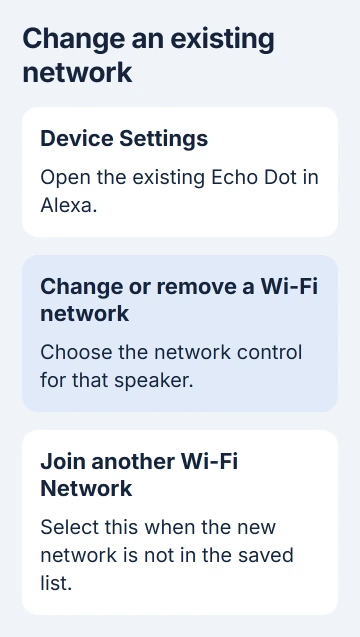
Open Alexa > Devices and select the existing Echo Dot. Open Device Settings, then choose Change or remove a Wi-Fi network. Select a saved network, or Join another Wi-Fi Network when the intended name isn't listed.
Follow the network-change prompts in the app after replacing a router or changing its name or password. Use the existing Dot's entry so you don't add a duplicate speaker.
If your home has several Dots, check the room or device name before changing anything. Updating the kitchen speaker won't reconnect an offline bedroom speaker.
If the old network no longer exists, choose the new one and follow the app's instructions for the offline Dot. Use the new network's password; you don't need to wait for the old router to come back.
Match a missing network to range or band
Move the Dot within 30 feet, or 9 meters, of the router. Keep it away from devices that can interfere, such as a microwave or baby monitor, while setting up. Search for the same wireless name again.
The connection troubleshooting steps include trying another device on the network. If other devices fail too, restart the router and check its internet connection before blaming the Dot.
If your router gives its two Wi-Fi bands separate names, try the other supported band. The dual-band Wi-Fi guide explains why a connection can work near the router but struggle across a room.
A single network name can serve both bands. If the Dot already finds and joins that network, keep its name. You don't need to rename a working network just to give the Dot another choice.
If the network rejects the password, check the current password with the router's owner. Your Amazon login won't work in its place. The internet provider can help with the login details for a router it supplied.
Finish setup and check the final location
Ask the Dot for current online information, such as the weather. A spoken answer tells you more than an orange light or an entry in the phone's Bluetooth list. Move it to the room where you'll use it and ask again.
If it works near the router but fails in that room, check coverage or interference. Moving the speaker a short distance can help more than repeating account setup. Note what happened in both locations in case you need support.
If setup is still stuck, unplug the Dot, wait 30 seconds, then plug it back in. The setup troubleshooting procedure gives that wait. Once the Dot has started, open Alexa and retry the step that failed.
I'd try that restart before a reset. Reset controls vary by generation and can clear settings, so follow your exact model's procedure if support recommends one. A Wi-Fi change alone doesn't require erasing your Amazon account.
For a different speaker, the Google Home connection checks use the Home app instead. That setup has its own app permissions and reset buttons, which differ from the Echo procedure.
If setup or registration still fails, use Help & Feedback in Alexa. Include the Dot generation, your phone's operating system, the error and what happened near the router. If several devices lose internet together, contact the provider.
The Short Version
Use Alexa's Add Device route for a new Dot, or its existing Device Settings to change Wi-Fi. Check the network password, nearby signal and final room. A Bluetooth pairing alone doesn't connect the speaker to home internet.
Checked November 5, 2026.

Isaac Smith is the founder and editor of PC Glance, a website that covers computers, laptops, and technology. He is a tech enthusiast and a computer geek who loves to share his insights and help his readers make smart choices when buying tech gadgets or laptops. He is always curious and updated about the latest tech trends.