

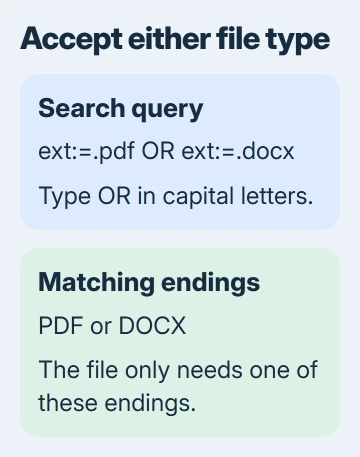
File Explorer can search several file types together with an uppercase OR between extension filters. Choose a folder and type ext:=.pdf OR ext:=.docx in its search box to find PDF and Word documents in one result list.
Choose the folder before entering the search
Press Windows+E to open File Explorer. Open Documents, a project folder or whichever folder has the files, then select the search box near the upper-right corner.
Start with the smallest location that makes sense. Searching one project folder is easier to review than searching every drive. Select This PC when you really need to look across the devices and drives listed there.
Don't paste the query into the folder address bar. That bar shows the current path. The search box looks within the location you've opened and shows the matching files.
The Windows file-finding instructions explain how a folder search differs from a search starting at This PC. Check the location before changing your query.
Let the search run until the result list stops changing. Searching a broad location can take longer than one small folder, so give it time before changing a correct filter just because few results have appeared.
Join the extension filters with uppercase OR
Enter this example in the search box and press Enter:
ext:=.pdf OR ext:=.docxThe ext: part names the file extension, such as .pdf or .docx. Adding = asks for that exact ending. Windows shows files matching either filter; a file doesn't need to match both.
Write OR in capital letters and leave a space on each side. Microsoft says the search operators must be uppercase in its query syntax reference.
Without OR, a space between these filters normally asks for both to match. An ordinary file has one extension, so ext:=.pdf ext:=.docx isn't the right query for this task.
Extend the query by adding another OR and another filter. For example, use ext:=.jpg OR ext:=.jpeg OR ext:=.png to look for three image extensions in the same location.
Both .jpg and .jpeg are useful in that example because filenames can use either ending. A filter for one spelling doesn't automatically mean every picture format is included.
Search filters only change which files appear in the result list. They don't change the files themselves: a Word document stays a Word document, and a PDF stays a PDF.
Combine the type list with a filename condition
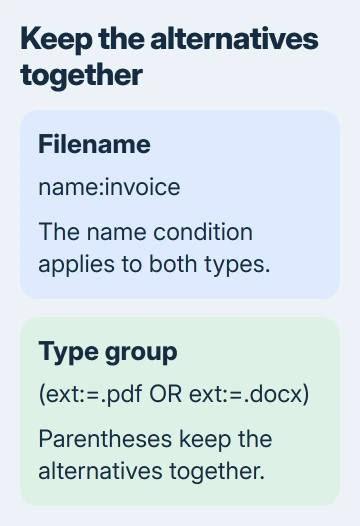
To find filenames containing a word, keep the extension filters together in parentheses. This example looks for invoice in the names of PDF and DOCX files:
name:invoice (ext:=.pdf OR ext:=.docx)The parentheses keep the PDF and DOCX alternatives together, so the filename condition applies to both types.
For an exact filename phrase with spaces, use straight quotation marks around the phrase. Keep the extension group outside those quotation marks so Windows can still read it as a filter.
Use name: to search the filename. A general word search can look at other searchable details too, so it can return files you didn't expect when you were only looking at names.
I'd get the extension-only search working first, then add a filename condition. If the second query returns nothing, remove that extra condition once to check whether the name or the file type is excluding the document.
Check the actual endings in the results
In Windows 11, choose View > Show > File name extensions to display the endings. In Windows 10, open the View tab and select File name extensions in its Show/hide section.
Compare the displayed endings with the filters you typed. Without =, an extension filter can also match a longer ending: ext:.xls can return .xlsx.
Use ext:=.xls for only .xls, or ext:=.xls OR ext:=.xlsx for both. Add only the formats you actually need in the result list.
An icon alone isn't a reliable way to read a filename's ending. The app associated with a format can change its icon. Our File Explorer controls guide explains extensions and other display options.
Renaming an ending doesn't convert the document. Changing a filename from .docx to .pdf won't produce a usable PDF. Convert or export through the document's app when you need a different format.
When you're finished reviewing the results, clear the search box to return to the folder's ordinary contents. An active filter can make other files appear absent even though they're still in the folder.
Separate a query problem from a search problem
Test one known extension in the folder first, such as ext:=.pdf. Then add the second type with OR. This comparison shows whether the basic file-type filter works before another condition complicates it.
If English filter names aren't recognized on a Windows installation using another language, use the full property name. For example, enter System.FileExtension:=.pdf OR System.FileExtension:=.docx.
That full property name works without a translated short label. The full query reference covers names that work across languages, including System.FileExtension, and the uppercase operators that join them.
For files visible in a folder but absent even from a simple search there, follow the Windows Search repair steps. Rebuilding an index is a different job from correcting an OR query.
On a work computer managed by IT, give them the exact query, searched folder, and one filename that should match. If search on your own PC still fails after those repairs, take the same details to Microsoft support.
The Short Version
Search the chosen folder with ext:=.pdf OR ext:=.docx to find both file types in one list. Put the alternatives in parentheses when adding a filename condition. Check the endings before searching a broader location.
Checked November 6, 2026.

Isaac Smith is the founder and editor of PC Glance, a website that covers computers, laptops, and technology. He is a tech enthusiast and a computer geek who loves to share his insights and help his readers make smart choices when buying tech gadgets or laptops. He is always curious and updated about the latest tech trends.