
An eero port and a PC port can look different yet take the same Ethernet cable. First check whether you're looking at an Ethernet socket or a power socket. Different speed labels don't require a different-shaped plug.
For a wired PC connection, use an available Ethernet port on the eero and the Ethernet socket on your computer. If the computer only has USB ports, it needs a compatible USB-to-Ethernet adapter.
Match the sockets before choosing a cable
Look for a wide rectangular network socket that takes an Ethernet plug with a clip to hold it in place. It's often labeled RJ45. The PC and eero use this connection even when their labels differ.
Microsoft's Ethernet connection instructions show how to connect your router to the PC with one Ethernet cable, or use a USB-to-Ethernet adapter if your PC has no Ethernet socket.
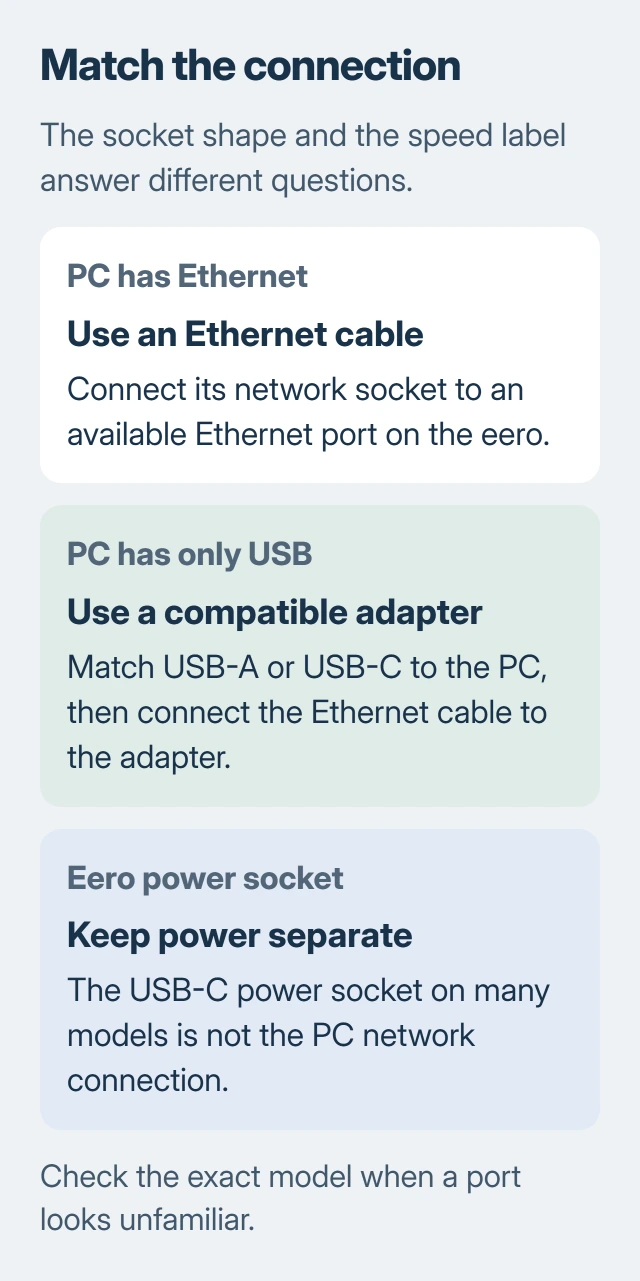
The small oval USB-C socket powers many eero models; it isn't where you connect the PC. Check your model's port labels before plugging anything in. An Ethernet plug should fit without force.
Some thin laptops have a network socket with a hinged lower edge, while others have no Ethernet socket at all. Check your laptop's manual if its opening looks unusual. A narrow telephone socket isn't an Ethernet substitute.
Choose an adapter with USB-A or USB-C to fit your computer and Ethernet for the cable. Check which Windows versions and network speeds it supports. The USB plug's shape alone doesn't tell you its Ethernet speed.
Read the port speed separately from the plug shape
Numbers such as 1 GbE, 2.5 GbE, and 10 GbE describe the port's network rate. They don't mean that a 2.5 GbE socket needs a plug with a different shape from a 1 GbE socket.
The cable, computer's network adapter, and eero port all affect the connection. A PC with a gigabit adapter won't become a 2.5-gigabit device just because you connect it to a faster eero port.
A faster PC adapter can't make a slower eero port run faster, either. Look up the specifications for the exact eero model and PC or USB adapter you own. The biggest numbers on their boxes don't tell you how the two will work together.
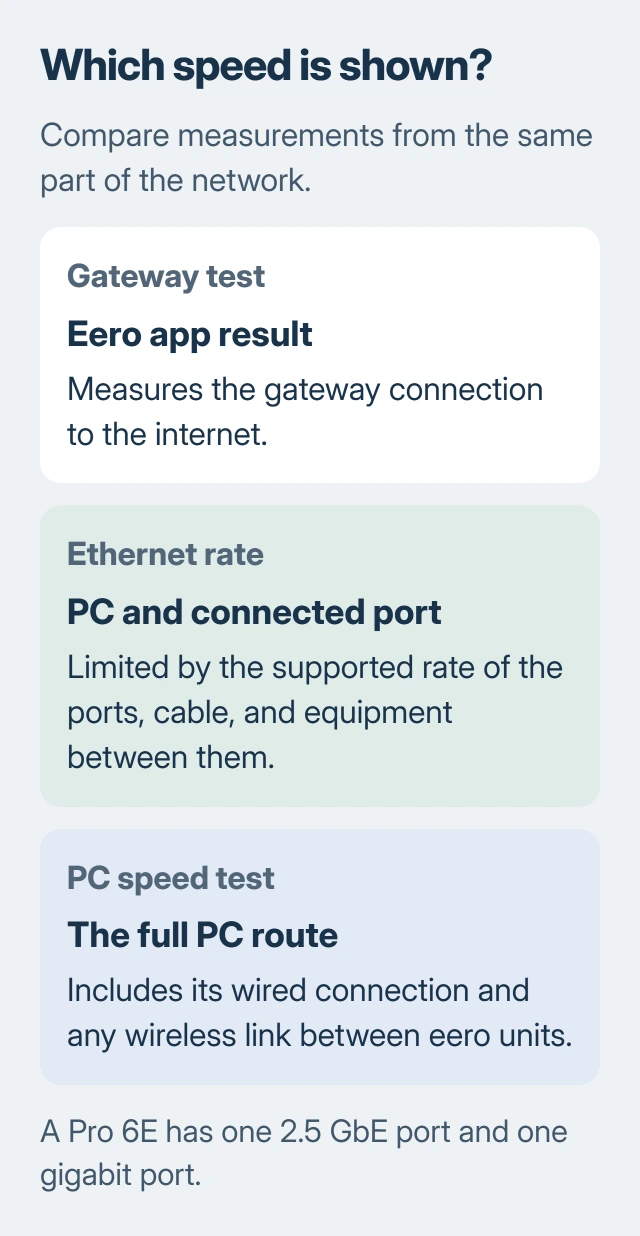
The eero Pro 6E is a useful example. Its published wired specifications list one 2.5 GbE port and one gigabit port. Both accept the same type of Ethernet plug, but their maximum rates differ.
If the modem uses that model's 2.5 GbE port, the remaining PC connection is through its gigabit port. Moving the PC cable around won't create a second 2.5 GbE port. Other eero models have different port arrangements.
Connect the PC on the home-network side
Keep the modem or fiber equipment connected to the gateway eero. That's the main unit linking your home network to the internet. Connect your PC to an available network port.
If the network is new, complete the eero gateway setup first. Connecting a cable doesn't replace setting up the network in the app.
If you need more sockets, add an Ethernet switch after the gateway. Connect them in this order: modem, gateway eero, switch, then wired devices. The switch instructions show this arrangement.
Choose a switch whose ports support the speed you need. A gigabit switch between two faster devices still limits their connection to gigabit ports. Extra sockets don't automatically mean extra speed.
An Ethernet cable to an extra eero doesn't always mean the whole route is wired. If that eero connects wirelessly to the gateway, your PC's traffic still crosses Wi-Fi between the two units.
Compare measurements from the same part of the connection
The speed test inside the eero app measures the gateway's connection to the internet. A test running on your PC also includes the PC's connection to the eero. Those results can differ without either display being wrong.
Run the PC test while it's connected by Ethernet, and pause large downloads or uploads while comparing speeds. Note whether its cable goes to the gateway, a switch, a dock, or an extra eero.
If the app test is fast but one wired PC is slow, check that PC's adapter, cable, and any equipment between it and the gateway. If several devices and the gateway test are slow, check the provider connection instead.
The Pro 6E's advertised 2.3 Gbps network figure also needs context. Its network-speed explanation describes a combined figure for wired and wireless devices. It isn't a promise of 2.3 Gbps through its remaining gigabit port.
Check a slow connection before replacing equipment
Try another known-working Ethernet cable first. A damaged cable can remain connected while delivering a lower rate. I'd make this comparison before buying a faster adapter or replacing the eero.
Next, connect your PC straight to an available gateway port, leaving out the switch or dock for this test. If the speed improves, reconnect each piece of equipment separately to see which connection slows it down.
Try another device on the same cable and port if you have one. If it works normally, check your original PC or its adapter. If both devices fail, check the cable, port, or network connection they share.
The wired-device checks include swapping the cable, trying another eero port, and connecting another device. Note each result for support; this helps them tell a faulty port from a PC-only problem.
For an internet connection that doesn't work at all, the home network setup guide separates the provider equipment from your own router. Contact the ISP for a slow gateway connection, or eero support for a repeatable port problem.
The Short Version
Match Ethernet sockets with an Ethernet cable; use an adapter if the PC lacks one. Check port rates separately from connector shape, and compare gateway and PC speeds before replacing equipment.
Checked November 6, 2026.

Isaac Smith is the founder and editor of PC Glance, a website that covers computers, laptops, and technology. He is a tech enthusiast and a computer geek who loves to share his insights and help his readers make smart choices when buying tech gadgets or laptops. He is always curious and updated about the latest tech trends.