
Free streaming lets you play a Windows game on your Mac without buying Windows or a compatibility app. Use Steam Remote Play if you already have a Windows gaming PC, or check GeForce NOW's Free membership for a cloud computer to run it.
You'll still need to own the game or choose one that's free to play, and the service must support it. Both methods send the game's picture and sound to your Mac while another computer runs it.
Choose where the game will run
Start with the equipment you already have. A Windows PC that can play the game is a good candidate for Steam streaming. Without one, search the cloud service's catalog before downloading a large installer.
For the Mac's details, open Apple menu > About This Mac. Look for Chip on an Apple silicon Mac or Processor on an Intel Mac, along with the macOS version. The model distinction matters when checking app requirements.
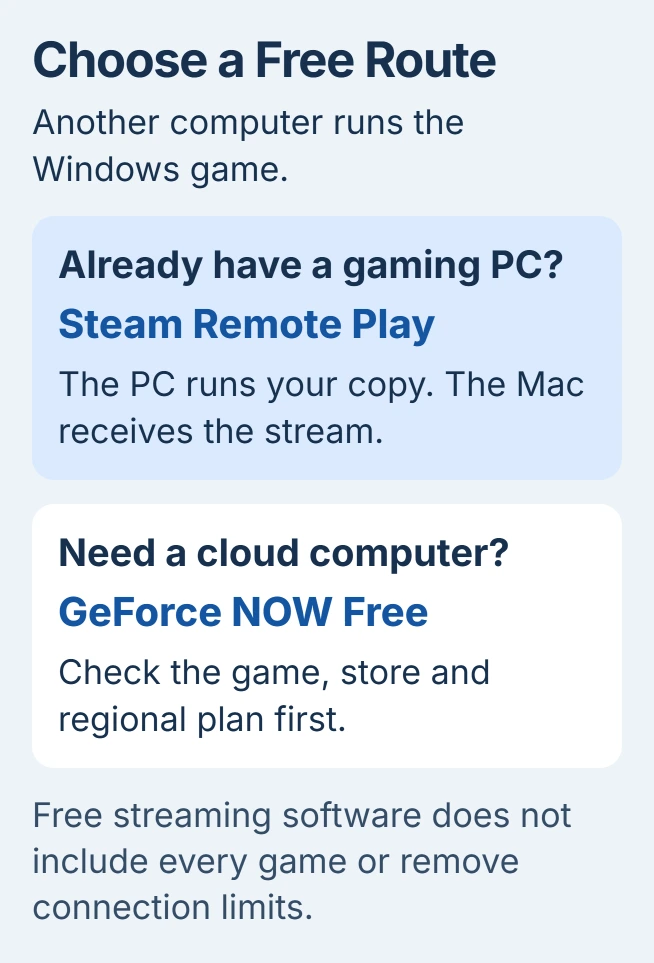
Neither method makes every Windows game run on a Mac. The Windows PC or cloud service runs the game. Your Mac receives the stream through an app or supported browser, so it also needs a connection that can handle it.
If a game is sold on several platforms, check which copy you own. The Detroit: Become Human Mac guide explains why the PlayStation and Steam copies need different streaming routes.
Stream from an existing Windows PC with Steam
First launch the game normally on the Windows PC. If it can't reach its menu there, fix that before setting up the Mac. Streaming won't repair missing game files or make an unsupported graphics card meet the game's requirements.
Use the PC game requirements check to compare your Windows PC with the game's requirements. Its graphics card still runs the game; the Mac's graphics hardware doesn't replace it.
Install Steam on both machines, using the same account on the PC and Mac. Open Steam on both and keep them on your home network for the first test.
On the Mac, open your Steam Library and select the installed game. Use the launch-button menu to choose the Windows computer, then select Stream when it's offered instead of a local installation.
Valve's Remote Play page describes PC-to-PC streaming from the library and offers Steam Link for macOS as another client. With Steam Link, follow its pairing prompts to connect to the computer running Steam.
Check that the game picture appears on your Mac and that its keyboard, mouse or controller works in the game. Keep the Windows PC running while you play; shutting it down ends the stream.
I'd try this route first when the gaming PC is already in the house. It uses the copy and hardware you have, and the first test tells you whether the network is good enough.
Check GeForce NOW before choosing its Free plan
Open the supported-game catalog and search for the exact title. Check the supported store too. Owning a game on one store doesn't give access to a different store's version.
The service's membership explanation lists a Free option, but plans vary by region. Check which plan your account can use before choosing this route.
Free membership doesn't give you every paid game. Pick a supported free-to-play game to play without buying one, or connect the store account where you already own a supported paid title.
Some titles use Install-to-Play, a premium feature. Check that the game is in the Free plan's ready-to-play catalog, rather than assuming every title mentioned by the service is included.
Expect queues and session limits on Free, with possible sponsorship messages before gameplay. Read the current plan details when joining, especially if you want to play for a long time without interruption.
Open the Mac app or a supported browser
Visit the official GeForce NOW download page. Under Desktop and Laptop, choose Mac for the native app, or Browser to use its supported browser route.
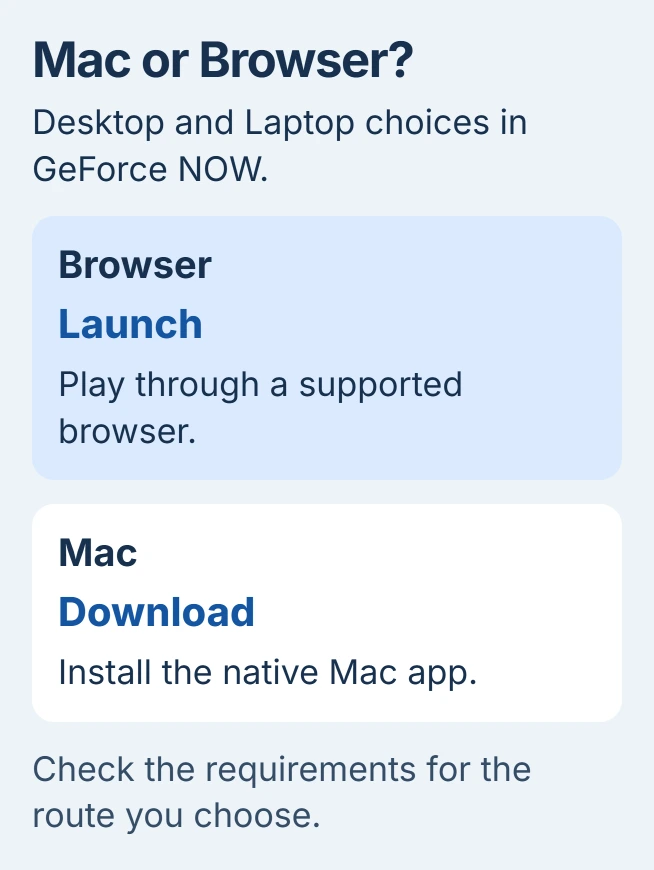
Check the current Mac requirements before installing. The native Mac app lists macOS 10.15 or later; the browser route has separate browser requirements, including Safari 16.4 or later.
Sign in and choose the supported game and store. When its store login appears, sign in using the account where you own the game. If it asks you to buy it, check whether that account owns the selected store edition.
Save through the game's own menu before ending your session. Closing the stream without saving can lose your newest progress.
If a title is missing or an error says you don't own it, contact the streaming service with the game name, store and membership. Reinstalling a Windows game on your Mac won't change the cloud catalog.
Fix the connection before buying another app
Streaming needs a steady connection. GeForce NOW needs 15 Mbps for 720p or 25 Mbps for 1080p, both at 60 fps (frames per second). It requires less than 80 milliseconds of network delay to its data center.
Try Ethernet or 5 GHz Wi-Fi, the recommended connections, if controls lag or the picture breaks up. Being close to your router and getting a fast internet speed result tell you about different parts of the connection.
For Steam, compare the game on the Windows PC's monitor with the Mac's stream. If it runs smoothly on the PC but stutters on the Mac, check streaming and network settings. If both stutter, check the game on the PC first.
Know when a free streaming route won't fit
If the cloud service doesn't carry the game and you don't have a Windows PC that can run it, these streaming methods won't work. Check for a Mac edition and ask the game publisher about supported Mac options before paying for another tool.
Check whether software in an old tutorial is still maintained. Whisky's maintenance notice says it is no longer actively maintained and won't receive game-specific fixes, so an old setup video may no longer help.
For continuing Steam streaming trouble, send Steam Support the host and Mac versions and describe where the session stops. For cloud connection failures, include the service's network-test result and selected game.
The Short Version
Stream from your Windows PC with Steam, or check a supported game on GeForce NOW Free. Confirm the game, store, regional plan and Mac requirements first. A free streaming app still needs a working host and a steady connection.
Checked November 6, 2026.

Isaac Smith is the founder and editor of PC Glance, a website that covers computers, laptops, and technology. He is a tech enthusiast and a computer geek who loves to share his insights and help his readers make smart choices when buying tech gadgets or laptops. He is always curious and updated about the latest tech trends.