
Can I run it on this PC? Start with the game's current system requirements and compare the exact processor, graphics chip, RAM and operating system. A laptop model name or a large memory total cannot answer the question on its own.
Windows already provides the information needed for that comparison. The PC component lookup instructions help collect it. Read the requirements for the exact game edition before buying an upgrade.
Open the game's requirements beside the PC details
Use the game's official store listing or publisher support page. Check the intended operating-system version, then list its processor, graphics, memory and storage requirements.
Steam's platform compatibility instructions direct readers to System Requirements on the game's store page. Windows support alone says nothing about a macOS edition.
Status: Windows hardware lookup, DirectX, Steam and EA guidance checked October 25, 2026. This is a requirements comparison. No game performance was measured.
Read Minimum and Recommended separately when both are supplied. Also retain any accompanying resolution, quality or frame-rate notes. A requirements table without performance targets cannot promise a particular frame rate.
Does each required component match?
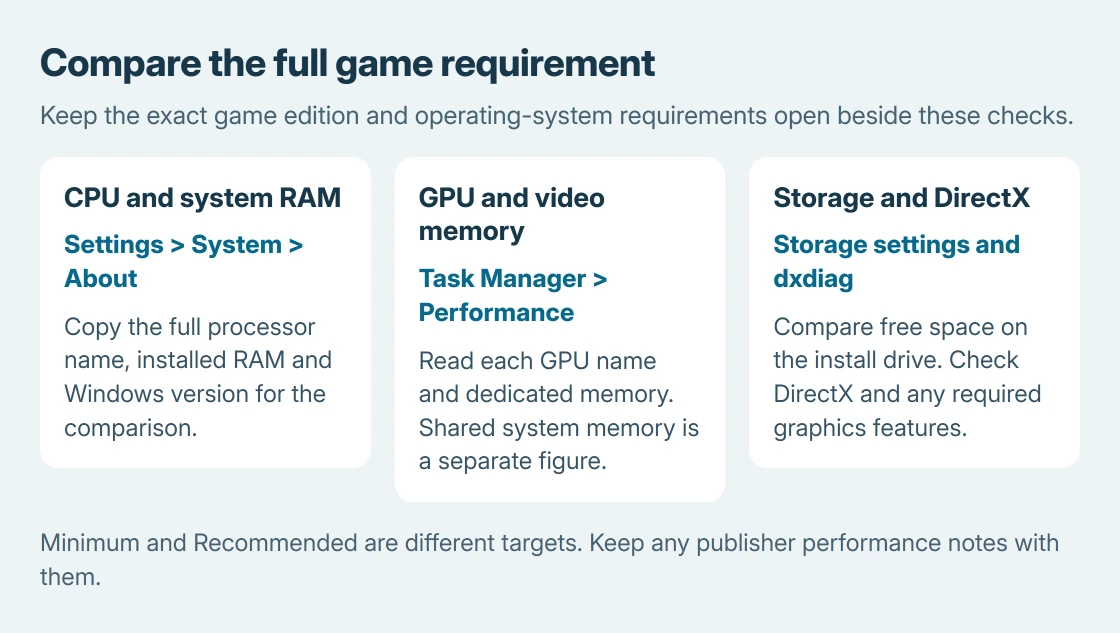
Use Settings > System > About to record the whole processor name, installed RAM and Windows version. Microsoft documents these fields in its device information guide.
Compare every required item rather than using one specification as a pass for the whole computer:
- Operating system: confirm the required Windows version and architecture are supported.
- Processor: compare the exact CPU model. Clock speed or the i5/i7 label alone cannot rank different processors reliably.
- RAM: compare installed system memory with the game's stated amount.
- Graphics: check the chip model and required capabilities, as well as its video memory.
A larger RAM figure cannot compensate for an unsupported OS or GPU. The 16 GB memory guide addresses the extra room needed for other open applications.
Identify the graphics chip and its own memory
Press Ctrl + Shift + Esc, open Task Manager, then Performance and select each GPU entry. Record the chip name and the capacity shown for dedicated GPU memory when available.
Microsoft states that its GPU memory accounting separates dedicated and shared memory. Shared memory comes from system RAM, rather than extra VRAM fitted to the graphics card.
A large combined total does not mean a game's dedicated video memory requirement is met. Compare the named graphics hardware as well as its memory.
Keep laptop and desktop GPU variants distinct when checking publisher guidance.
On a laptop with two GPUs, note both. A game that is compatible but uses the wrong graphics chip needs a launch setting checked; the gaming graphics settings cover that situation.
Check storage and DirectX separately
Open Settings > System > Storage and inspect the drive intended for installation. Compare free space with the game's requirement, including an SSD requirement when one is specified. Total drive capacity is a different figure.
Search Windows for dxdiag and open it. On System, read DirectX Version. Microsoft says its DirectX diagnostic instructions use that field to identify the installed version.
The installed DirectX version alone does not show every graphics capability. EA's DxDiag guidance also checks hardware and graphics feature levels when comparing a PC with a game.
If support requests a report, select Save All Information in DxDiag. Send it through the publisher's support channel after reviewing its contents, rather than publishing the whole report unnecessarily.
Act on the part that does not meet the requirement
An unsupported OS, insufficient storage and a weaker graphics chip need different remedies. Our recommendation is to identify the failing requirement before spending on parts; extra RAM will not resolve all three.
When every listed requirement appears met but the answer remains uncertain, send the exact hardware names to the game's support team. Ask about support for that configuration and the intended settings rather than a guaranteed frame rate.
The Short Version
Compare the publisher's requirements with About, Task Manager's GPU pages, Storage and DxDiag. Keep system RAM separate from dedicated graphics memory. Meeting the listed specifications does not supply an unpublished performance guarantee.

Isaac Smith is the founder and editor of PC Glance, a website that covers computers, laptops, and technology. He is a tech enthusiast and a computer geek who loves to share his insights and help his readers make smart choices when buying tech gadgets or laptops. He is always curious and updated about the latest tech trends.