BlueStacks Air needs an Apple silicon Mac, so an Intel Mac won't run this edition. Check Apple menu > About This Mac first. On a supported Mac, the next checks are memory, free storage and whether the downloaded file is the Mac installer.
A download that won't open, an installation that stops and an Android game that won't install are different problems. Follow the part that matches the step where it fails, instead of reinstalling everything for a game download error.
In this guide
1. Check the Mac before downloading another installer
Open Apple menu > About This Mac. A supported machine shows an Apple chip, such as M1, M2, M3 or M4. An Intel processor means this is the wrong edition for your computer, regardless of how recently you updated macOS.
The system requirements are macOS Big Sur (11) or a newer release, 8GB RAM, and 12GB free storage. They recommend 16GB RAM. Check each requirement. Even with a supported chip, your Mac still needs enough memory and disk space.
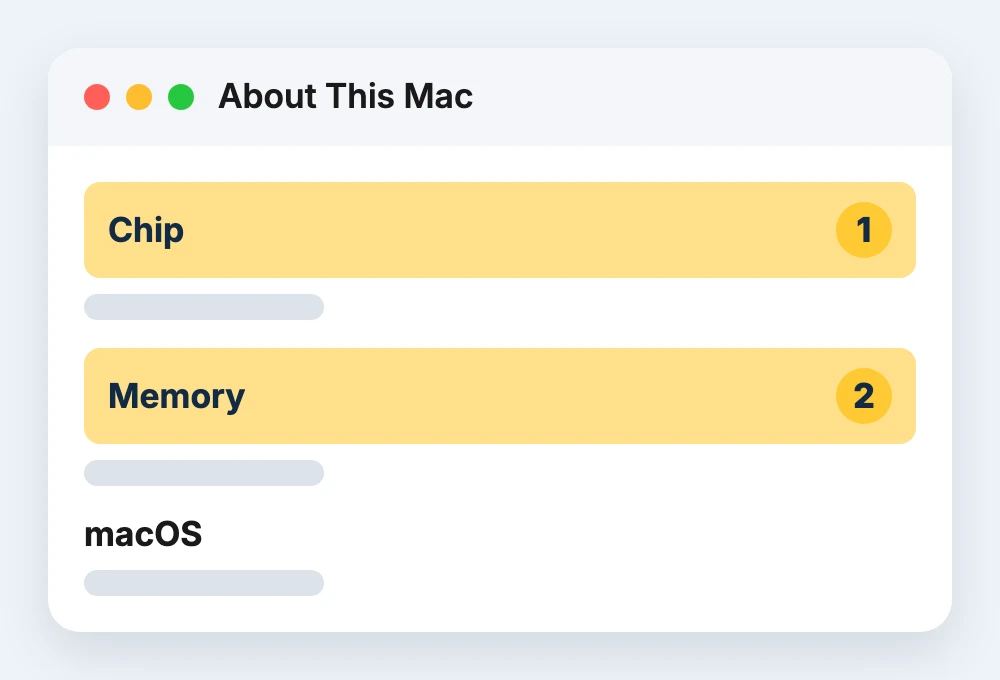
Read the Chip and Memory entries, then check the macOS version. Don't confuse storage with memory. Removing downloaded movies can free disk space, but it doesn't increase the RAM fitted inside the Mac.
BlueStacks' published requirements name M1 through M4. If your chip is newer than that list, check its current support page for confirmation rather than assuming that an older requirements table covers every later Mac.
An Intel Mac needs a different way to play the game. Look for a macOS edition from the game developer. For Windows games, the Mac streaming options explain routes that use another machine to run the game.
If your chip and memory meet the requirements, check storage next. If they don't, stop downloading different copies of Air. Changing the filename or allowing an installer through a security prompt can't change its hardware requirements.
2. Make room for the installation
On macOS Ventura and later, open System Settings > General > Storage. Wait for the categories to finish calculating. Check free space on the internal disk where Air will be installed, rather than an external drive holding downloads.
On macOS Big Sur or Monterey, open Apple menu > About This Mac > Storage, then choose Manage for storage recommendations. The location changed in later macOS releases, but the question is the same: is enough disk space available?
Free space until you meet the 12GB requirement. Move personal files you recognize or remove replaceable downloads. Android games also need room, so a Mac with just enough space for Air can fail at the game installation stage.
Check the Trash before emptying it, then reopen the storage view. Files in the Trash still occupy space. Retry the installer once the Mac reports enough available storage, using the free space shown there rather than guessing.
I'd check this before repeatedly restarting the installation. Restarting can resolve a temporary fault, but the installer still needs enough free disk space.
3. Use the Air installer for Mac
Get Air from the official Mac download page. Choose BlueStacks Air, rather than a Windows download or another product advertised on the same site. The installation instructions describe a .pkg file for macOS.
In Finder, open Downloads and double-click the downloaded .pkg file. When the installation wizard appears, select Continue and follow its prompts. Enter your administrator credentials if macOS asks for them during installation.
A .exe file is a Windows installer. Downloading it successfully doesn't make it usable on a Mac. Get the macOS package from the Mac page; a different file-opening app won't convert the Windows installer.
If the download was interrupted or the package reports that it can't be opened, get the package again from its official download page. Save the failed attempt's exact wording. Compare any new error with that message.
The installation is complete when the wizard finishes and you can open Air from Applications. A browser showing that a download finished only confirms that a file arrived. It doesn't confirm that macOS installed the application.
4. Match a security message to what it actually says
A security warning needs different treatment from an incompatible Mac or insufficient storage. Read the entire message. What to do depends on whether macOS restricts you to App Store apps, can't verify a developer or gives a malware alert.
For an App Store-only restriction on recent macOS, check System Settings > Privacy & Security, then find Allow apps downloaded from. Apple's app security instructions explain the available choices and trusted-app exceptions.
On Big Sur and Monterey, the corresponding controls are in System Preferences > Security & Privacy > General. A work-managed Mac can restrict these choices, so ask its administrator to approve the software when the setting is locked.
Don't override a malware or damaged-software alert just to make an installation finish. Download from the official source again; if the alert returns, send its full wording to support. Leave system-wide security protections enabled.
If a trusted download is blocked because its developer can't be verified, check its source first, then follow the steps to allow a trusted app on your macOS version. Air's hardware requirements still apply after any security exception.
5. Stop reinstalling Air when only a game fails
If Air opens and displays its home screen, its installation has finished. A failure inside its store is now a game installation problem. Open Store, select the game's tile, then choose Install on the game page.
Once installed, the game's icon appears on Air's home screen. Launch it there. If it won't install or open, close and reopen Air, then retry the game. Keep any account error separate from the earlier Mac installer message.
If restarting Air doesn't help, reinstall that game after checking its saved progress. The emulator installation example explains how to check the game's name and publisher before choosing its store listing.
If the Mac meets the requirements but Air's package still fails, open BlueStacks Support and request help with BlueStacks Air installation on Mac. Include your chip, RAM, macOS version, free storage and the exact installer error.
Say whether the .pkg never opens, the wizard stops, or Air installs but won't launch. With that detail, support can focus on the stage that's failing instead of starting with the Android game.
The Short Version
Check the chip, memory and free storage first. Use the Mac .pkg installer, read any security warning carefully, and separate a failed Air installation from a game that won't install inside a working copy of Air.
Checked November 27, 2026.
 If you have any business, I can build it online