
Yes, you can play Block Blast on a Windows PC with an Android emulator such as BlueStacks. Install the Android game inside it and check that the developer is HungryStudio, since other block games use very similar names.
You'll be playing the mobile game in a desktop window. Browser puzzles with similar names can be different games, and your phone's score or progress might not transfer.
Check the game name and developer first
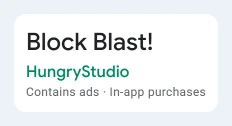
Open the Block Blast! Google Play listing and look for HungryStudio beneath the title. The store address includes com.block.juggle, which identifies this Android app.
When searching from a PC, check the developer as well as the title. Another game can use the Block Blast name. A solver is a different app too, even if its name starts with the same words.
The game's official homepage points to its iOS and Android downloads. For the Windows method in this guide, use that Android edition inside the emulator instead of looking for a random Windows executable with the game's name.
Check the title and developer again before selecting Install. An ad or search result may take you to a different product than the store listing you checked.
Check whether your PC can run BlueStacks
BlueStacks is an Android emulator, software that runs Android apps on your computer. It uses storage and memory alongside the game. Opening the game's store page doesn't tell you whether your PC can run the emulator.
Read the current BlueStacks system requirements before downloading. You'll need an Intel or AMD processor, 4 GB RAM or more, administrator access and free storage for the installation.
Use Windows 10 or later for current BlueStacks 5 releases, and leave 10 GB of free drive space for this game setup. Windows 7 and 8 need older releases, which don't follow the current setup described here.
Press Ctrl+Shift+Esc to open Task Manager, then choose Performance > CPU. Check the Virtualization entry. This is the processor feature that helps the emulator run its Android environment efficiently.
If that entry is disabled and the installer asks you to enable it, follow the computer maker's instructions for your exact model. Collect your PC hardware details so you can use the right manual.
For an employer's or school's computer, ask IT about permission to install an emulator before using administrator credentials.
Install the emulator from its own download page
Use the HungryStudio game page on BlueStacks. Confirm the developer there, then use its PC download control. The page with only block-blast in the address can describe another developer's game.
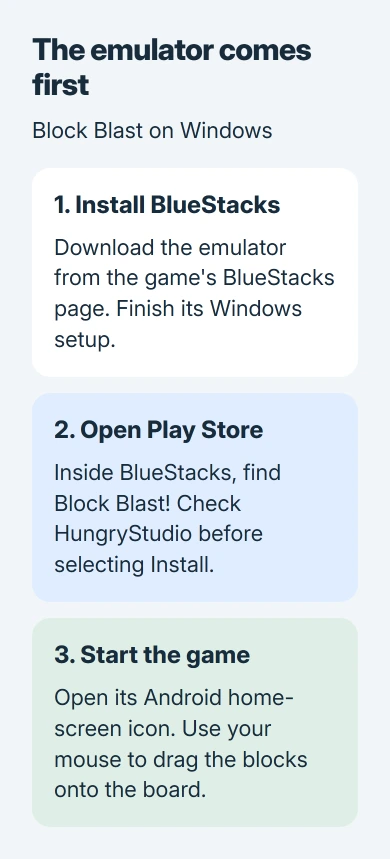
Run the downloaded installer and read its installation choices. The installation instructions describe an Agree and Install button and show where the installed version appears.
Once setup finishes, wait for Android to open inside BlueStacks. You've installed the emulator; next, add Block Blast inside it, just as you would on an Android device.
I'd install through the store first, where you can check the developer and get normal game updates. Downloading an Android installer (APK) from a search result adds another source you'd need to check.
Add the Android game and start a round
Open the Play Store inside BlueStacks and sign in to the Google Account you want to use there. Search for Block Blast!, open the HungryStudio listing and select Install. Wait until the button changes to Play or Open.
Google says to select your app and install it through Google Play. Inside BlueStacks, use the Play Store for those steps, rather than Windows' own app store.
Launch the game from its Android home-screen icon. Use the mouse to drag a block from the available pieces to a valid position on the board, then release it. The basic action follows the mobile game's drag-and-drop control.
Start a round and check that each piece lands where you release it. Enlarge a small window before changing game controls. A board you can read and accurate dragging matter more here than a complicated keyboard setup.
Keep the game on your phone while you check it on PC. The same Play Store account doesn't automatically give you shared saves. Look for an account or save feature inside the game before expecting your progress to match.
Understand browser versions and cloud buttons
A browser puzzle with the same name can look familiar without being HungryStudio's Android app. Compare its publisher and account features before expecting the same modes, purchases or scores.
A cloud-play button on an emulator site may not work for every game or in every region. These steps use the installed Android app. Check that it opens inside BlueStacks before troubleshooting gameplay.
To play the game installed on your phone, you'd need a separate streaming or screen-mirroring setup. That depends on your phone and connection; opening a web game with the same name won't do it.
If the emulator or game won't start
Note where things stop: the Windows installer, Android inside BlueStacks, Google sign-in or Block Blast. For an installer error, use the emulator's support steps. For a game-only error, note the game's version and message.
Check current graphics drivers and the emulator's requirements before reinstalling repeatedly. If Windows becomes slow during play, close extra apps and use the slow-computer checks to see what's consuming memory or storage.
Contact BlueStacks Support for launch problems or the game's support contact for a failure limited to Block Blast. Include the Windows release, emulator version and exact error so the report reaches the right product.
The Short Version
Use an Android emulator on a supported Windows PC, install HungryStudio's Block Blast! through its Play Store, and play with mouse dragging. Verify the publisher before installing and check save support separately from basic gameplay.
Checked November 5, 2026.

Isaac Smith is the founder and editor of PC Glance, a website that covers computers, laptops, and technology. He is a tech enthusiast and a computer geek who loves to share his insights and help his readers make smart choices when buying tech gadgets or laptops. He is always curious and updated about the latest tech trends.