Steamwebhelper not responding in Whisky on a Mac can mean the current Steam client has outgrown Whisky's old Windows compatibility engine. Quit the stuck bottle first.
For repeated startup failures, Whisky's own workaround restores an older Steam build, but the project is no longer maintained and recommends moving to CrossOver.
In this guide
1. Close the stuck Steam bottle first
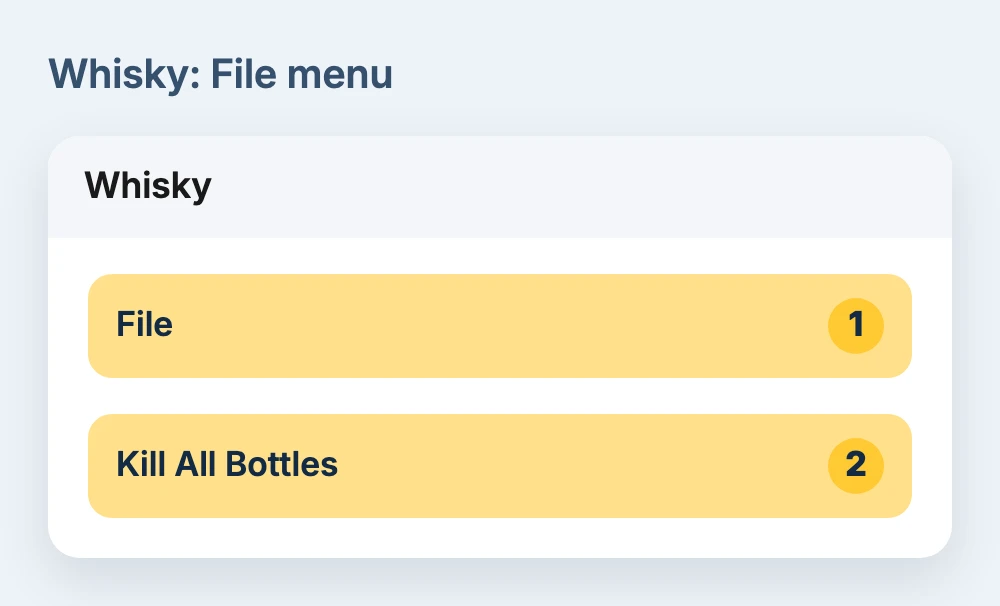
Open Whisky and choose File > Kill All Bottles, or press Command-Shift-K. This stops the Windows programs running inside Whisky. Save anything you can in other bottles before using it, because the command stops those programs too.
Start Steam again from the same bottle and give it time. Whisky's documentation warns that startup and the interface can be slow. A library that eventually opens is slow; a helper that keeps crashing needs a different fix.
Steam uses the helper to display its interface. If it crashes, the library or sign-in window can fail before a game starts. Changing a game's resolution won't repair a Steam window that never opens.
If the same error returns on every launch, check Whisky's maintenance status next. Repeatedly choosing Restart Steam in the error dialog won't update the software Whisky uses to run Windows apps.
2. Check whether this is the unmaintained Whisky app
The original Whisky project isn't maintained. WhiskyWine, which runs its Windows apps, won't receive updates. Its maintenance notice says app-specific fixes for Steam won't be produced.
That matters when a Steam update changes the client. A Mac that ran the same bottle yesterday can fail today without a macOS setting changing. Reinstalling the same Whisky app won't update its Windows compatibility software.
Confirm the download source before following instructions for a similarly named fork. Menus and compatibility options added by another project aren't settings in the original Whisky app.
I'd choose a maintained route for a library you use regularly. Keeping Steam on an old version is a temporary compromise, especially when it signs in to an account you care about.
For options that use another computer or cloud service, playing Windows games on a Mac for free covers streaming routes. Check that your game is supported before changing your setup.
3. Use the archived Steam workaround only by choice
Whisky's Steam instructions publish an older-client workaround for startup error 0x3008 and the quit-or-restart loop. They don't promise it fixes every message involving steamwebhelper.
The procedure restores the March 6, 2025 Steam client and blocks Steam's normal startup update. Running an outdated client carries security risks. Use a maintained alternative instead if that tradeoff doesn't suit you.
Keep your current bottle while trying this. Don't begin by deleting its games, saves, or the whole Steam folder. That way, you still have your original files if the attempt fails.
After stopping all bottles, open the configuration for Steam in Whisky. Replace its launch arguments with the following single line. Keep the spaces and the trailing -exitsteam exactly as written.
-forcesteamupdate -forcepackagedownload -overridepackageurl http://web.archive.org/web/20250306194830if_/media.steampowered.com/client -exitsteamClick Run. An update installer dialog should appear, then Steam should close. Steam downloads its files from that archive address. To check whether the update worked, watch Steam rather than opening the archive in your browser.
Once that update finishes and Steam closes, replace the temporary arguments with this different line:
-noverifyfiles -nobootstrapupdate -skipinitialbootstrap -norepairfiles -overridepackageurlClick Run again. Steam should now open its sign-in window or library without showing the startup error again. Leave these as Steam's launch arguments, rather than pasting them into a game's own launch options.
Remove and regenerate any Whisky shortcuts you made for that setup, as the instructions require. An old shortcut can otherwise keep launching with different arguments from the entry you've just changed.
4. Try a separate bottle when the client still won't open
The project's fallback is to reinstall Steam in a new bottle. A bottle holds a program and its settings in a separate Windows environment. A fresh bottle lets you try Steam with separate settings while keeping your existing setup.
Use the Windows Steam installer for this route. The Mac Steam app is for native Mac games; placing it beside Whisky doesn't replace the Windows client inside a bottle.
Give the new bottle a name you'll recognize. Install Steam there, then follow the documented client procedure if the same unsupported-version failure appears. Keep the old bottle until you've checked your saves.
If the fresh setup reaches the library, the previous bottle needs attention. When the helper crashes there too, stop making more bottles with the same setup and try another way to run the game.
Windows apps running in Whisky use different closing controls from native Mac programs. Use Mac force-quit controls when a native Mac application stops responding.
5. Keep download stalls separate from helper crashes
Steam opening successfully but leaving a download stuck is another case. Restart Steam first. If the download remains stuck, the project's instructions say to change the bottle setting from MSync to ESync, then restart Steam.
Try that for the download symptom after the library works. The project doesn't present it as the replacement for the old-client startup procedure. Change one setting per attempt so you can judge its effect.
If the download starts moving again, let it complete before starting the game. If the game then fails to open, you've moved past the Steam helper problem and need to check the game itself.
When the old client still fails
Use the alternative named in Whisky's maintenance notice, or choose a supported native or streaming version of the game. Ask the alternative's support team about that exact game and Mac before paying for a license.
Report the Mac chip and macOS version alongside the Whisky release and exact error. Include the fresh-bottle result. These details separate a failure to start Steam from trouble running that particular game.
A working Steam window also doesn't make every Windows game compatible with macOS. For a native Mac app that hangs separately, force-quitting a frozen Mac app explains the system controls.
The Short Version
Stop all Whisky bottles, then retry Steam. Repeating failures can come from the abandoned engine. The archived-client workaround has security tradeoffs; a maintained app or supported streaming route is the better long-term choice.
Checked November 27, 2026.
 If you have any business, I can build it online