
An incompatible iPad app usually needs newer software or different hardware. Compare its requirements with Settings > General > About, then install any supported system update and retry the download.
An older iPad can be fully updated and still fall short of an app's requirements. Clearing storage or changing your Apple Account won't change that limit, but a compatible older download may be available for an app you've had before.
1. Compare the app's requirement with this iPad
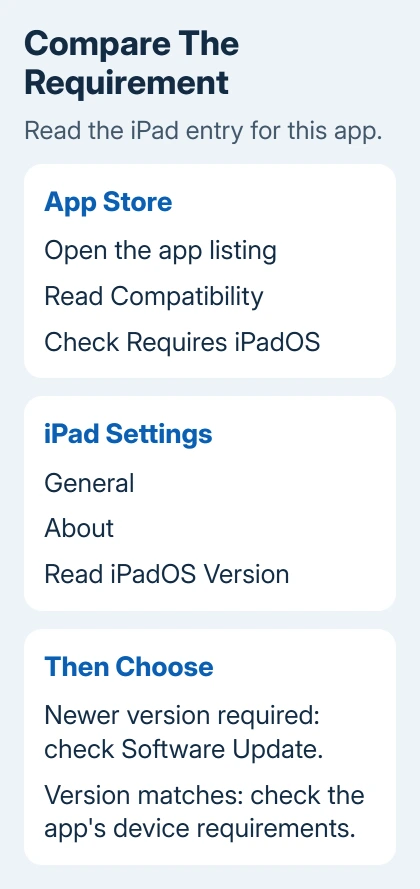
Open the app's full page in the App Store. Scroll to its information and compatibility details. Read the requirement for iPad, including the minimum iPadOS version. An iPhone requirement on the same listing isn't the one to compare.
Next, open Settings > General > About. Read iPadOS Version and Model Name. You'll need both: the installed version tells you whether an update could help, while the model tells you which updates the iPad supports.
If you're unsure of the generation or bought the tablet secondhand, identify the exact iPad model before checking for a newer release. The device name can be anything its owner chose.
Read the app description for hardware requirements too. Updating iPadOS can't add a missing processor feature, camera or accessory. Some developers restrict an app to specific iPad models.
If the installed version is too old, check for an update next. If it meets the requirement but the app still says the iPad is incompatible, contact the developer with your model and the app's requirement.
2. Install the newest update offered for your model
Back up the iPad before updating. Connect it to Wi-Fi and power, then open Settings > General > Software Update. Read the release offered there and choose Download and Install when it's available.
Apple's wireless update instructions describe the steps. Keep the iPad connected while it downloads, installs and restarts. Unlock it, then return to About and check the installed version.
Retry the app download after updating. If it starts, the software requirement was stopping it. If the message stays, read exactly what it says before repeating any steps.
An up-to-date message in Software Update means your iPad has the latest release it supports. That can still be older than the newest iPadOS available for other models.
When a newer major release never appears, the iPad update eligibility checks help separate a supported model from an older one. A factory reset doesn't make an excluded model eligible.
If an update appears but won't install, fix that problem first. Trying the App Store again while the iPad still runs the earlier version won't help with the app's software requirement.
3. Separate incompatibility from a failed download
Read the complete alert. Verification Required, a billing warning and an incompatible-device message need different repairs. A payment problem can block a free app without saying anything about the iPad's hardware.
If the requirement matches but an ordinary download stalls, restart the iPad and try again. For an app already downloading, touch and hold its icon and choose Prioritize Download when that option appears.
The App Store download checks cover payment details and interrupted downloads. Follow them when the warning matches your screen; a refused download doesn't always mean the iPad is too old.
Free storage matters when installation needs more space. It won't satisfy a higher minimum iPadOS version. Work from the alert you actually see so you don't delete photos for a requirement that storage can't fix.
4. Check your previous apps for a compatible download
For an app you've already added to your Apple Account, check its download history. Open App Store, tap your account photo, then choose Apps & Purchase History > Your Apps. In a family group, choose My Apps for your own purchases.
Open Not on this iPad, find the app and tap its redownload control. Follow the redownload procedure with the account you originally used to get the app. This includes free apps.
Accept an older compatible version only if the App Store offers one. Developers choose which older releases stay available, so you won't get an older copy of every app this way.
I'd keep a working copy installed while checking these options. Deleting it first can leave you without the app if its current download no longer supports your tablet.
An older copy may install but no longer connect to its online service. If it demands an update or blocks sign-in, ask the developer whether that release still connects. Being able to install it doesn't mean its service still works.
5. Ask for a supported alternative when the limit remains
Send the developer your iPad model, installed iPadOS version, app name and the exact message blocking the download. Ask whether they offer a compatible release or a supported browser version for that tablet.
If the listing says the iPad qualifies but the App Store still refuses it, contact Apple Support with those same details. Include screenshots of the requirement and alert so support can compare them.
When your iPad can't run the required system and no compatible copy is available, you'll need another supported device for that app. There isn't an App Store setting that turns an unsupported iPad into a supported one.
The Short Version
Match your iPad's model and software to the app's requirement, then update if supported. Check previous purchases for an older copy if offered. Ask the developer or Apple Support if the iPad qualifies but the download still fails.
Checked November 6, 2026.

Isaac Smith is the founder and editor of PC Glance, a website that covers computers, laptops, and technology. He is a tech enthusiast and a computer geek who loves to share his insights and help his readers make smart choices when buying tech gadgets or laptops. He is always curious and updated about the latest tech trends.